
Groups can be added from the upload of a timetable file, see Timetable management. They can also be created from the courses page (Curriculum > Courses) in the Subject details section. If a group is added in the GO 4 Schools MIS you will need to add to the timetable using the same group code to match. If not included on the timetable the groups will remain untimetabled (but will appear as groups on the subject page).
If a new group is added to the timetable upload the group will be added to the MIS and can then be populated with students (please refer to guide 'Managing group memberships'). We would recommend for timetabled subjects and groups to use this approach so group codes match in the MIS and timetable files.
Permissions
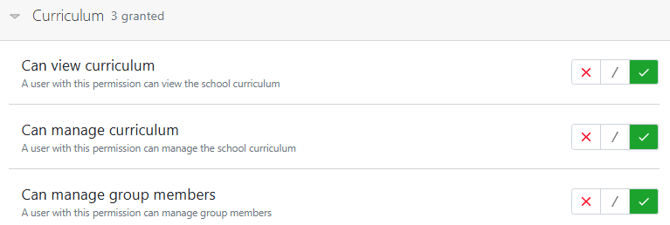
Users will require Curriculum permissions to manage groups, and Timetable permissions if adding groups via a timetable upload:
Adding groups
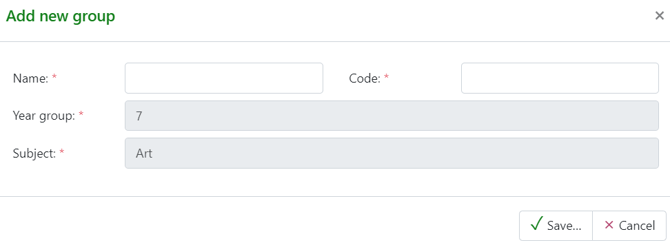
From Curriculum > Courses > select course - the 'Subject details' block in a course allows you to select the ‘Add group’. Use the modal to add the group name and subject code. i.e. 'Ma' for Maths, then Save.
NB: Ensure the group code matches any that may be used in a timetable file.
Under the 'Groups' tab the groups added will display.
 NB: Students cannot be added from the courses page., this will need to be via the group page (Curriculum > Groups > Groups) or via the groups csv upload (Curriculum > Groups > Groups CSV upload). Please refer to guide 'Managing group memberships'.
Adding from the Group page
From Curriculum > Groups > Groups the group listing page also has an option to add a group via the +Add group link on the page.
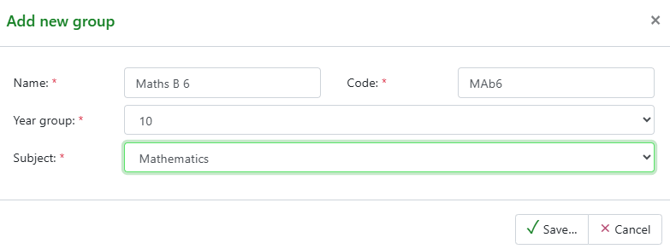
The Year group and subject are required to add the group.