
Admissions are part of the student record and enable students to be added to the MIS and enrolled at school. Admissions can be a new intake in the lowest year of the school or at specific phases of education e.g. KS3 or KS5. Admissions can also be mid-year across the school adding a specific date of entry. As well as adding a student to the school roll, the admissions area can be used to mark students as leavers.
The admissions page can show all students who have been enrolled at the school, including leavers, so the page is paginated.
Settings
School > Contact details and settings > School details tab - the LA name and the school URN is required for admissions to be fully enabled.

School > Contact details and settings > MIS tab
For the UPN generation to work the English and Welsh validation rules also needs to be enabled. For international schools this setting is disabled.

Permissions
The permissions required for Admissions will include:
- ‘Can manage basic student information’ required for users to edit admissions and admission groups to manage aspects of the student records.
- ‘Can manage admissions’ permission is required to add specific admission information to the student record.
- ‘Can view’ admissions will allow staff to view students with a different enrolment status.
Admission groups
Creating an admission group allows a user to manage and view all students that are admitted at a set time; academic year start or mid-year admission - all students in an admission group will have the same admission date.
Go to: People>Admission groups and select +Add group to complete details in the pop-up.
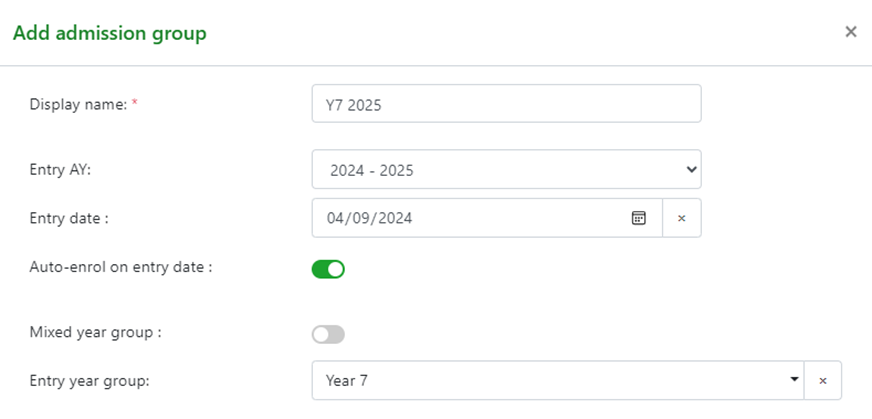
Select the admission year and the entry year group from the menus. ‘Mixed year group’ can be selected which may be useful when students are joining at the start of an academic year across year groups. Auto-enrol will add students to the MIS once the entry date is reached. The group will display on the listing page with various filters to view and download the groups:
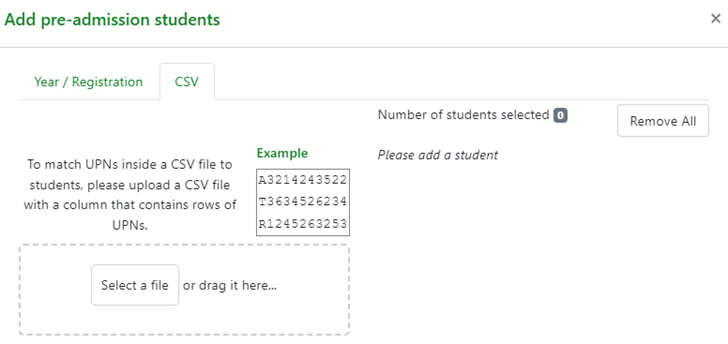
There is also an option to add students via a CSV upload using the UPN.
The admission group can be edited i.e.. to change the name but this will not alter the students already added to the group.
An admission group can be deleted from the 'Delete group' link on the admission group page and the students in that group are without an admission group.

Admissions listing page
People > Admissions - This page lists all students including admission numbers and includes built in filter to view by Admission status, offer status, academic year and year group filters.
By default pre-admission students will display for all year groups. This can be changed by selecting from the ‘Admission status’ drop down option.

The page can be filtered by year group and academic year then students selected and downloaded as a .csv.
Bulk admissions
The admissions page and Admission groups page also have some bulk actions for managing large groups of students:
- Set or change admission date for all students.
- Change admission group
- Change offer status
- Change leaver status – mark as leaver and set leaver date and reason for leaving.
- Bulk admit students will create all accounts for students.
- Download csv
Select the students you want to change the admission status for by clicking to the left of their name and then ‘Selected items’ to see the menu from the drop down menu:
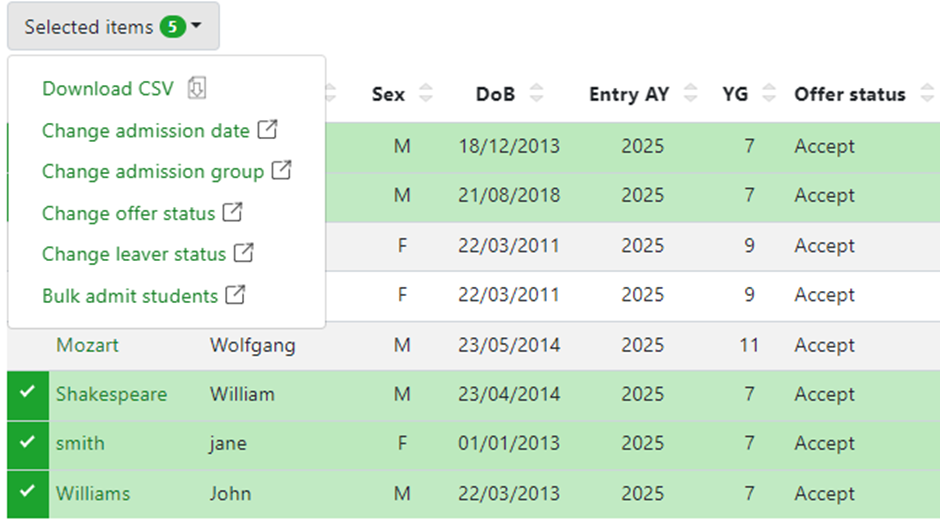
Select the option and then update the information in the modal.
Manually add a student
Select ‘+Add pre-admission student’ from the admissions listing page to access a modal pop-up to add basic details for a student. The Legal last name, first name, DoB and Sex are mandatory fields.
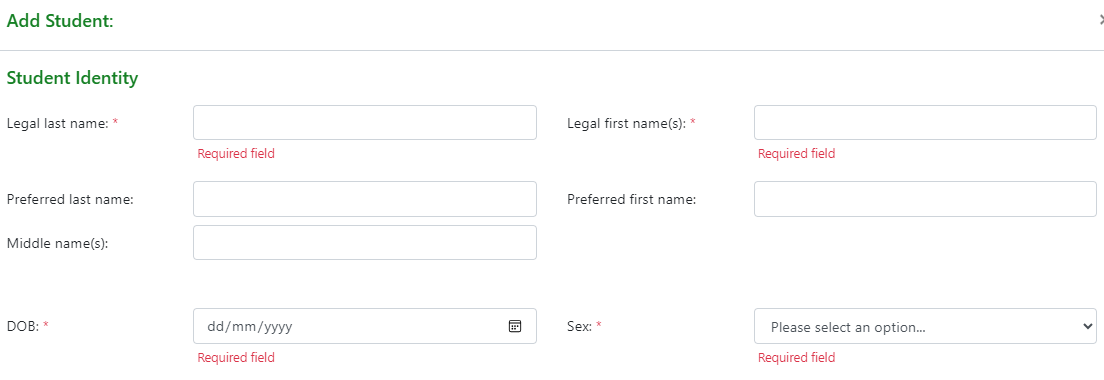
Students must be added as pre-admissions initially to create the record in advance and then students can be admitted as per a specific entry date. The following data can be added via the admissions page or from the Student record page for the student:
Enrolment status is required for all students, offers can be left blank.
Entry year group is the year the student is entering the school, which differs from the NC year group. The academic year of entry should also be added appropriately for the year the student is joining the school.
When the Entry date is entered by default the Auto-enrol on entry date will enable to add the students to the roll as soon as the date is reached.
Admission number – this is created on enrolment and will use the year of enrolment and a sequenced set of numbers.
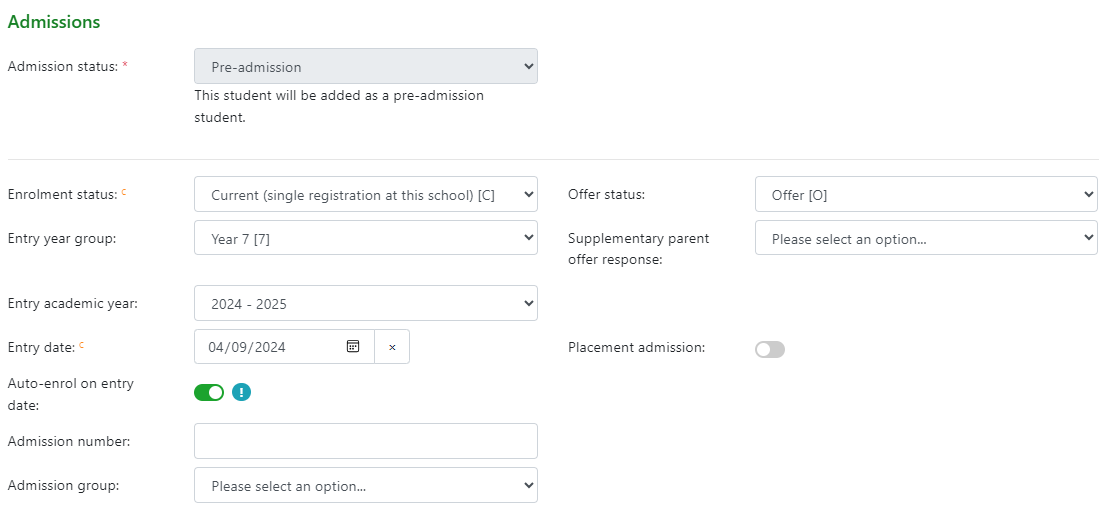
If students are included in an admission group the fields for year of entry and entry year group will be disabled on the SRP as controlled by the admission group setting.
Student record page admissions
The admissions block on the SRP displays more detailed information. The student page header will only show DoB and enrolment status as no other data is available for the student.
All data on the SRP is editable for a pre-admission student.
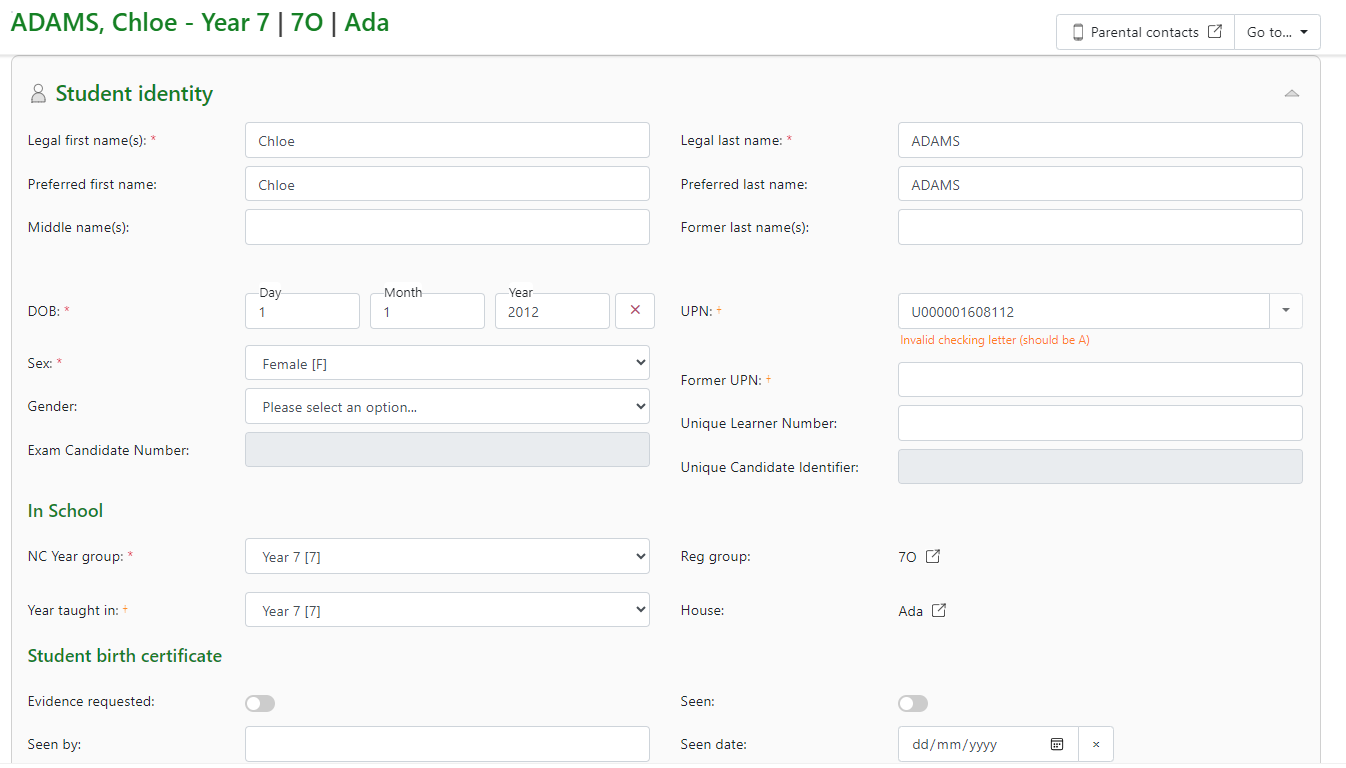
In School
The National curriculum year group is set by DfE rules based on the student’s DoB but the year taught in field is used if taught in a different year group.
UPN
Can be added manually or can be generated based on school settings, for this to work the LA needs to be added in the MIS settings. There is the option to add a permanent or temporary UPN. This is auto generated following the rules for UPN that are checked prior to applying to the student, if any rules are not met the UPN will not be produced.
At this stage the UCI and ULN are disabled if the student status is pre-admission.
Registration and House management
These can be added on separate pastoral management changes. See managing registration groups.
Identity check
The information to check for a student i.e. birth certificate can also be completed.

Account generation
Basic information required for enrolment, the list will display any missing information that is required for account generation.
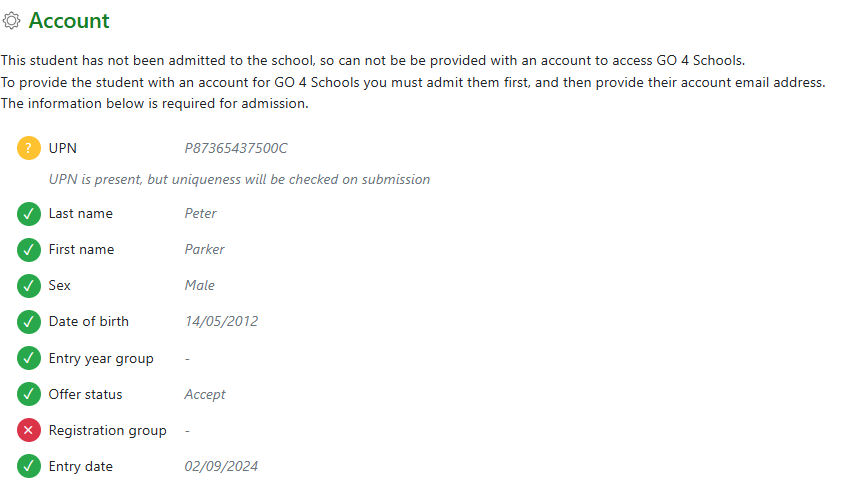
The student email address is added to the student contact details – these can be added in bulk from the student access menu link. A system will complete a uniqueness check to ensure no duplicate emails are present. The student email on the account is the one they will also use to log into the student site and mobile app.
Once all the fields on the Account area are completed the ‘Enrol’ option is available to enrol and add the student account to the MIS. There is no audit trail on the Account page as it is using data from other areas within the student record.
Once a student has enrolled they will display in the GO 4 Schools modules including attendance, markbooks and behaviour where they have curriculum group memberships.