The CTF – Common transfer file import/export process allows student records data to be transferred when a student is being admitted or leaving your school to attend another establishment. It allows the exchange of student data between schools.
The ATF – Admission transfer file is used to import new students to your MIS. The same format is used for both file imports, the ATF usually comes from the Local authority.
Permissions
A user will require the Admissions officer roll and selected permissions.
CTF listing page
In the main menu go to People > Admissions > CTF Import/Export - this page is a list of all imports for the academic year and includes filters to view the data.
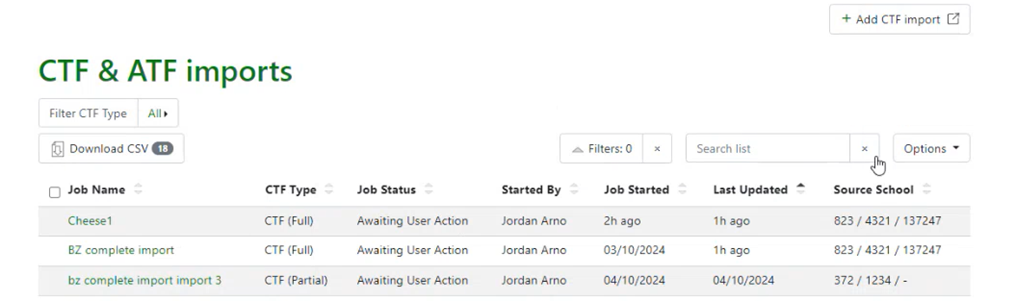
Jobs can be selected and downloaded as a CSV. The Job start will give a more recent update if you have multiple imports to complete i.e. 1 hour ago or full date. Each job name link goes to the detailed page for each import to view specific records.
Import CTF
Go to People> Admissions > CTF/AFT Import select ‘Add CTF import’. A modal will appear for a Job name to be added and the import files containing the CTF records to be added. Notes explain how the files are handled by the MIS on the page.
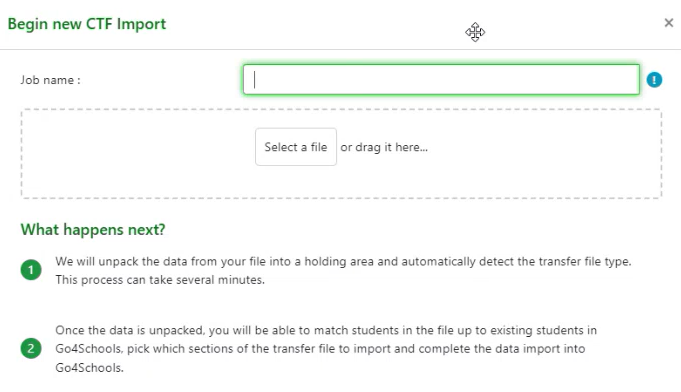
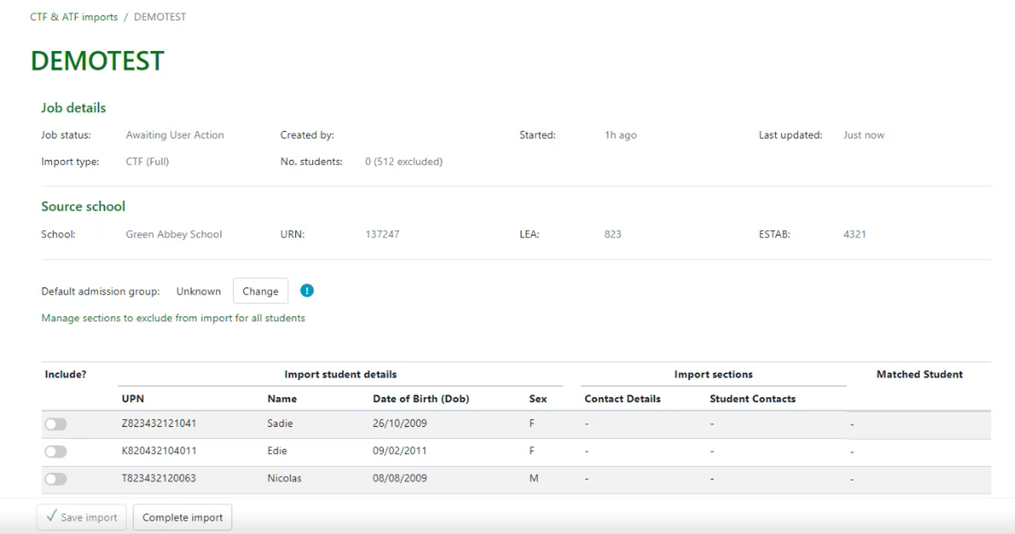
Once saved the files will be added to a holding area in the GO4S MIS for you to review prior to importing. A management page shows the data for each record in the file.
The data is unpacked to make it easier for you to select the data areas you wish to import into the MIS creating a stub record, prior to the final import of data to the student record.
The import will use the following rules:
- If no student record exists in the MIS a NEW student record will be created with all data including the UPN added to the GO4S MIS. In case of new admissions all new student records will be created in bulk.
- If a simple record has been created for a student including first name, surname, DOB, sex the import will match to these fields which can be accepted by the user, however the UPN will not be added to the record this will need to be done manually.
- If a record exists in the MIS including first name, surname, DOB, sex and/or UPN and there are other possible matches the user will be able to review or search for the correct record to match with the student.
- If a temporary UPN has been added to the student record this will NOT overwrite and the new UPN will need to be updated manually.
- If a duplicate UPN is found then options for matching will be visible to select the correct record.

The file check will show matches in the listing page to the existing student record and this can be changed/removed. Details to be included in the import can be seen with options to remove from the final import.
The user has an option to add the new records to an admission group if selected or a new admission group can be created for all new records.
If a student with a clashing year group is added to an admission group set for a specific year group of entry, then this student will not be added to the group. You do not need to assign student to an admission group.
Managing data to be imported
The data in the files can be managed to include/exclude specific areas prior to importing:
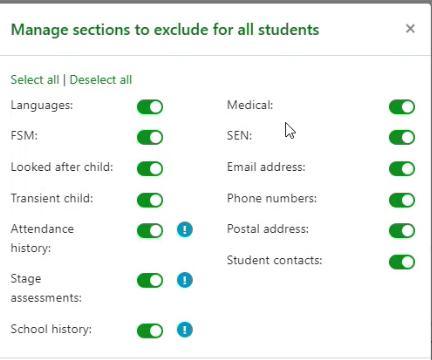
This allows you to remove specific block of information from records such as phone numbers or staged assessments if you have another source for this information.
Matching data
The initial import will show how many records are matched to existing student records in the MIS.

Students with matched records will display at the top of the list. Each record can be viewed to show more detailed data that exists in the record compared to the new data in the CTF file, the user can then select which version is preferential to include in the import.
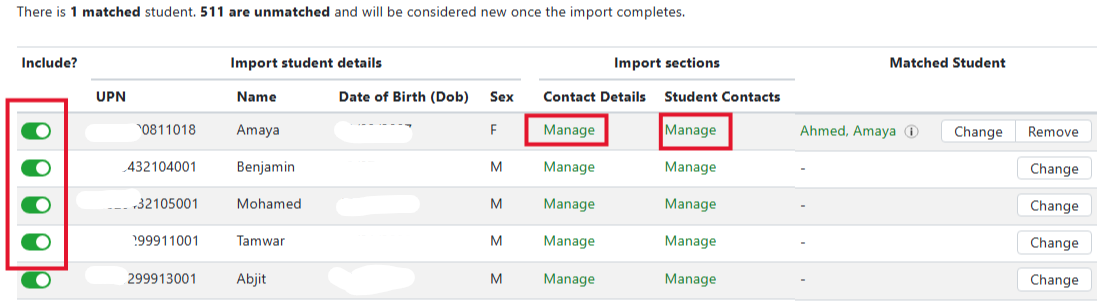
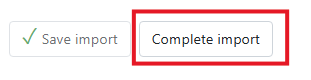
Once each record has been managed as required scroll to the bottom of the page to complete the import:
Once clicked a modal will appear to show final confirmation options for import~:
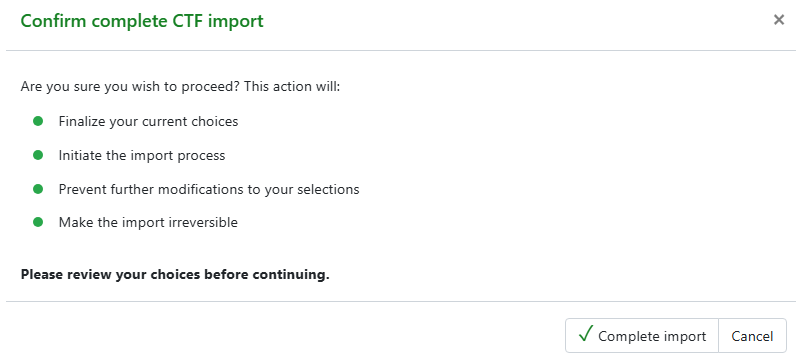
Once 'Complete Import' is selected the CTF import process will start, this may take a few minutes to unpack the data depending on the number of records. If the process is taking longer than 5 minutes refreshing the page will show if the job is still processing.
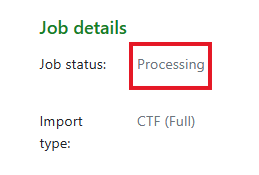
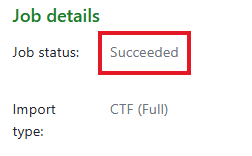
Once complete the job will show as 'Succeeded'. At which point all the data in the import file should be transferred into MIS.
Complete CTF import failure conditions
A complete CTF import will fail and have its job status updated to 'Failed' if any of the following conditions are met:
- The CTF data you've uploaded contains students with duplicate UPNs
- The CTF data you've uploaded contains students with no matched student that have UPNs that are already taken by existing students in the MIS
- There are no students included in the complete import CTF
- A database error occurs when trying to complete an import
- The CTF import has multiple students with the same matched student
Creation of Admission records via CTF/ATF
- Admission records are only created for CTF students that do not have a matched student
- When a student is created via completing a CTF import, the student admission status is pre-admission
- The entry academic year is set if the CTF import job has a default admission group with an entry academic year
- The student's admission entry year group will either come from the CTF import default admission group's entry year or the
NcyearActualvalue found in the CTF file (CTF XML path: CTFpupilData/BasicDetails/NCyearActual). There are various conditions that determine which is used. There's a 'Year group source' option in the default admission group modal which determines this behaviour
Student record update from CTF/ATF Import
The CTF file school history data is imported into the student record page school history block:

Attendance history
The CTF file attendance history data is imported into the student record page attendance history block:

Stage assessments
The CTF file stage assessments data is imported into the student record page stage assessments block, many schools will remove this from the import and upload the Key stage data from GIAP. Below shows the record for English Reading, Maths and GPS SATs results.
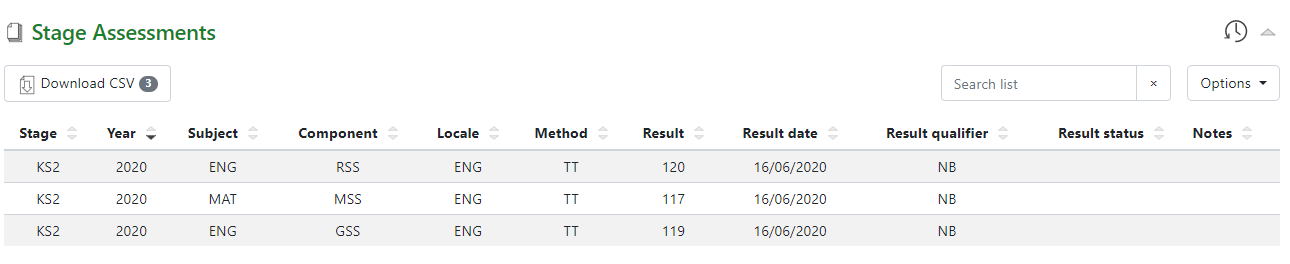
If a stage assessments record from the CTF file matches an already existing stage assessments record (i.e. values for locale, year, subject etc are identical to what we have in the MIS), then we don't import that particular record.
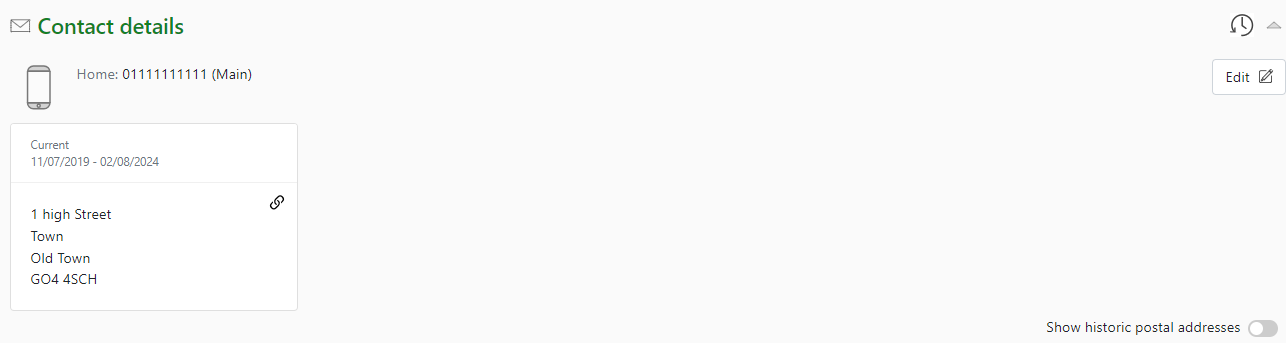
Student contact details are found in CTF XML paths:
- CTFPupilData/Pupil/Phones
- CTFPupilData/Pupil/Email
- CTFPupilData/Pupil/Address
Once imported, this data appears in the student record page contact details block. Opening the edit modal allows you to see the values in detail.
Student Characteristics
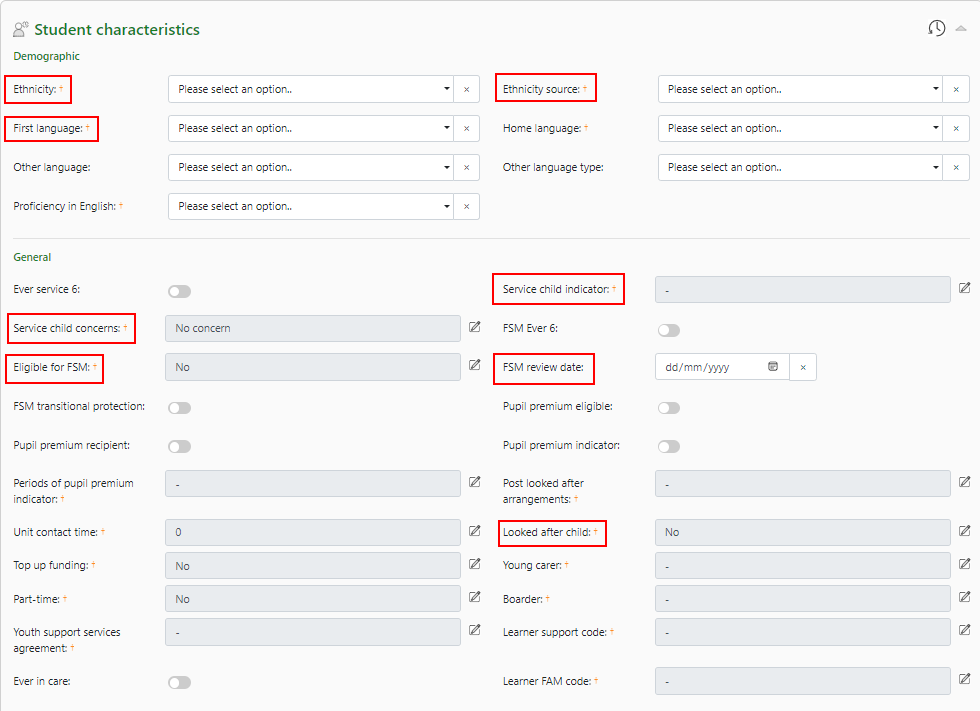
Updates to student characteristics can be checked on the student record page Characteristics block. The areas highlighted can be added via the CTF import process.