
GO 4 Schools MIS supports the management of courses as part of the timetable and curriculum set up. The MIS will require you to add courses for all year groups to enable the set up of subjects, group structures and memberships required for your timetable and links to markbooks, registers etc.
- Courses: A course represents 1 or more years of study for the same qualification (whether formal or informal) and has a definite start and planned end date. A course will be linked to subjects in consecutive academic years and will provide a formal link across those years.
- A course is linked to a single subject this will contain one qualification, whether using a formal qualification or an internal grading scheme.
- The qualification assigned to a course will support separate markbooks for students in each year studying a multi-year course with the option to selectively copy subjects from one academic year to another.
- Ad-hoc courses can be created additionally to those in the timetable import. This allows for manipulation of the timetable i.e. splitting science subjects and supporting wider curriculum tracking.
Permissions
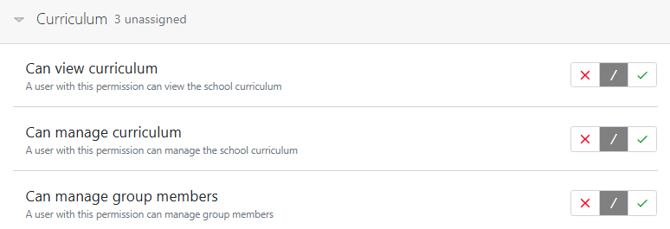
To set up and manage courses users will require all Curriculum permissions:
Courses listing page
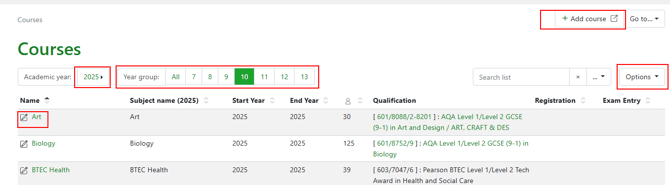
From Curriculum > Courses the listing page can be accessed to view all courses set up by year group, any courses set to run in future academic years and to add new courses. The options page will display additional information for post-16 courses. Details of a course are accessed by using the course name link.
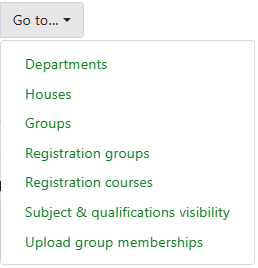
The 'GO to..' link on the page is a quick menu to manage Departments, Houses, Registration courses etc.
Set up and add a Course
Navigate to Curriculum > Courses to access the course listing page and then select ‘+Add course’ to access the pop-up modal to complete the required information.
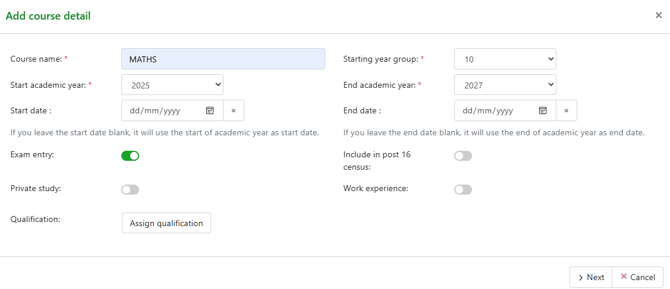
Complete the information required for the course with start and end dates and settings for:
- Inclusion in the post-16 census - see Post-16 course management article
- Exam entry for formal examinations
- Required for census - Private study or work experience if set up on the timetable
- Assign qualification via the qualification picker – ensure this is correct as courses can link to the exam management module.
Click 'Next' to see the subject detail.
GO 4 Schools MIS will create tabs for each of the academic years based on the dates entered. Further information can be added, including subject code (as per the timetable code), and toggles for whether the subject should be excluded from statistics and visible to student and parents. NB: subjects used for homework should be set as visible.
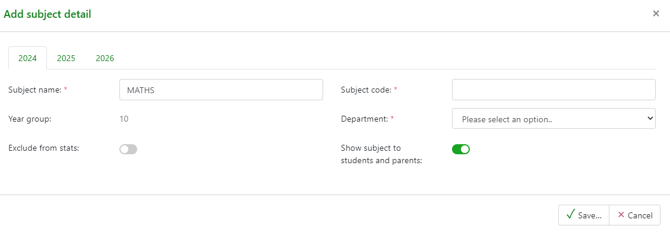
All courses created can then be viewed on the courses listing page.
Validation for future academic years
If the course has been set up to run over more than one academic year, validation checks will flag in future years, to remove these a future department will need to be set up:
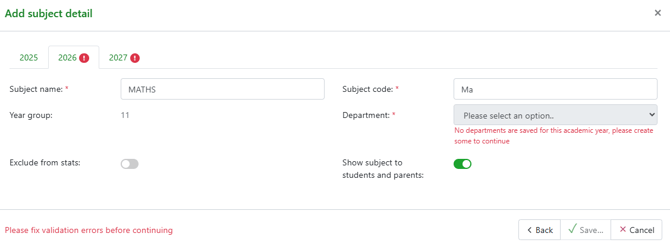
Set up Departments for future academic years
Curriculum > Departments – select ‘Copy departments from another year’ to set up departments for future academic years. This will now allow the subject to be added to the department.
New departments can be added to current and future academic years.

Hints:
You should consider the overview structure of your curriculum to support easy administration of courses, and therefore other associated areas of the MIS.
Key stage 3 could be set up as one year courses for Year 7, Year 8 and Y9. This would be the case if you are using different internal grading schemes for each of these year groups like specific Y7 grades i.e. age related schemes used by primary schools etc. If you are using a single internal grading scheme for Year 7 to Year 9 then we suggest you set up a course that covers these 3 years, this will support continuity across your markbooks and also the option to copy over markbooks to show students progress across key stage 3.
Key stage 4 and 5 will predominantly run as 2 year courses for the duration of the qualification so can be set up to mirror this. When a new cohort needs to be set up then a new course is set for this group of students.
Once the course is set up from the Courses listing page the details completed can be viewed on a single page. If a registration subject then toggle on 'Registration course', the qualification can be edited or assigned from the course details page.
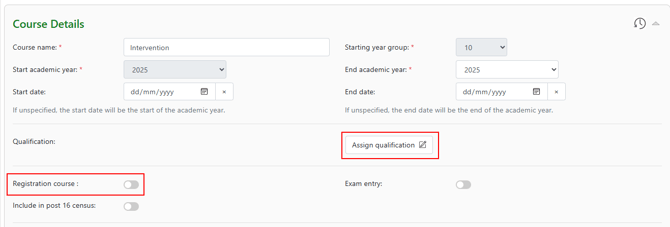
Subject details
From the course details page the subject information will display, including the groups and students on the course. Groups are added by a timetable upload or can be added from this page. See the Adding groups article.