
Required permissions
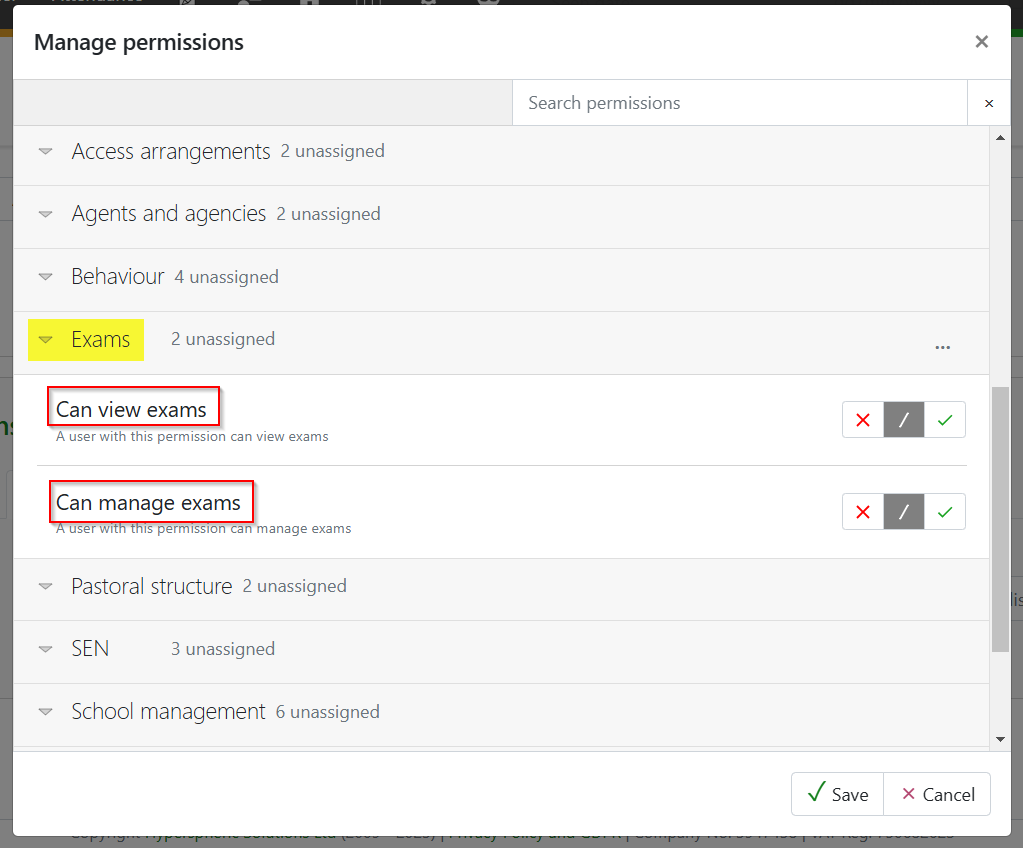
To manage exam submissions the following two permissions are required found under the Exams drop-down.
Managing submissions
Curriculum > Exams > Exam Seasons
Exam entries and amendments made in GO 4 Schools can be either submitted to the exam board using EDI (A2C) or the exam board secure portals. The method of submission does not have to be the same for each series, but exam boards do recommend that you should only use one method for each series.
During the submission process, a series will be locked until the submission is confirmed. Once confirmed, entries can be made/amended again. When there are outstanding changes to be submitted, a yellow flag will be displayed in the Submissions tab.
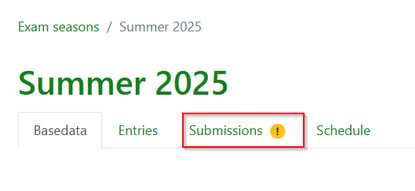
The method of submission will default to EDI, but can be changed on the Submissions page. click on the exam board name, select Extranet from the Channel drop-down menu and click on Save.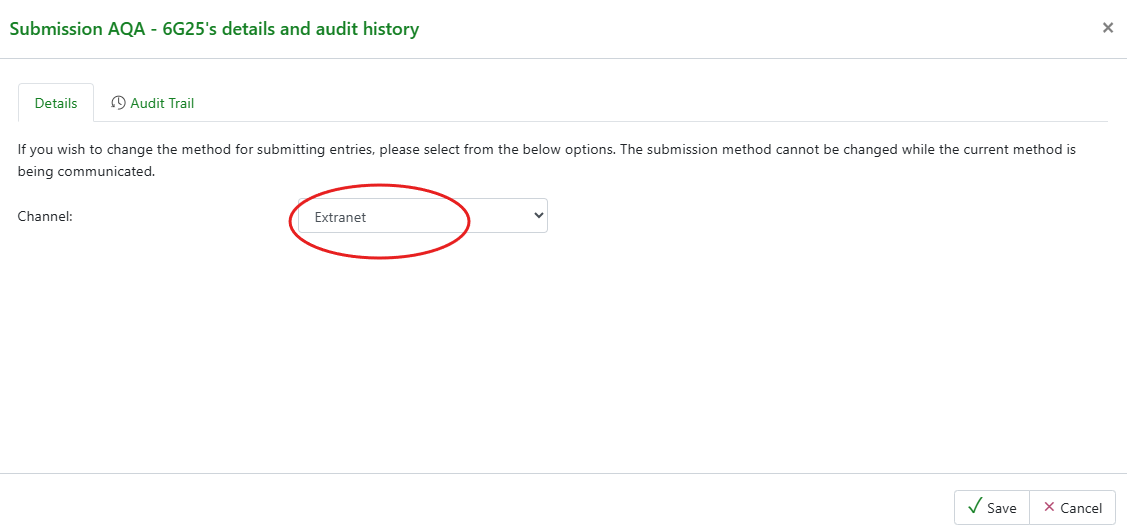
From the Submissions tab, you can check if you have already submitted your initial entry file for a series; if the label says Produce initial entries EDI/CSV, this indicates that no entry has been submitted. If the label says Produce amendments EDI/CSV, this indicates that the initial entry file has already been submitted.
Submitting by Extranet
If submitting by Extranet, click on the Produce initial entries CSV option. You will be prompted to lock the series. This is to prevent any changes being made to any entries until the submission is confirmed. You also have the option to preview the CSV file.
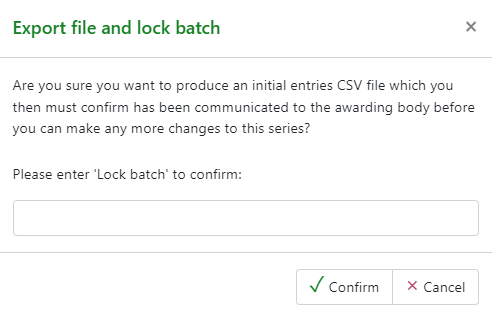
The CSV file will be automatically saved to your Downloads folder. Once you have submitted the information in the file via the exam board secure site, click on the Confirm option to unlock the series.
Submitting via EDI
If submitting via EDI, click on the Produce initial entries EDI option and lock the series. The EDI file will be saved to your Downloads folder. To complete the process, copy the file to your A2C outbox folder and click on Send/Receive files. Once you are happy the file has been sent, click on the Confirm option to unlock the series.
Repeat this process, as and when required, until the Status column for each board shows as 'Up to date.'
Changes to candidate personal details
If the personal details for a candidate change once an exam entry has been made, these changes need to be communicated to the exam board. To check for changes, click on the Recheck for changes button. GO will check the student records for all candidates who have exam entries in that season, and will add a flag to the status column if changes are detected. Follow the above submission procedures to submit these changes.

Please be aware that there is a limit of 40 characters for candidates’ full legal name. This is a restriction within the EDI file, and is outside the control of GO 4 Schools. Should you have any candidates who fall into this category, please contact the relevant awarding bodies to ensure the name is printed correctly on their certificate(s).