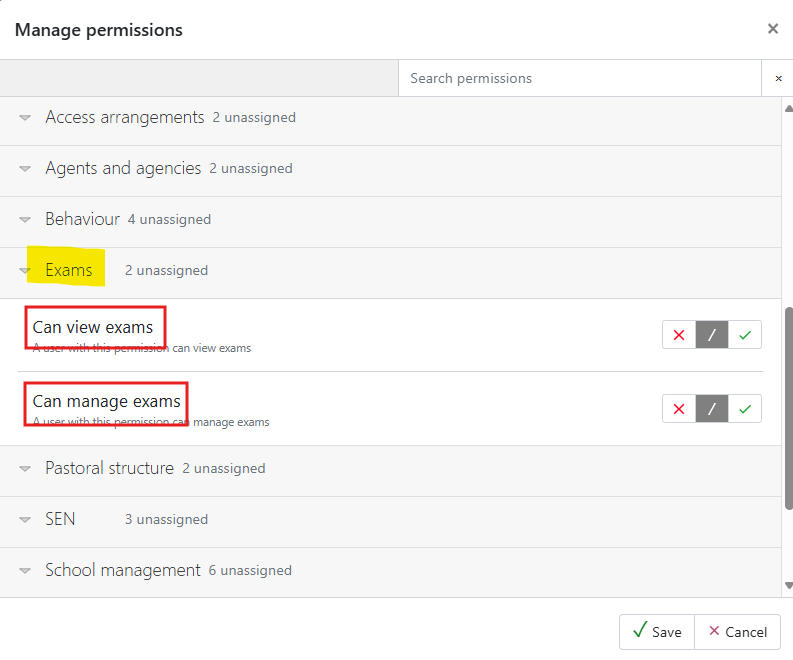
Required permissions
To view or print exam timetables the following two permissions are required, found under the Exams drop-down:
Generating exam timetables
Curriculum > Exams: Exam Timetables
There are three different types of exam timetable:
- Skeleton
- Staff
- Candidates
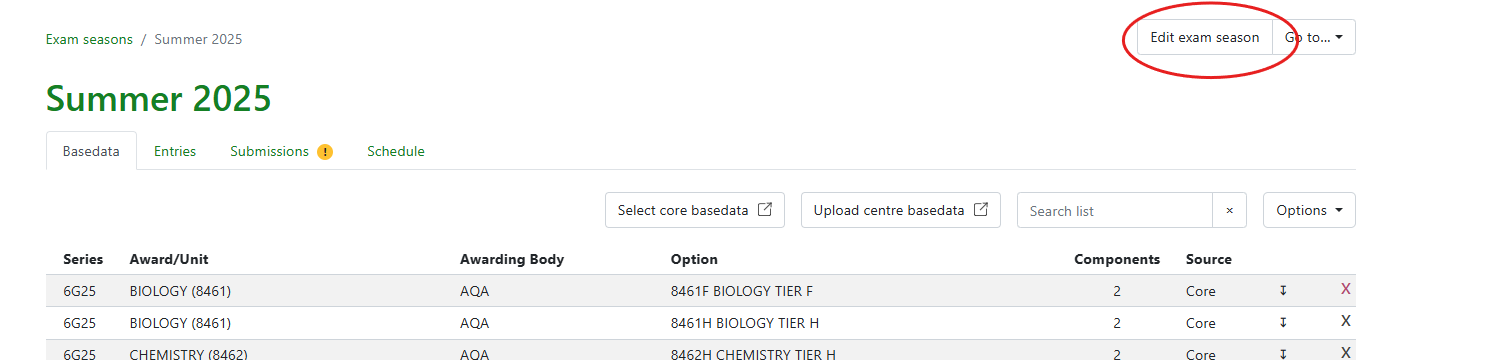
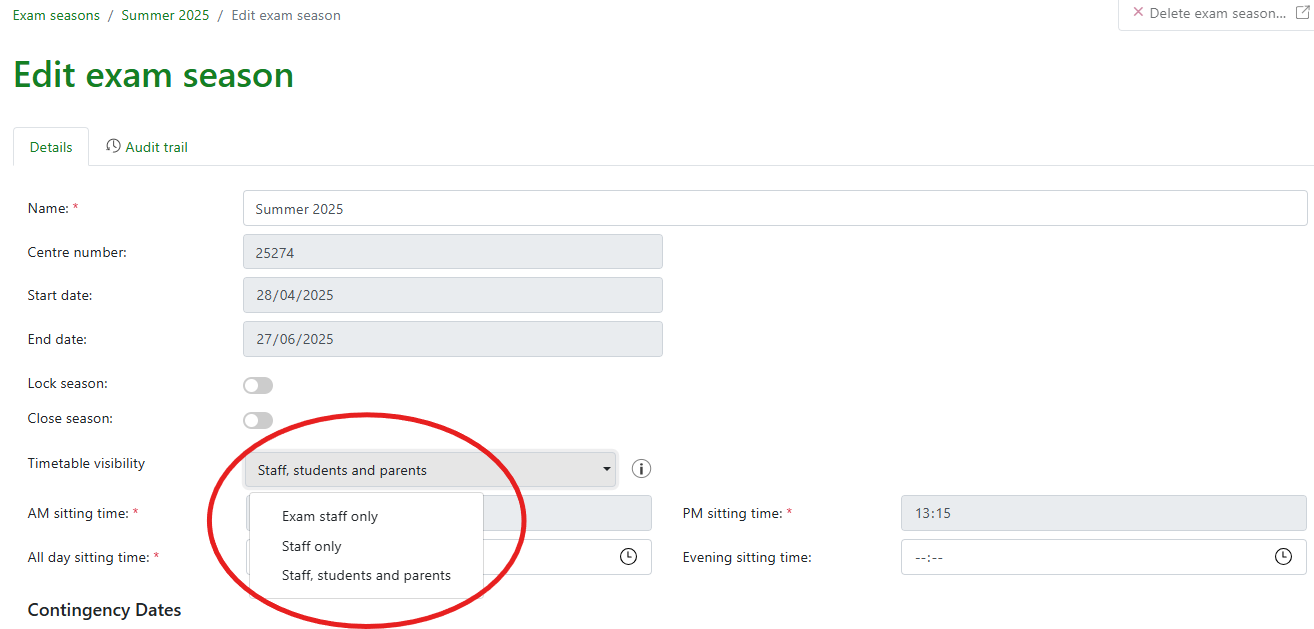
Note: Visibility of timetables is controlled via the Edit exam season function found on Curriculum > Exams: Exam Seasons, and by clicking in to the relevant exam series. More information can be found in the Setting up exam seasons guide.
Skeleton timetables
A skeleton timetable contains all the exam components for the awards in the selected season, together with the number of entries, sorted by exam date.
From the Produce exam timetable screen, select Skeleton and click on Next.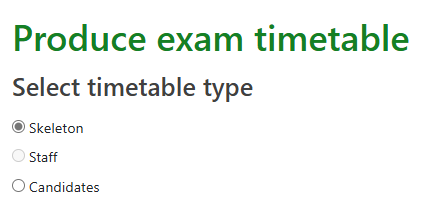
Select the required season(s) and click on Confirm. If the season is not displayed in the list, check the visibility setting as detailed above. Toggles control whether to include past dates (dates earlier than the current date), the season name and the number of entries.
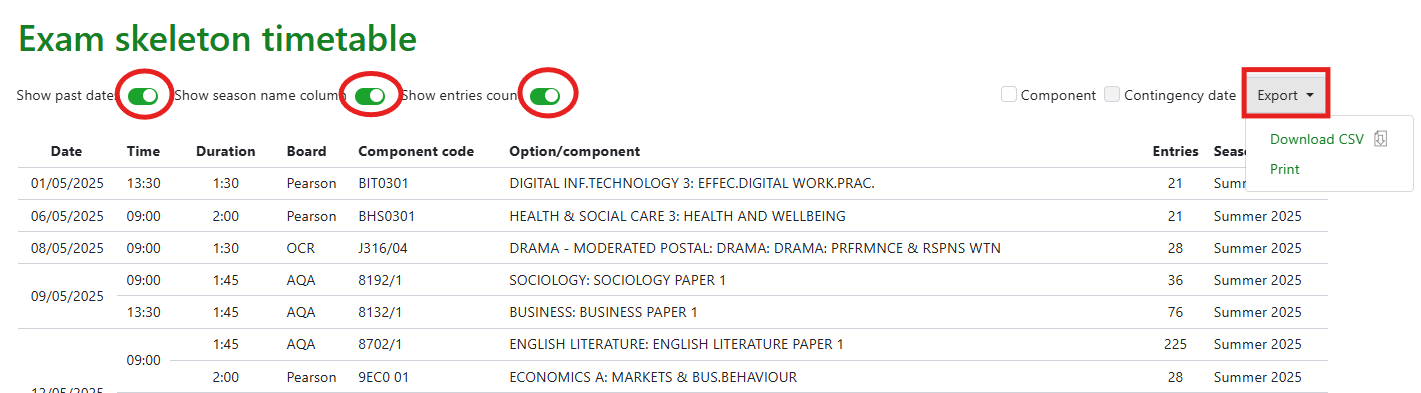
Rows that have a grey background are Contingency dates:

Skeleton timetables can be printed or downloaded to a .CSV file using the Export dropdown menu.
Staff timetables
After selecting the Staff timetable option, select the required season(s) by ticking to the left and then Next) and select the relevant staff.
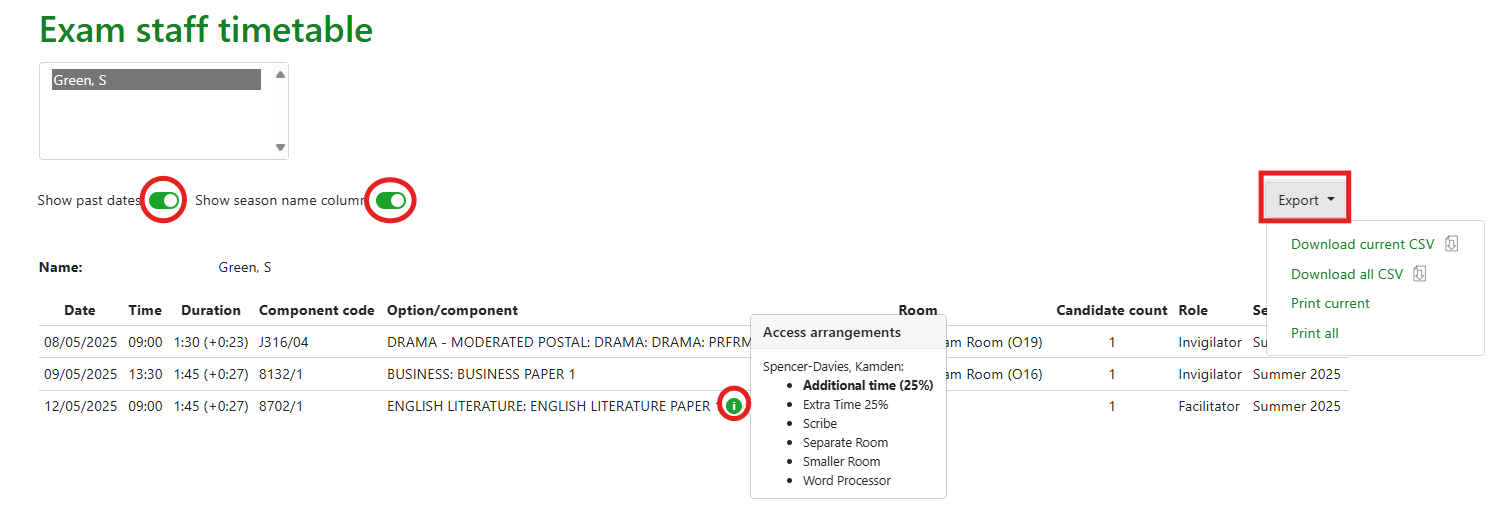 Toggles control whether to include past dates (dates earlier than the current date) and the season name. Staff timetables include the room and role details. If a staff member has the role of Facilitator, details of the candidate and EAA can be displayed by hovering over the green flag in the component name column. This information is also included on printed/downloaded copies of the timetable.
Individual timetables can be viewed by selecting the staff member's name. Use the Export menu to print or download timetable(s), as required.
Candidate timetables
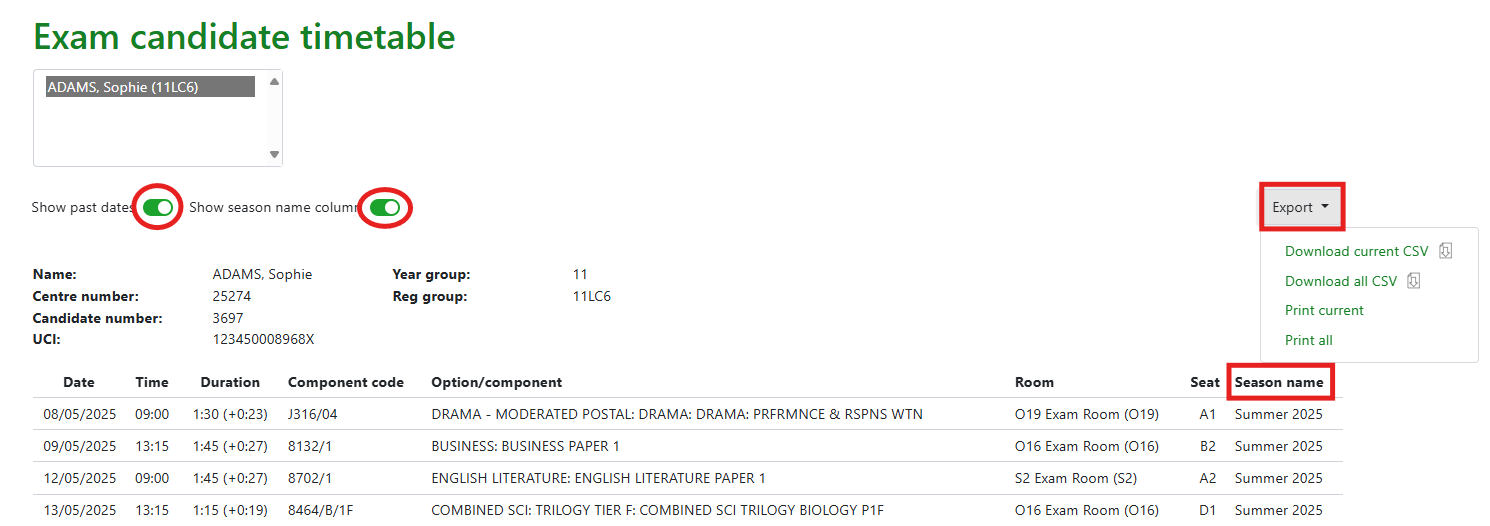
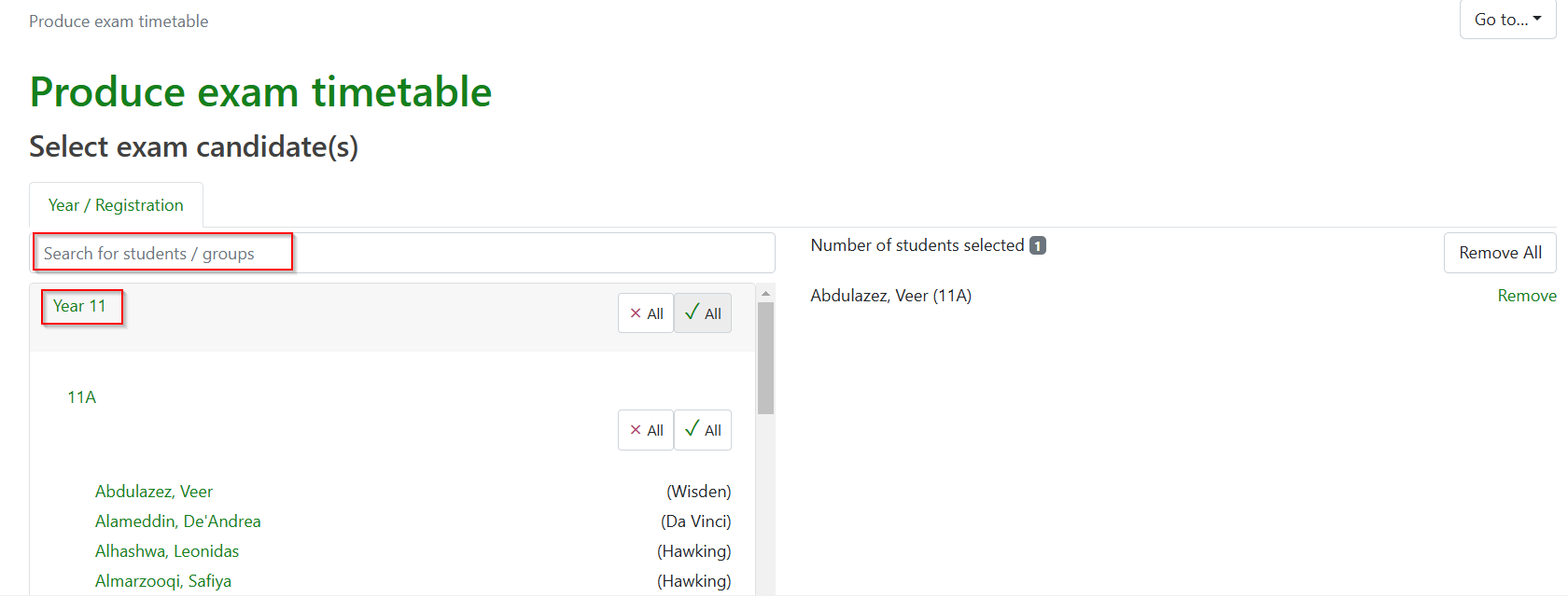
After selecting the Candidate timetable option, select the required season(s) (by ticking to the left and then Next) and use the candidate selector to choose candidate(s). The candidate selector will only include students who have active entries for the selected season(s). Search for students by name, or select by year/reg group and click on Confirm.
Toggles control whether to include past dates (dates earlier than the current date) and the season name. Room and seat information will be displayed once the seating plans have been created. Extra time, if allocated as an Access Arrangement will be displayed alongside the exam duration. (please refer to Access arrangements guide).
Individual timetables can be viewed by selecting the candidate’s name. Use the Export menu to print or download timetable(s), as required.