
Required permissions
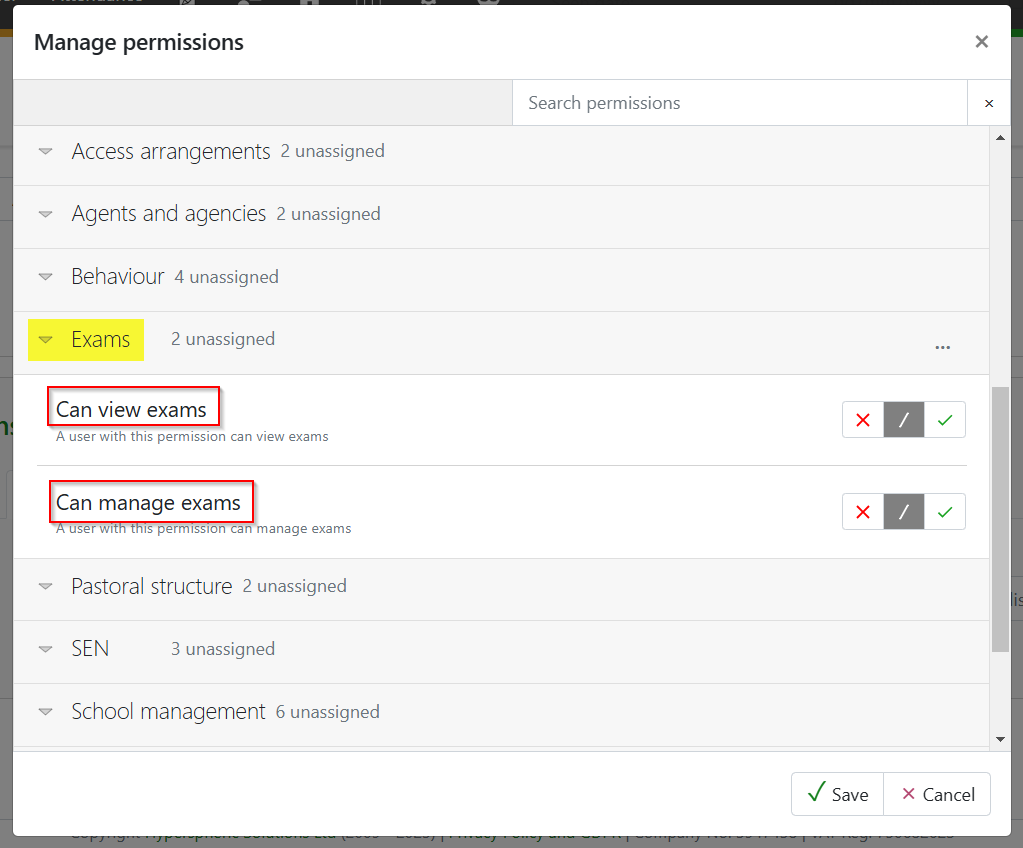
To make exam entries the following two permissions are required found under Exams;
- Can view exam - for staff to view exam entries and key information
- Can manage exams - for exams officers only
Managing exam entries
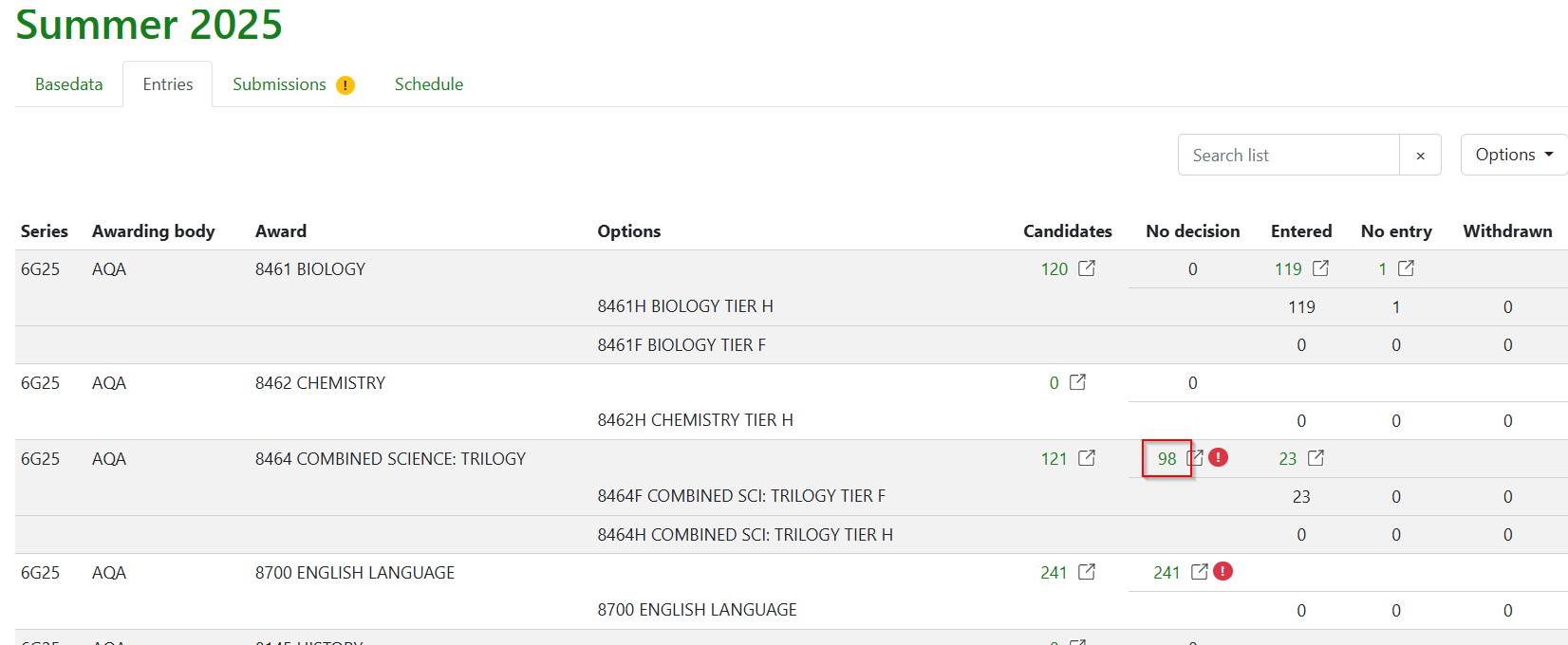
Once basedata has been added to the exam season, entries can be made by adding candidates via Curriculum > Exams > Exam Seasons > Select season and selecting the Entries tab. This will display all imported qualifications, with zero candidates for all awards.

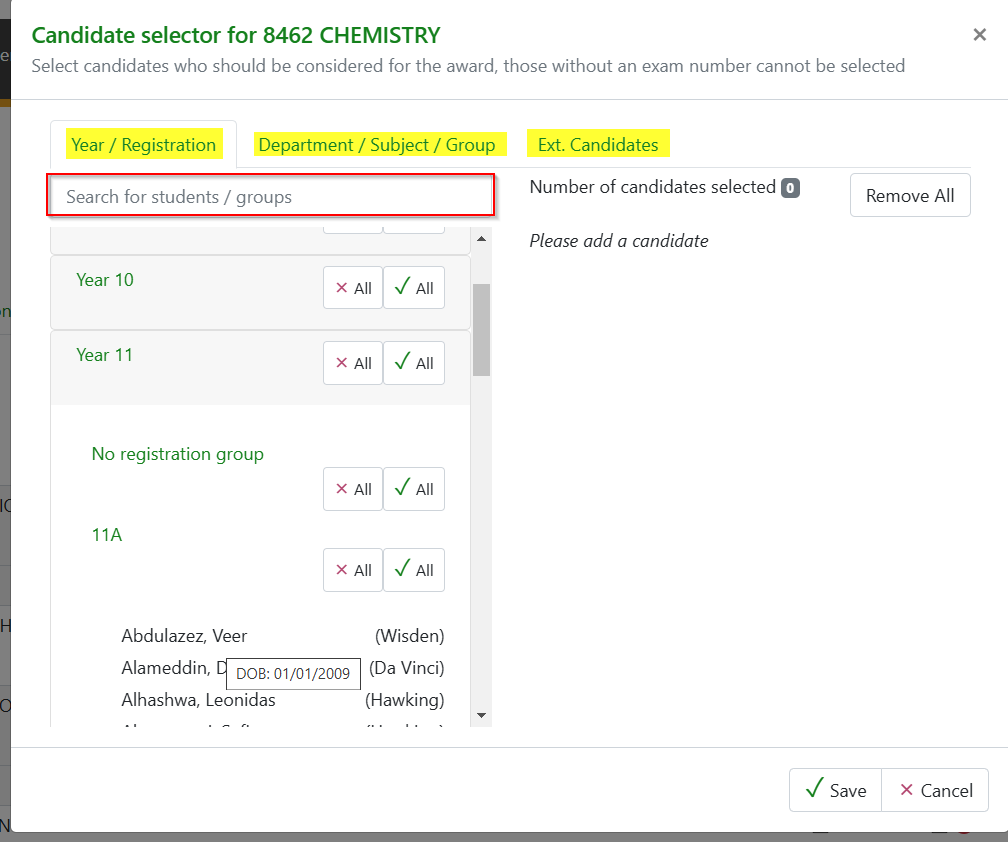
Clicking on the value below the heading 'Candidates' will display the Candidate selector. Year/Registration group, Department/Subject/Group, external candidates can be added and/or student/group name searched for.
Once candidates are selected, the 'No decision' column will be populated. Repeat this process to add candidates to all awards. Candidates can also be removed from an award using this column, but only if they have the status of 'No decision'.
To make entries for selected candidates, click on the number in the No decision column.
For linear qualifications where there is only one entry code, personal details and one drop-down menu for each candidate will display. For tiered subjects, two drop-down menu columns display, and for unitised qualifications, a column for each associated unit is visible. From this screen, Any column can be sorted, filtered by entry type (default is No decision), or the search box used to search for values in any of the columns.
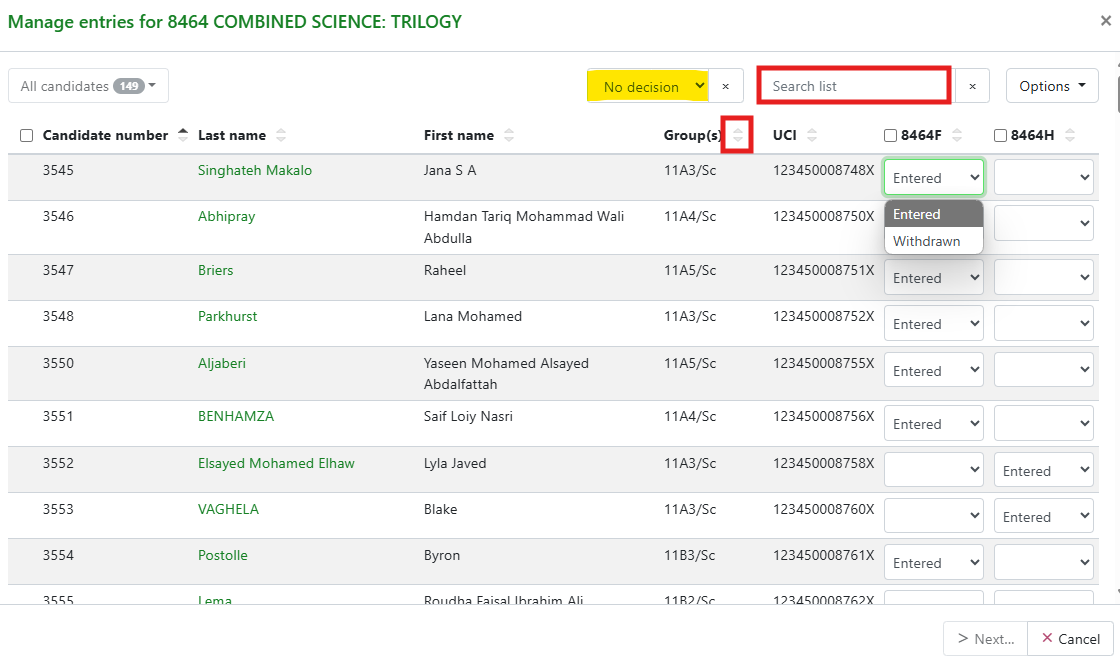
To make a bulk entry, select the required candidates by either ticking next to their candidate number, or by clicking in the box to select all candidates, and select Entered from the drop-down menu. To make individual entries, simply choose the Entered option from the menu for each candidate. For tiered and unitised qualifications, ensure the relevant unit/tier column is selected.
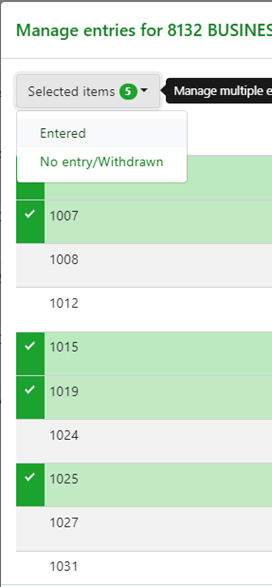
Click on Next to navigate to the review screen. From here either click on Confirm, or Back to amend the entry. Clicking on the cross by the filter on the main entry screen will display all students, regardless of entry status.
When Confirm is clicked, the Entries tab will update. A flag will appear next to the entries if there are still candidates to be processed.
Candidates will only show as withdrawn if the entry is removed after it has been submitted to the exam board. Removing an entry before submission will move the candidate to the No entry column.
Repeat this process for all qualifications, as necessary. Remember, for tiered subjects (Maths, Science & MFL) a candidate should only be entered for one option. Filtering by group can help with this process.