
Permissions
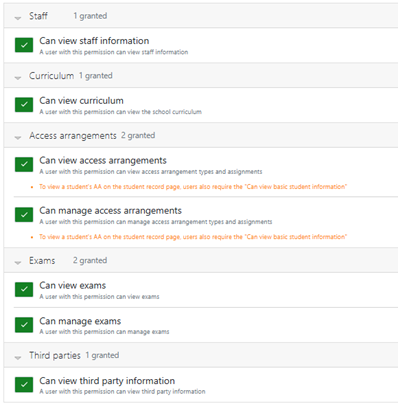
To manage exam Access Arrangements the following permissions are required:
- Can view access arrangements
- Can manage access arrangements
- Can view exams
- Can manage exams
- Can view staff information - to see invigilator details if added as contracted staff
- Can view third party information - to view invigilator details.
Access arrangements
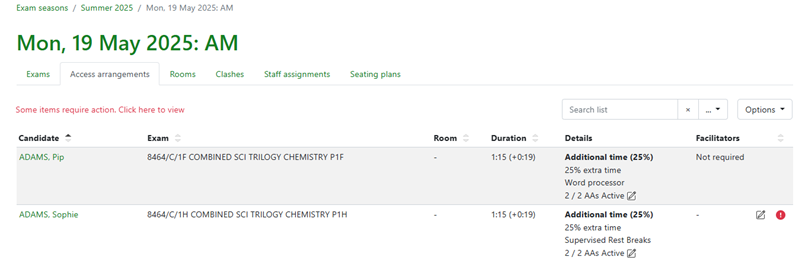
For information on assigned exam arrangements please refer to the guidance document 'Assigning Exam Arrangements'. Exam access arrangements (EAA) assigned to a candidate can be enabled/disabled for individual exams. The Access arrangements tab will display a list of all students with EAA who have exams in the current session, and will include the name of the exam, the room (when allocated), the exam duration, details of all assigned EAAs and whether or not a facilitator is required.
Candidates with outstanding actions can be viewed by clicking on the red link at the top of the list
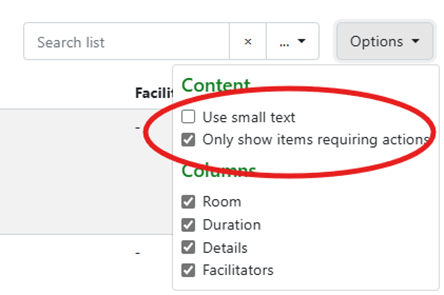
or by clicking in the Only show items requiring actions checkbox accessed via the Options menu.
To show all candidates, untick the same checkbox.
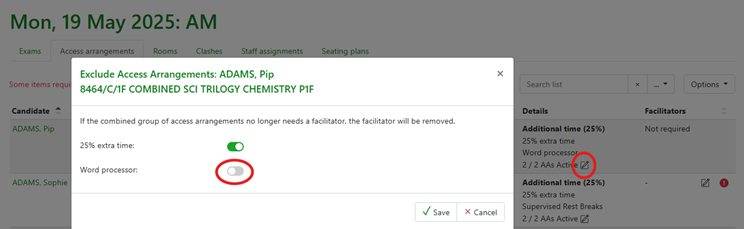
To disable an EAA for a candidate for the current session, click on the edit icon in the Details column to display all active assignments. Toggle the switch next to the EAA(s) you wish to disable and click on Save. Any changes made will only be applied to the current exam. In the example below, the candidate will not use a word processor for their Chemistry exam, but will have it for all other exams unless disabled.
The search box can be used to search for a candidate name, exam, room or individual access arrangements. In the example below, the list has been filtered to just show candidates who have the EAA called Supervised Rest Breaks.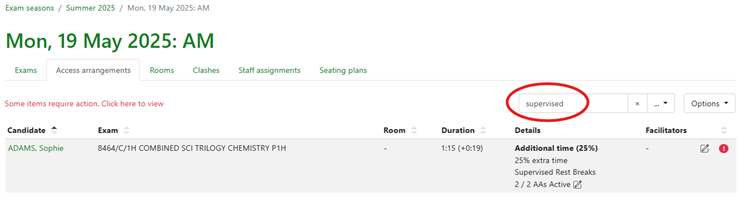
A red flag will appear at the end of each row if further action is required. This can be either the requirement of a facilitator, or if a candidate requires a separate room.
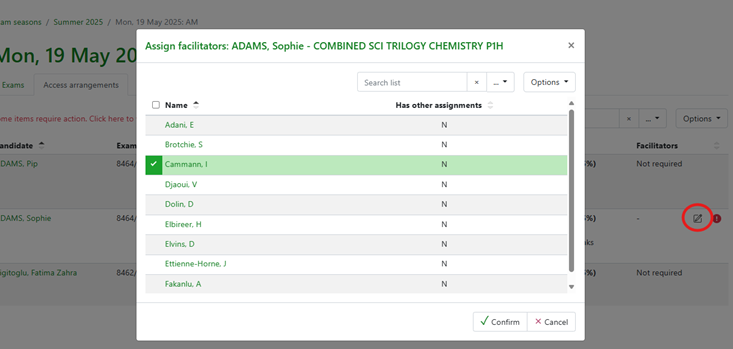
To allocate a facilitator to a candidate, click on the pencil icon next to the red flag. A staff list will be displayed showing all staff who have been allocated the role of Facilitator for the current exam season. A flag will be displayed next to any staff member who has already been assigned a role for this session (there are occasions when a member of staff can act as a facilitator for more than one candidate). Tick the box next to the name(s) of the staff you wish to allocate and click on Confirm. It is possible to allocate more than one facilitator to a candidate, if required.
For staff who have the role of Facilitator, the name of the candidate and details of the EAA will be included on the staff timetable for information.