
Permissions
The user will require access to the student record page via ‘Can view basic student information’
To make changes to group memberships they will also require 'Can view curriculum' and ‘Can manage group members’.
Change groups for a student
Go to the student record for the student who you wish to change groups for via the Search in the main menu. From the student record page select ‘Student Groups’ from the side menu option. This will take you directly to the block to manage the group memberships.
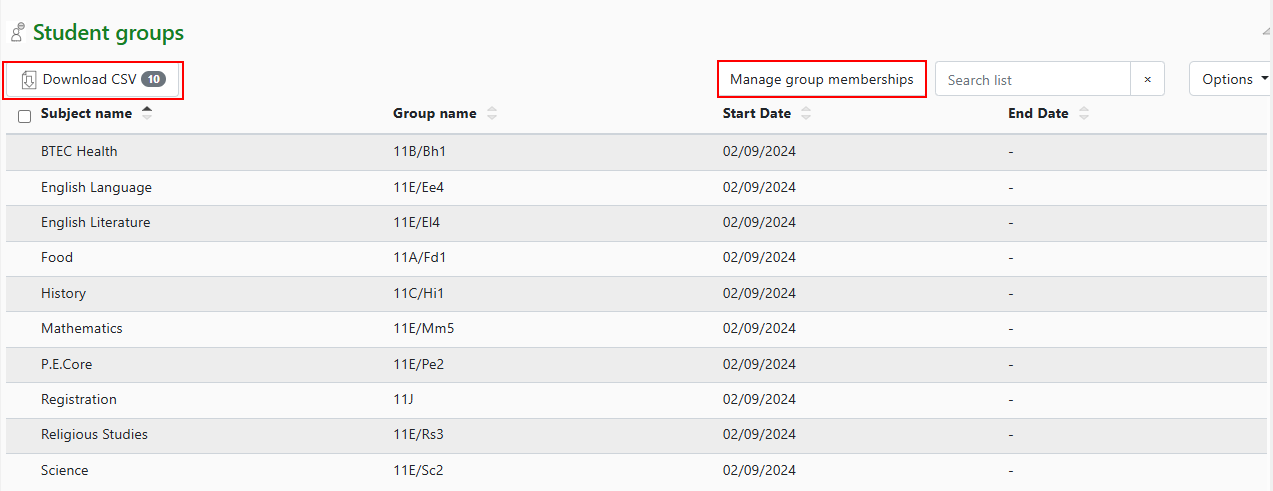
By selecting individual or all subjects these can be downloaded as a CSV for an individual student. The block will show the Group name for each subject and the date the student joined the group.
Select the ‘Manage group memberships’ to open a modal that displays all groups for all the subjects that the student belongs to, the current group memberships are highlighted in green.
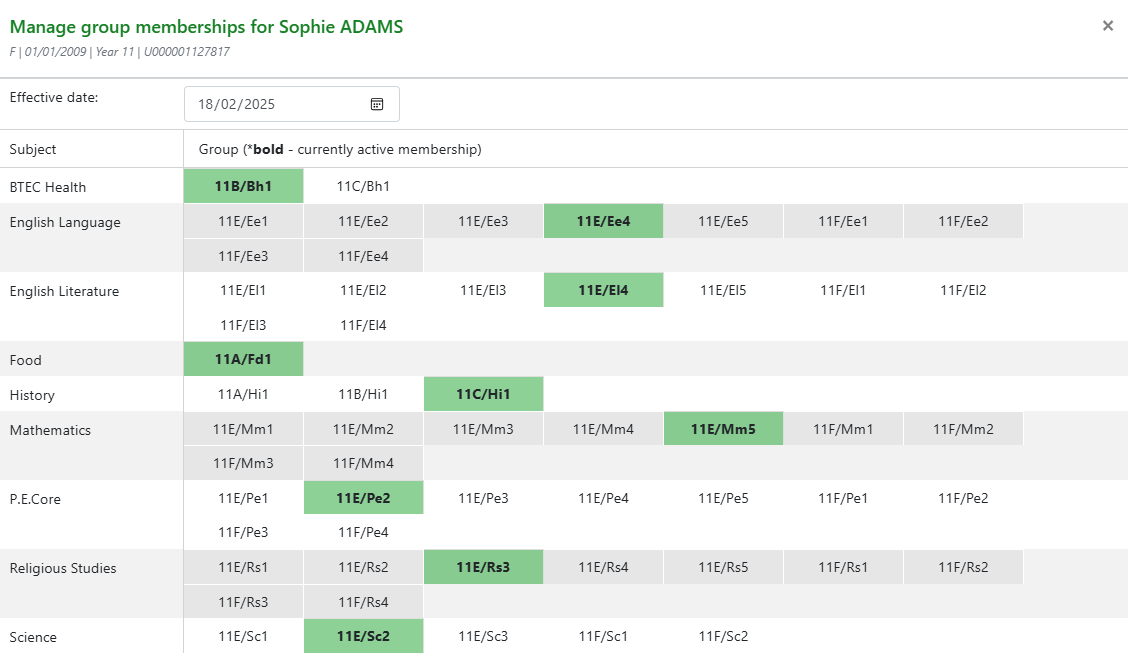
Change the ‘Effective date' to set when the student group change will take effect. If today then the student will move groups immediately and the previous group membership will show an end date of the previous day.
To change group membership, select the group you wish to move the student to i.e. 11E/Mm4 and then deselect the current group membership i.e. 11E/Mm5 as below, the previous group will remain in bold.
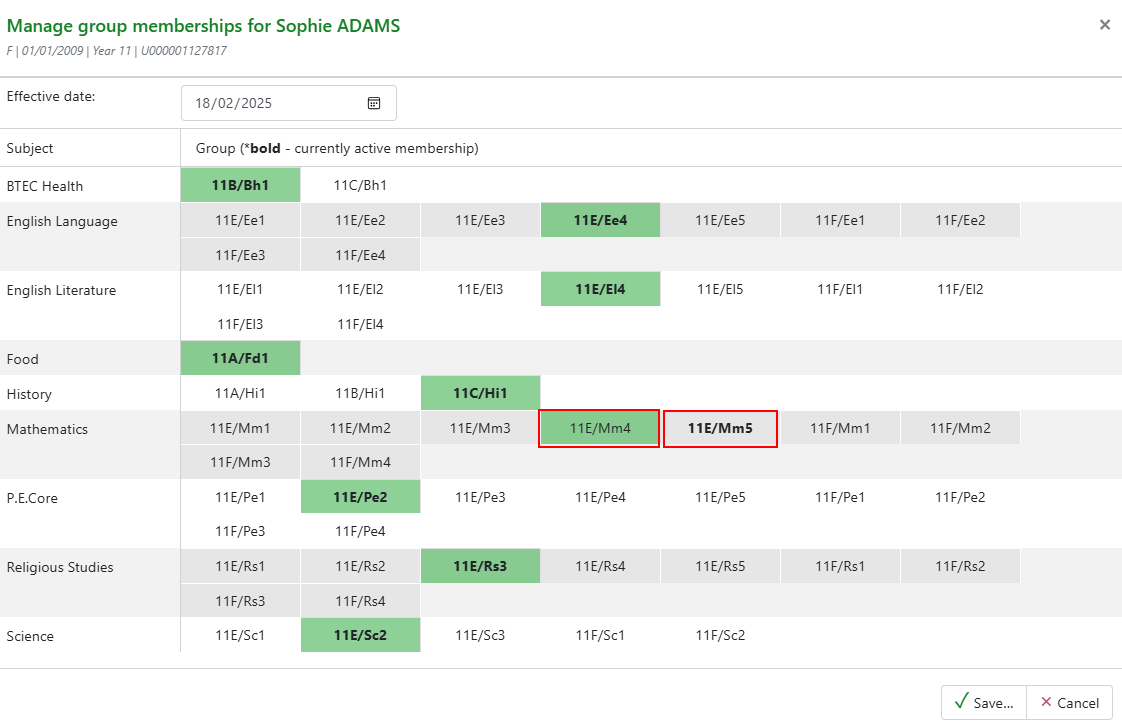
If the current group is not deselected the student will show in both groups. Now save.
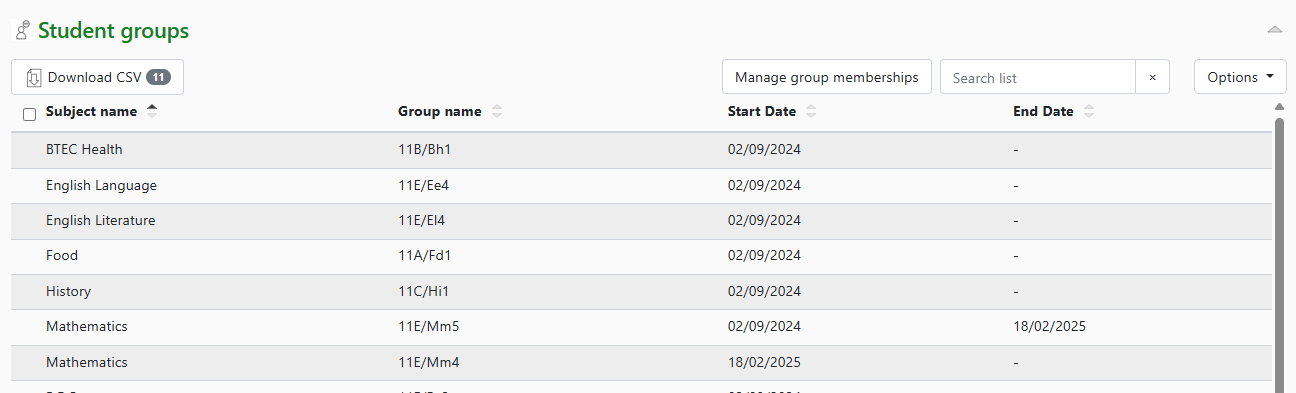
The Student groups block will now show the student’s start date in the new group and the end date for the previous group.
The student’s membership will update in the markbook, and register. The student will need to be re-seated in the new group’s seating plan.