
Permissions relating to special educational needs
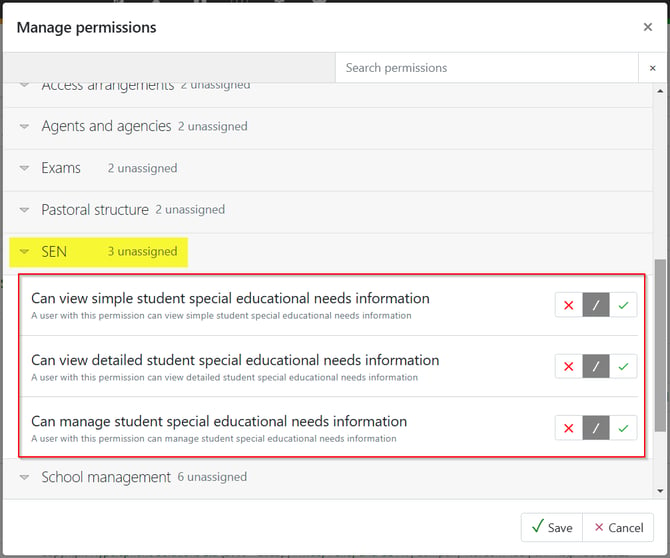
To view the summary details of special educational needs staff will need the 'Can view simple student special educational needs information' permission, found in the 'SEN' drop-down. To view the detail, including attached information, staff will also need the 'Can view detailed student special educational needs information'. To manage (add/remove/edit) information relating to SEN they will also need the 'Can manage student special educational needs information' permission.
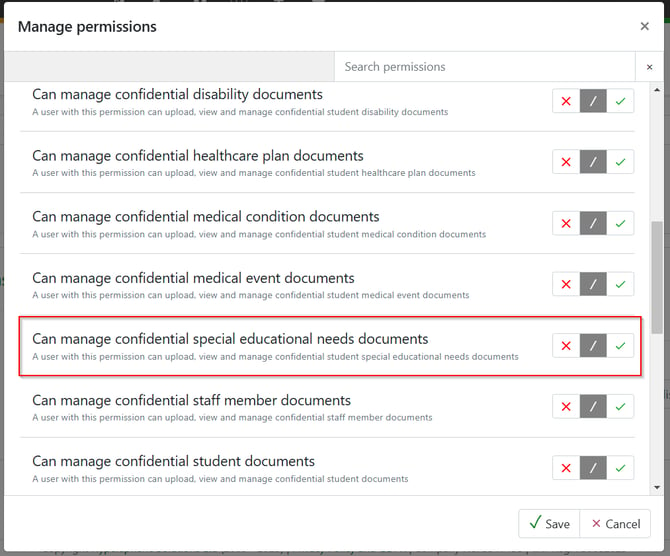
To add confidential SEN documents, the additional permission of 'Can manage confidential special educational needs documents' will need to be given. This can be found in the 'Document' section.
The MIS has a specific SEN co-ordinator role that can be assigned to a SENCo and then additional permissions edited as required for levels of access.

SEND Register
From People > STUDENT: SEND Register you can access the SEND register listing page to view all students with SEN. From here all students' information can be viewed, filtered and downloaded as a generic list.
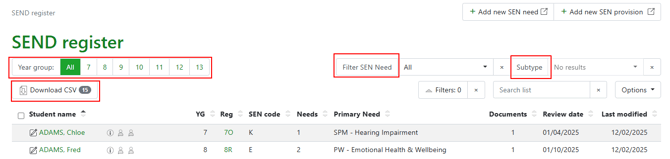
Filters on the SEND register enable the list to be visible by year group, SEN need (for those types available for selection) or sub-type of need. Users can also type in specific searches to filter out or find specific SEN details of students.

By selecting the student name an individual SEN record can be accessed and managed for a student via tabs for Provision, Special educational needs, Documents and Historic SEN provision. Using the ‘Edit this provision’ for users with ‘Can manage’ access the information can be updated. View only permissions gives a read only view of the SEN record.
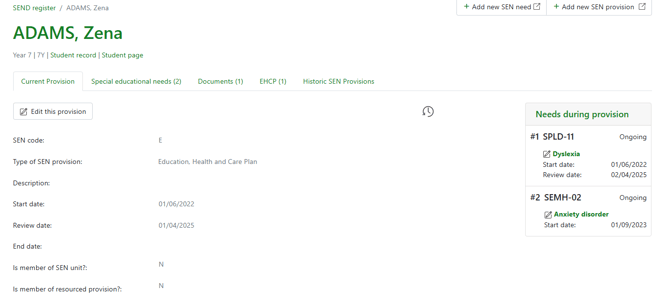
The individual student SEN record can also be managed from the student’s record page SEN block.
Adding a new SEN provision
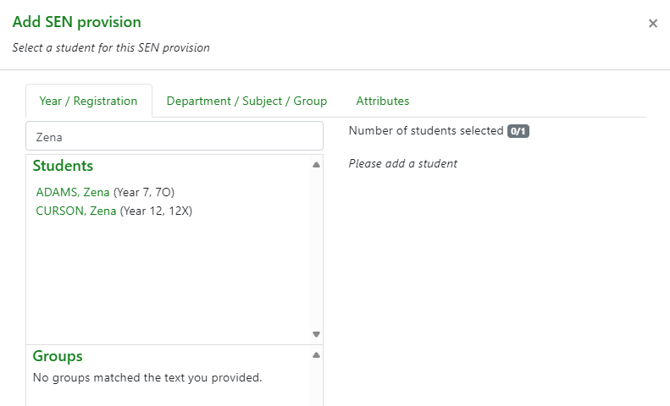
From the SEND register select the '+Add new SEN provision', the student selection tool will show where an individual student can be searched for or found via selection of Year groups > Reg groups.

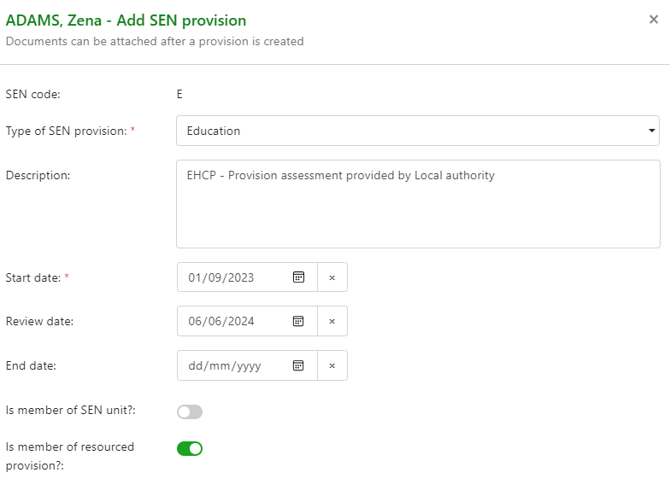
Once the student is selected another pop-out will allow the provision to be selected, key dates added, a description, and whether the student is a member of a SEN unit or has resourced provision. The provision list is taken from the CBDS SEN code terminology.
The student will now display in the SEND register listing page and any missing data will be flagged for attention so you can ensure all details are current and complete. In the image below the primary need is flagged as this has not been added for the new student.

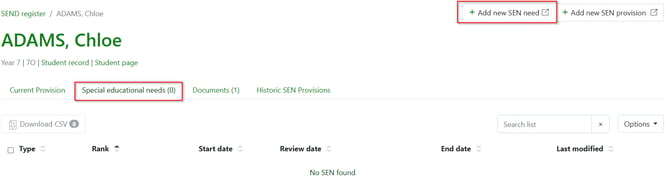
Click on the student to access their SEN record and you will see the provision information completed; now select the 'Special educational needs' tab to complete the required information. Select '+Add a new SEN need' and a pop-up will allow you to select the SEN need (and sub-type) from the list available in the CBDS - for the student census.
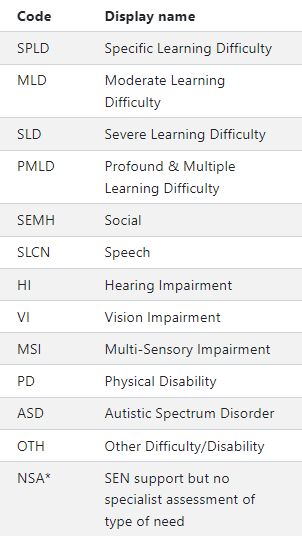
As the SEN need is picked the SEN type code will automatically be visible; each need has a sub-type which can be added if more detail is required for the record.
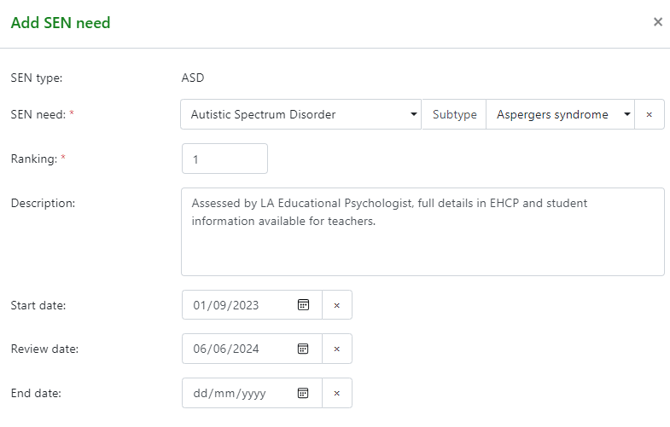
Each learning need requires a rank; if the need has a rank of 1 this is the student’s primary need and support plans should be available to ensure the student can fully access their curriculum. Needs should not have the same rank, so if the record is updated it is important that the ranking is checked. Any duplicates will flag on the SEN register view.
The list of SEN types required for the census can be viewed in the ‘Pupil SEN Type’ terminologies, the extended list of types is also available for each type.
Multiple needs can be added with notes for the student. Documents can be added to the SEN record for the student for general details to support the student.
Documents and EHCPs
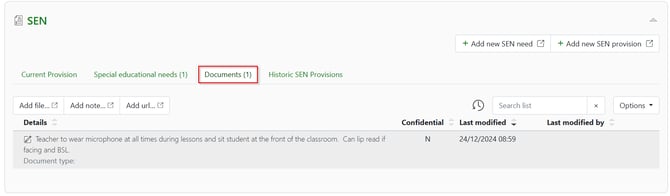
General documents, notes, or links to useful sites or external documents can be added to the student’s SEN record via the documents tab. These can contain information to be shared with teaching staff, or documents can be marked as confidential if they include sensitive information about the students SEN need so can only be viewed by users with the permission to view confidential documents.
EHCPs can be added via the healthcare plan block whilst on the student record page. Further guidance available in the 'Managing student healthcare plans record' guide.
Historic SEN provisions
As part of your migration any historic SEN data will be populated into the 'Historic SEN Provision' block for each student. A full record of changes to a student's special educational needs can be maintained in your MIS.
Student record page - SEN
An individual student’s SEN information can also be accessed from the student record page and the SEN block. The SEN data block displays tabs to view the Provision type, Special educational needs types, documents and historic provisions. Users will require permissions to view the information via the student record.
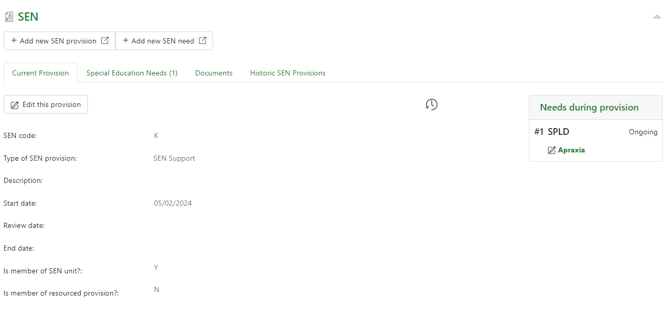
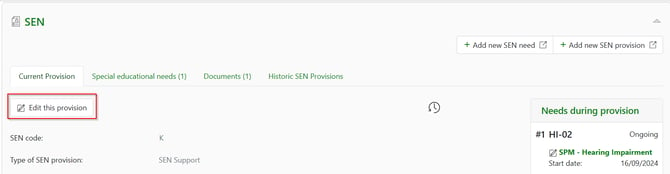
If the user has 'manage SEN' permissions they can edit the SEN record via the ‘Edit this provision’ button.
The student record also has a Healthcare plan block which will display both Education health and care plans for students with this level of provision required and/or Individual healthcare plans linked to medical needs.

A student with a SEN code ‘E’ must have a current EHCP uploaded. If the EHCP has been reviewed and updated then the previous version should be removed and the current EHCP uploaded. If historic EHCP’s are required in the MIS then these can be added as SEN documents and marked as confidential if required.
Keeping the EHCP current will allow the document to be shared with details of the student’s needs and provision to be available to staff.
Student attributes
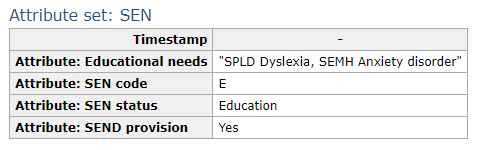
SEN provision, SEN code and SEN needs will all populate student attributes so they can be used for the analysis of attendance, behaviour and attainment data, as well as in all types of data explorers. These will display as system attributes:
Using attribute settings schools can include this information on the student’s profile, on the student page, and options to share this information with parents.
Sharing the data with parents will allow them to communicate any changes or updates to this information.
For further information regarding the management of SEND students' requirements for exam access arrangements see additional guidance.