
Permissions relating to medical events
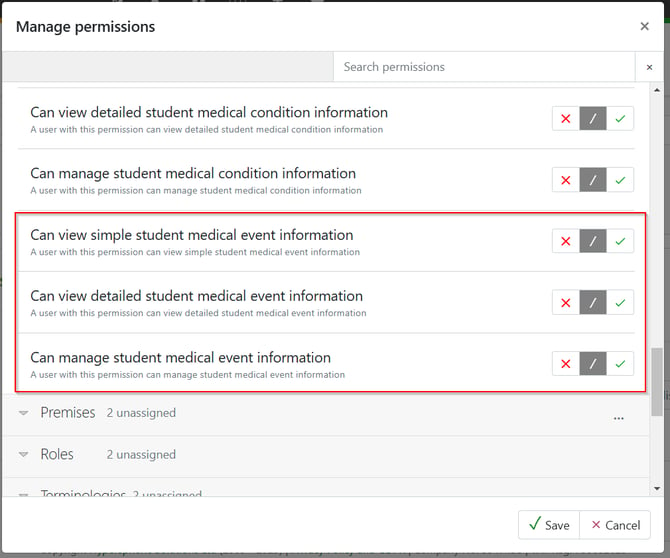
To view the summary details of medical events staff will need the 'Can view simple student medical event information' permission, found in the 'Medical' drop-down. To view the detail, including attached information, staff will also need the 'Can view detailed student medical event information'. To manage (add/remove/edit) information relating to medical events they will also need the 'Can manage student medical event information' permission.
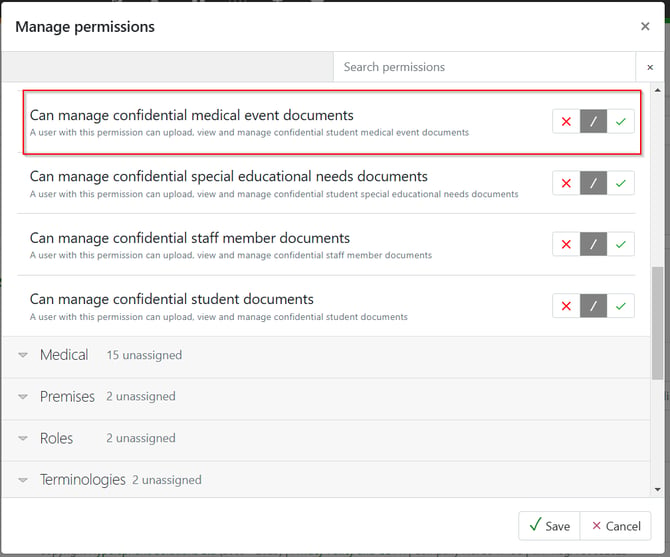
To add confidential medical event documents, the additional permission of 'Can manage confidential medical event documents' will need to be given. This can be found in the 'Document' section.
The medical events list page is accessed via the main menu and People > Students > Medical > Medical events. As per other medical areas the main types of medical events are set up in terminologies and can be managed by the school to add in custom types. See Terminologies.
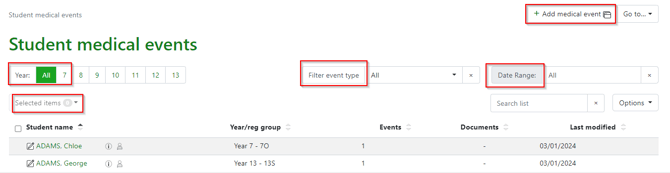
The listing page has the options to:
- Add a new medical event for one or multiple students
- Filter by year group or all students
- Filter by a specific medical event type i.e. Incident: first aid
- Filter events by a date range to access termly accident reports
- Select items and download as a .csv
- Select an individual student record to view more details, documents and the audit trail of the record.
Adding a medical event from the listing page
From the listing page select ‘+Add medical event’ to access the modal to record the detail. The requirements will show as a drop down list from the terminology service.
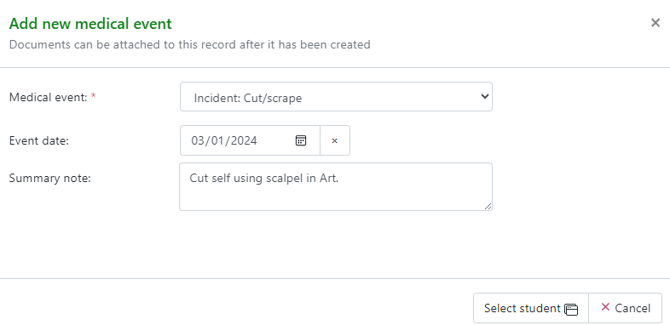
Then ‘Select student’ to view the student selection modal, students can be searched for by typing their name in the search box or by searching through year groups/subjects.
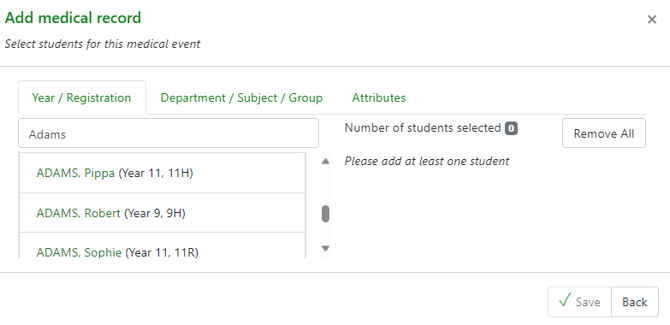
When added then click ‘Save’. The medical event will now show in the listing page, from here select the student by clicking on their name to view the details.

You can select the link from the event type to access the detail of the record, from here you can also add documents and view the audit trail of changes to the record. 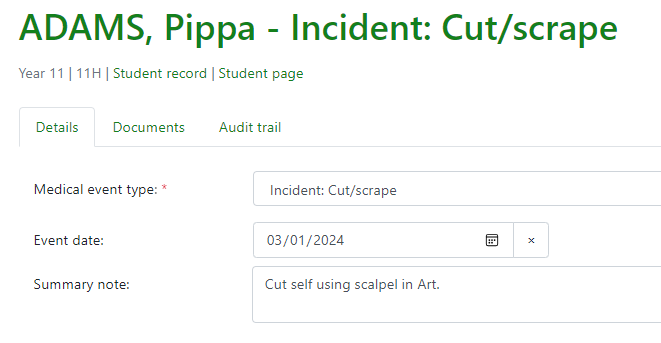
Documents can be added by drag and drop, browsing or a URL linked to a document held outside the MIS. When added, documents can be marked as confidential which only allows them to be viewed by those with the ‘Can view detailed student medical event information' permission.
Adding a medical event from the student record page
A medical event can also be added via the Student record page by using the ‘+Add new medical event’ from the medical events block, the modal is the same as above and can be completed with required information.
Once added to the student record the condition can be selected and more detailed information and documents added.

Viewing medical events
To view the data populated for student medical conditions this can be done via:
- The medical events listing page to view all events by type or date range, People > Students > Medical > Medical events
- The individual student record page