
Suspensions and exclusions are used by schools as a tool to support the high standards of behaviour in schools and to maintain the safety of school communities. Further guidance is available in the DfE Suspensions and Permanent exclusions guidance 2024.
In the GO MIS suspensions and permanent exclusions can be recorded for individual students for each period of the suspension, usually following a serious behaviour event or as a consequence of a pattern of negative behaviours.
These can be:
- Suspensions – where a student is temporarily removed from the school. This is an essential behaviour management tool that should be set out within a school’s behaviour policy.
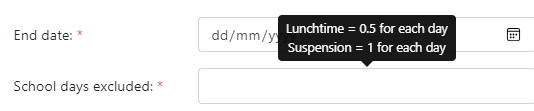
- Lunchtime suspension - a suspension for parts of the school day. For example, if a pupil’s behaviour at lunchtime is disruptive, they may be suspended from the school premises for the duration of the lunchtime period. Lunchtime suspensions are counted as half a school day in determining whether a governing board meeting is triggered.
- A permanent exclusion is when a student is no longer allowed to attend school (unless reinstated).
Exclusions can be reviewed by a governing board if requested by the parent. For permanent exclusions, they can also request a review from an independent governing board which can prompt a final review from the main governing board. If the governing board offers reinstatement and the student accepts, students can return to school.
Permissions
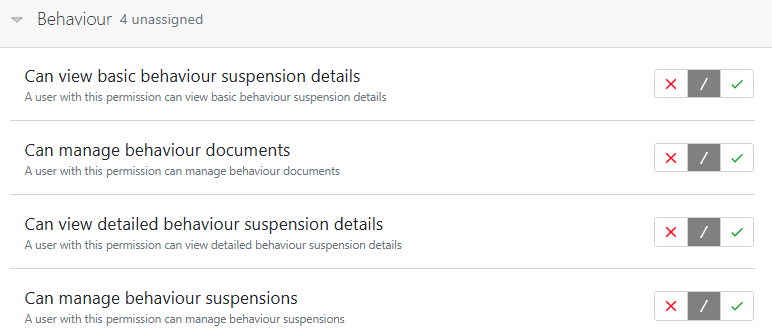
Users will require view and management permissions for student records and the permissions for MIS Behaviour to fully manage suspensions and exclusions.
Settings
GO to School > Contact details and settings > MIS tab to view Term dates. It is essential to set the term dates to ensure the exclusion/suspension statistic report correctly. MIS Settings
Adding a suspension/exclusion to a student's record
From an individual student record use the left hand quick menu to access the suspension/exclusion data block and select '+Add exclusion' to access the modal.
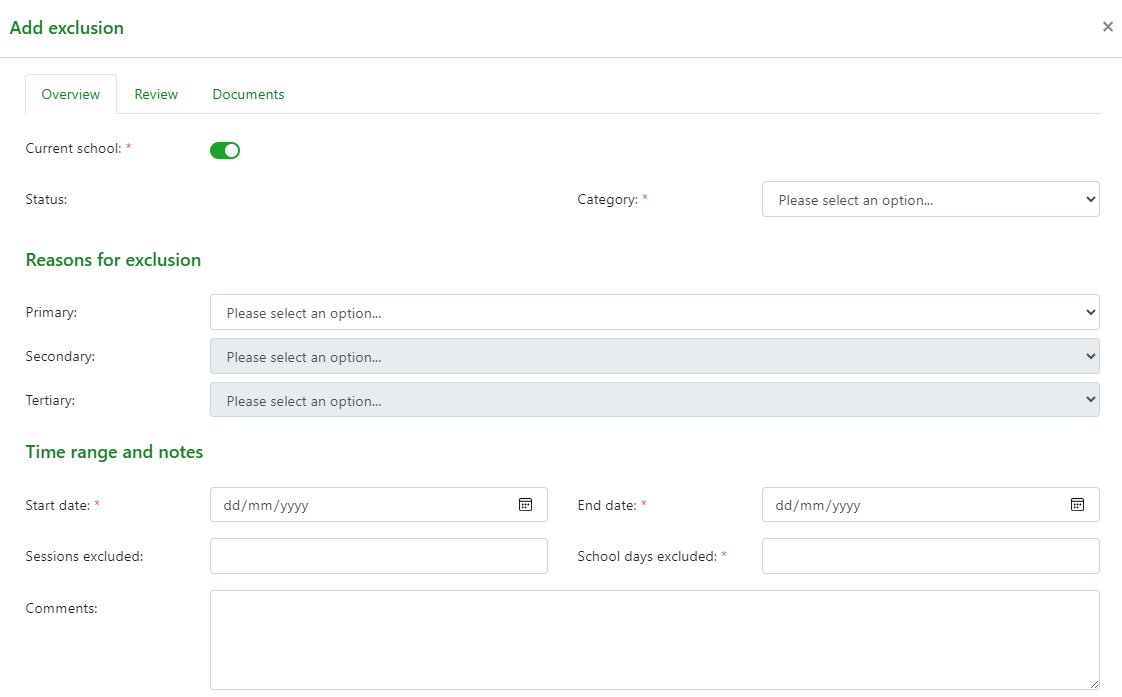
Select the category of suspension/exclusion and then add the reasons. These are taken from the CBDS for terms used in the statutory census returns – a primary reason is required as a minimum. Start and end dates must be added with a count of the number of attendance sessions included for the duration of the census as well as a count of days suspended. A tooltip shows to indicate the count.
Additional notes can be added at this stage regarding the specific behaviours leading to the suspension/exclusion.
NB: If a permanent exclusion is being recorded then school days and the end date fields are disabled.
Adding a Review
If requested by the parent a governor review can be added to the suspension record. This can be found under the review tab in the suspensions block. All permanent exclusions must have a governor review.
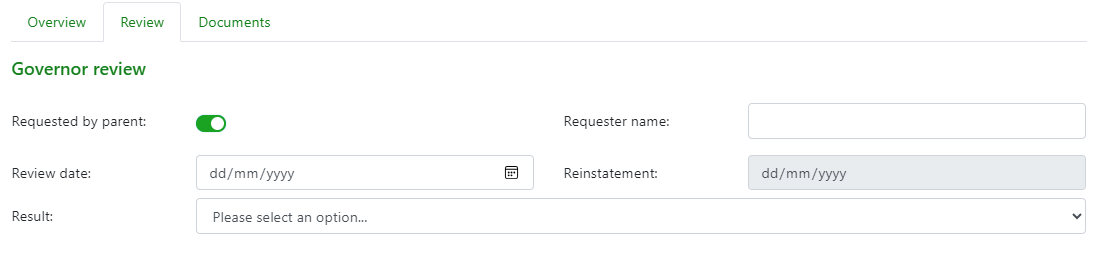
Select a review requested by parents using the toggle so that the information displays in the modal:
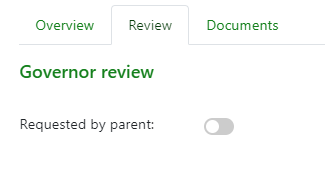
Details of the parent requesting the review, dates and outcomes of the review can be completed. The review can be removed if the toggle is unchecked. If a reinstatement is agreed a date can be added for the student’s return to school.
The status will change to ‘undergoing appeal’ once there is a review date but no result will be triggered. This will change to ‘Reviewed’ if a result is added.

Permanent exclusions
For a permanent exclusion a further option is available to add details where an independent review panel is required. An IRP is required if a student has SEN or LAC.
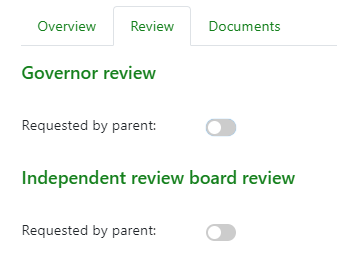
Details can be added to the modal as per the governor review section. If an independent review is requested and option to request a final governor review should be available.
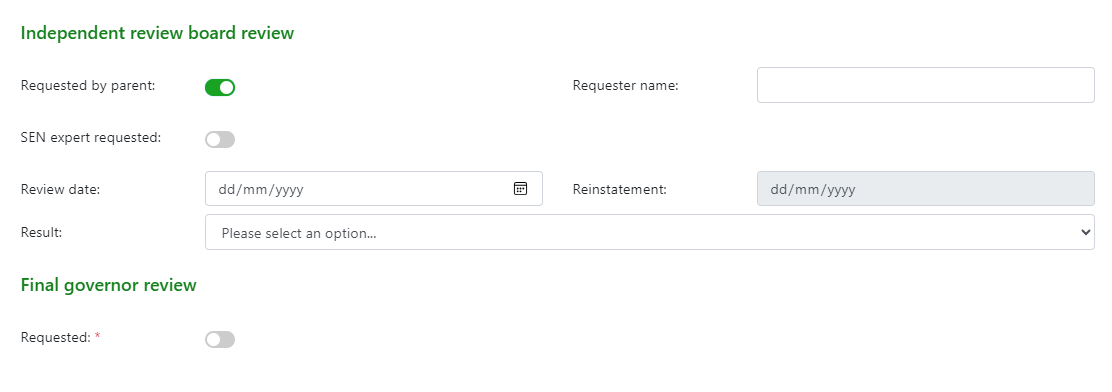
Again, the reinstatement date is disabled unless the review result implies a reinstatement and if a reinstatement date is added it will override the end date in the table.
Documents
Any additional documents such as the timeline of behaviours leading up to the suspension/exclusion, letters and supporting documentation can be added to the record. The documents can be uploaded as files or URL links added.

Deletion of an exclusion
In the DfE Suspensions and Exclusions guidance 2023 a Headteacher can cancel any exclusion that has already begun. See the guidance for further details. An exclusion can be removed from a student’s record by selecting the specific suspension/exclusion and selecting the ‘x’ at the end of the record. A confirmation of the deletion will be required.
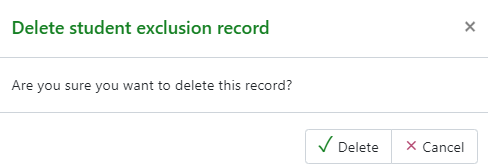
Once clicked a modal will ask for confirmation. If ‘Delete’ is selected the record will be removed. The Save at the bottom of the student record will then need to be clicked to update ‘Unsaved changes’.
Student record page: Suspensions/Exclusions
This will display all records added for an individual student. The data is not academic year specific so a full record is visible. An audit trail is also available.
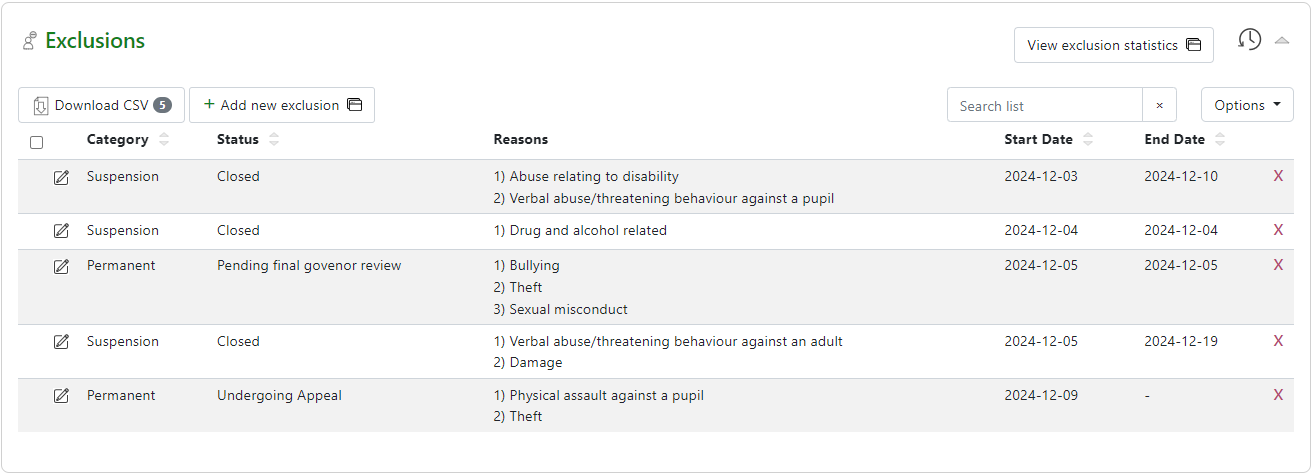
Each record can be selected to open the Manage suspension page to update details as required.
View suspension/exclusion statistics
From the student record by selecting the view option a table is available for that student with data grouped by academic year and terms.

Student page: Suspensions/Exclusions
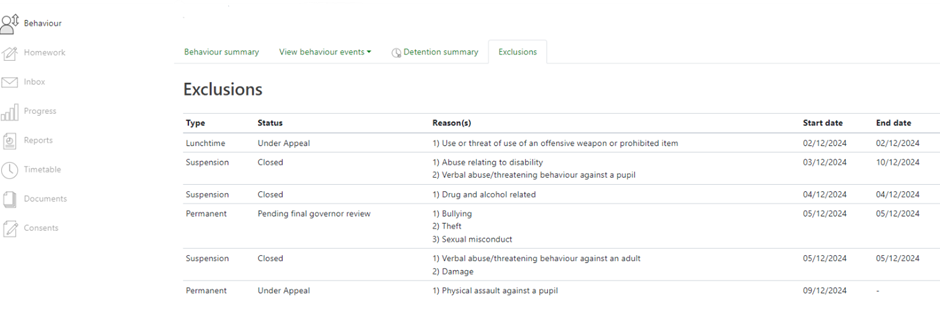
As part of the detailed behaviour view a tab is available for exclusions data to show a list of all suspensions/exclusions added to a record.
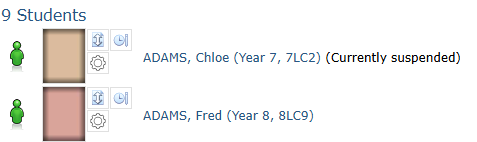
When searching for a student from the main menu search a student that is currently suspended will show on the search results page:
Reviewing Exclusions / Suspensions
Go to Behaviour > Exclusion list to view all students with Suspensions and exclusions recorded for the current academic year.
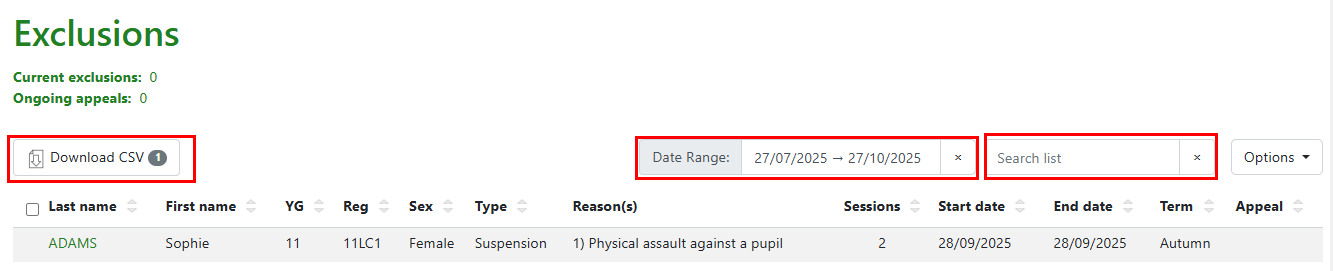 The listing page has features to allow a search by date range or by student name.
Items displaying on the page can then be selected and downloaded from the CSV download link. The 'Options' menu gives the additional view of UPN and DoB in the list view.
Exclusion statistics
GO to Behaviour > Detailed Exclusion statistics to view details of suspensions and exclusions during the academic year. The academic year can be changed by selecting a different year from the picker at the top of the page. There are three sections of data to view:
- Official statistics - this table has data to mirror the official statistics released by the DfE from the annual census collection of exclusion data.
- School statistics - this table has the data to show school statistics for exclusions and suspension, the table uses the same approach as the Official statistics but has more detail to show suspensions data.
- Number of exclusions = total permanent exclusions in AY
- Number of days students have been excluded = each row of Total School days summed together
- Termly statistics - an overview by term including an option to show by half terms.
Data can also be reviewed in Student behaviour explorer:
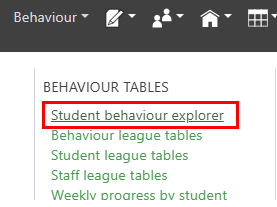 Select the Year group or students required with a date range to view the data from the explorer list below:
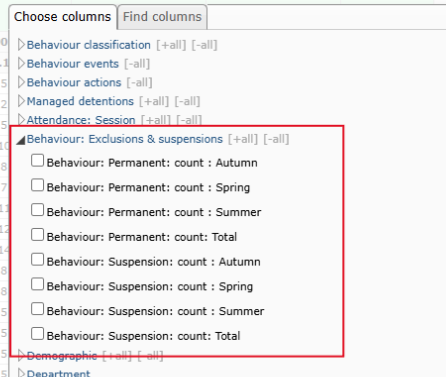
TIP: If you select a subject that contains all students this gives a whole school view of the data, focus groups can then be added such as Sex, LAC, Pupil premium etc.