The GO 4 Schools MIS already has some school roles set up that can be updated an amended by the school. If you have transferred from modular GO 4 Schools the legacy roles will also still be available. This article will explain how to manage and add roles to the MIS. See Roles and Permissions Rules article for specific application of permissions applied.
The roles page will display all roles added to the MIS with a count of users assigned to each.

Adding a new role
Go to People > Staff access and Permissions > Roles and Permissions to access the Roles page.
Select :
A modal will display for the details of the new role to be added.
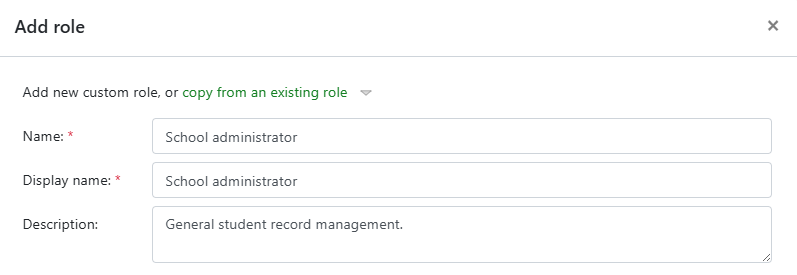
The newly created role will display in the listing page and can be selected to assign staff.
Assigning permissions to a role
Select the role from the listing page by using the edit link.

Select the permissions tab and then Manage permissions:

The permissions will display under a range of headers for each key area of the MIS i.e. Staff, Students, Curriculum. Expand the list to view the specific permissions and then use the toggle to add the permission or exclude from the role.
If any permissions given are in conflict and require an additional permission this will be highlighted with warnings and orange text to explain the requirements. For example a user cannot manage basic student details without the permission to view basic student details.
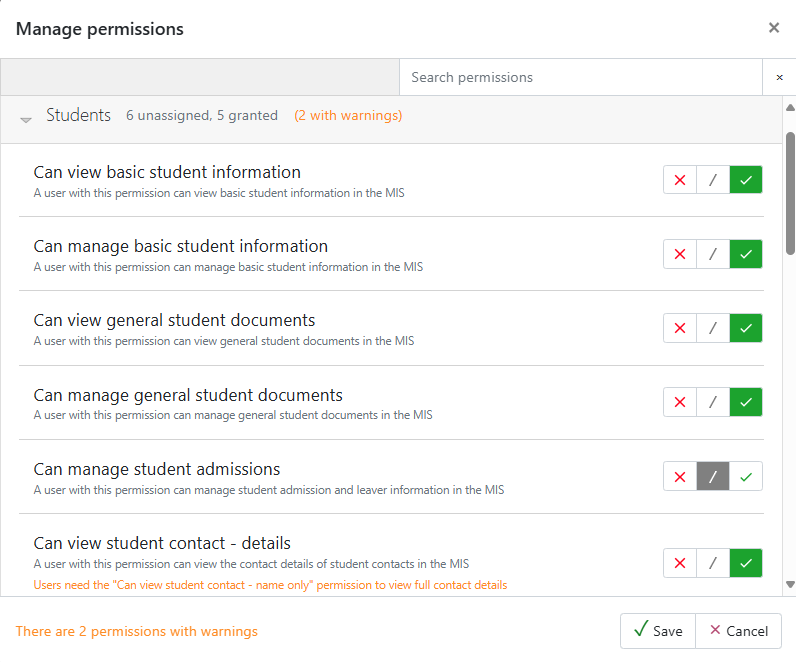
Correct any warning by re-selecting the correct combination of permissions and save. The permissions selected will now show on this page and can be edited to make changes.
Assigning roles
Select the Users with role tab and then Manage Users to assign to the role.

The Manage users modal will display and individuals can be assigned by using to toggle from the list or searching for individuals to add.
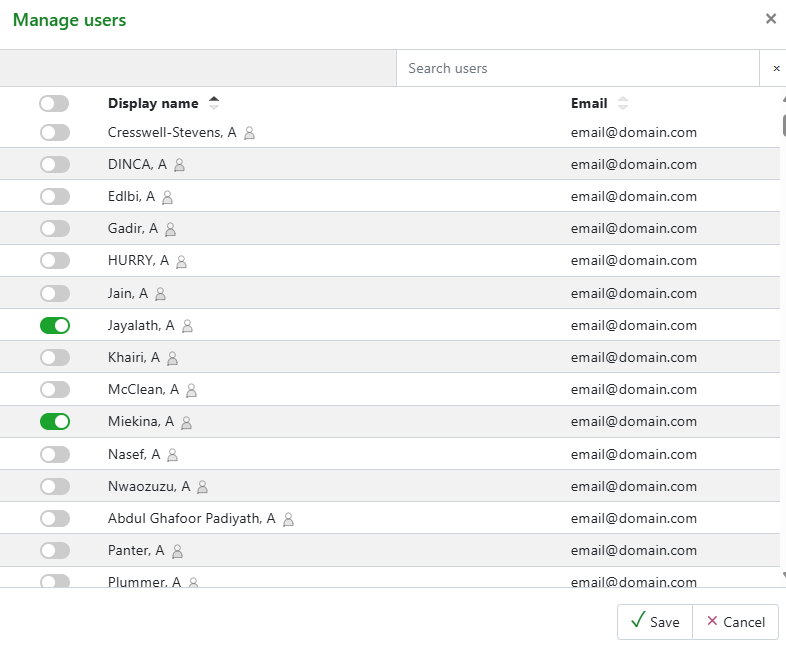
Then save. All assigned users will display in the tab and can be added and removed as required.
Deleting a role
Any role can be deleted and this will remove all permissions and assigned users. Use the delete role button.
Audit trail
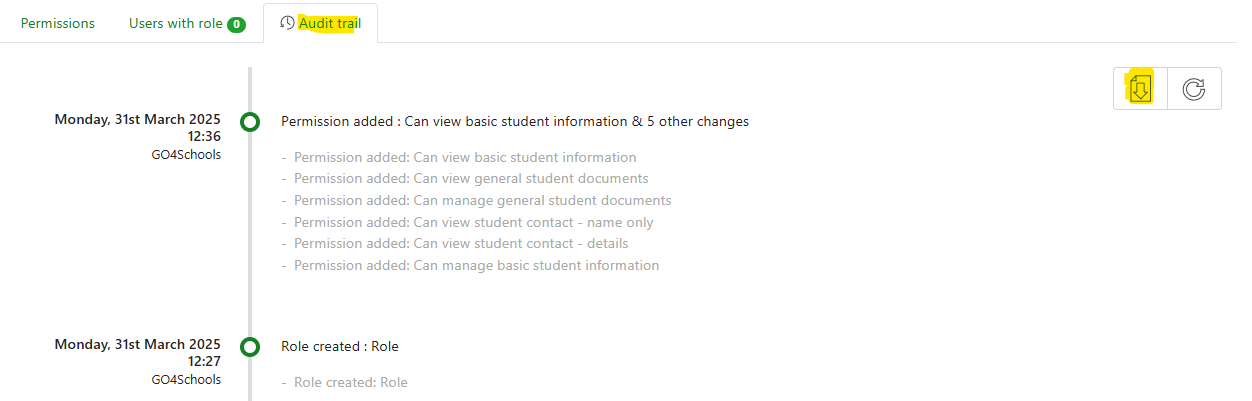
The audit trail tab will give a view of all changes made to the role including changes in permissions and users added/removed. The audit trail can be downloaded.
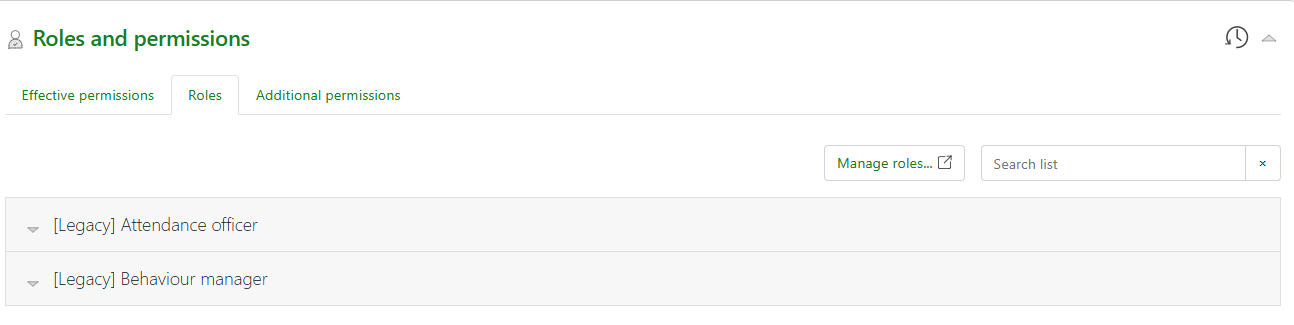
Managing roles from a staff record
People > Staff access and Permissions > Select staff member and select the Roles block from the staff record. From here roles can be added or amended for individual staff.