All students in Post-16 provision must have a Programme Aim that includes at least one associated Learning Aim. It is important that updates to learning aims are maintained as these are fundamental for the Post-16 census in the Autumn return. This will impact directly on funding if inaccuracies are present.
Learners with dual registration are not to be included as their learning aims are assigned by the school that holds their main registration.
School settings
In school settings you can set a default value for planned learning hours and EEP (enrichment, employment placement) hours. Typically a GCE A’level is 180 hours per academic year or 360 hours for the duration of the 2 year course. see the article - Post-16 census
Permissions
Users will require 'Can manage curriculum 'and 'Can manage groups' permissions to set up courses.
To view Learning aims on the SRP users will require 'Can view curriculum'.
Set up a post 16 course
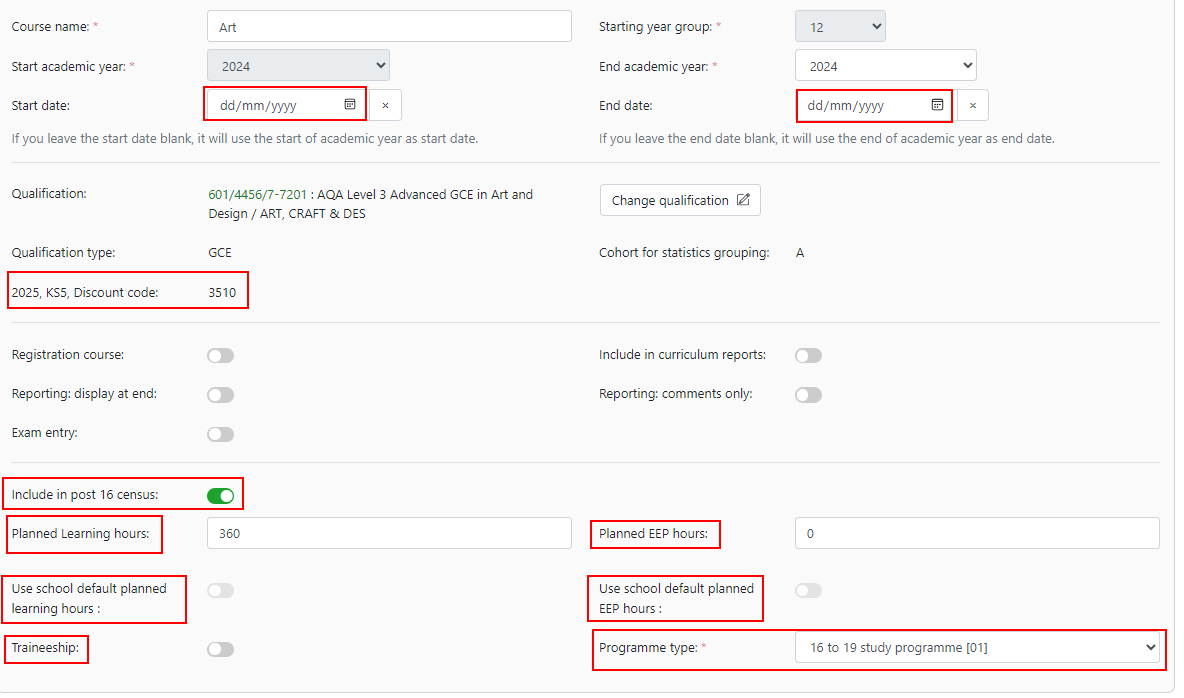
A course is set up in the same way as other courses, with some additional data settings for courses in Year 12 and Year 13, these are highlighted below.
- Qualification end and start dates are used to populate the Learning aim end and start date.
- The KS5 discount code will display specifically for the year the cohort will count in the performance measures.
- A toggle option to include the subject in the post-16 census so intervention/non-curricular markbooks can be excluded.
- Planned learning hours will overwrite the default value if entered here.
- Planned EEP hours will overwrite the default value if entered here.
- Toggle to use default planned hours and EEP hours.
- Toggle to mark course as a traineeship.
- Option to set the programme of student for:
- 16 – 19 study programme.
- T level foundation year
- T level
The course can then be populated with groups and students as per the standard approach. Managing group memberships
To set up default Learning hours, EEP hours see School settings guidance.
Note:
- A student can only have one of each type of Programme Aim; they cannot have two 16-19 Study programmes. - so a student could have 1 Core Aim in a 16 to 19 study Learning Aim, and one in a T level study Learning Aim
- Re-takes: If a student retakes a year then the student would need to be added to a new course. Planned end date of the Programme Aim should be extended.
- Leavers: When adding a leaver status from the student admissions page, the end date is updated and the status changes to completed. All their group memberships will end.
Managing Learning Aims
Curriculum > Courses > Select course : On the Students tab on a course management page, a list of students with course membership will display with key information about the course.
The end and start dates will be populated from data in the course set up or by the default values in the school settings, so the Learning Aim end date will default to the last day of term set up in the school calendar. The learning aim status will display and the core aim for each student.

Using the 'Options' menu allows additional columns to display planned and actual Learning aim end dates.
Below this the Learning Aims block will show all key information regarding post-16 learners, with a tab to manage each key area of information for:
- Work Placements
- Subcontracting
- Withdrawals
- Core aims
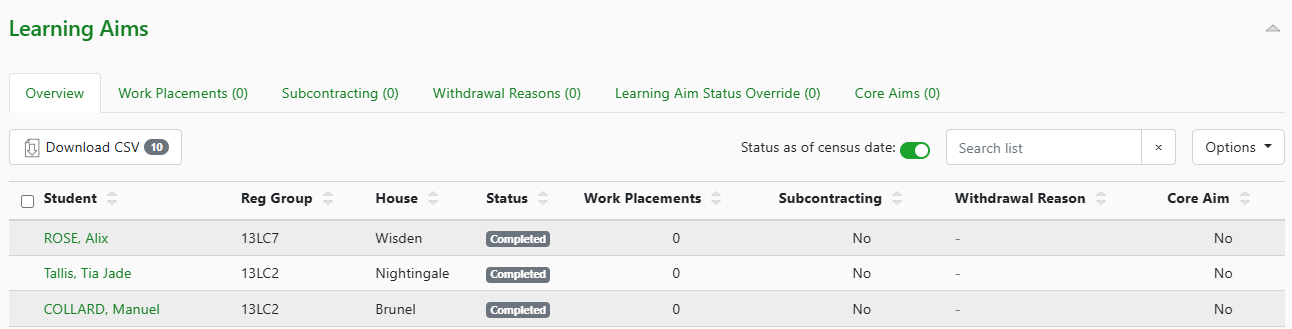
The tabs all have the same process to +Add students to each status.
To Add a Core Aim
Select the Core Aim tab and '+Add core learning aim'; a modal allows you to use the student picker to select the students to add the course as their core learning aim.
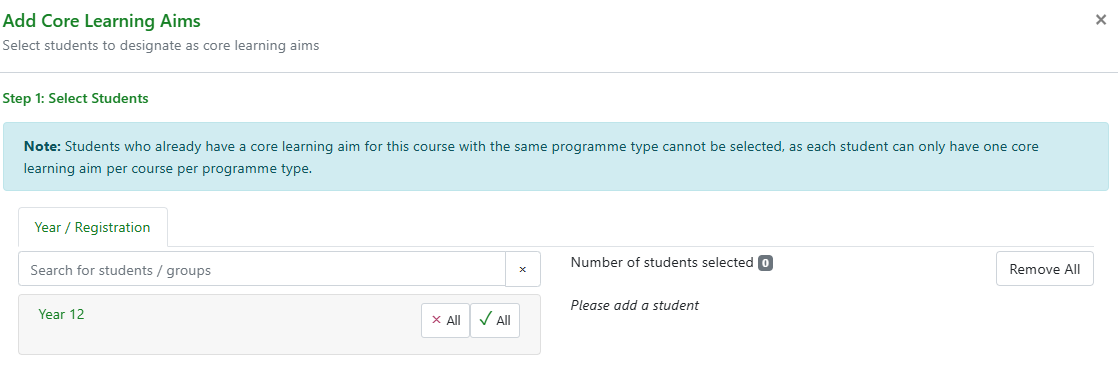 Click 'Next' to see the confirmation message to the select 'Create Core Learning Aims'.
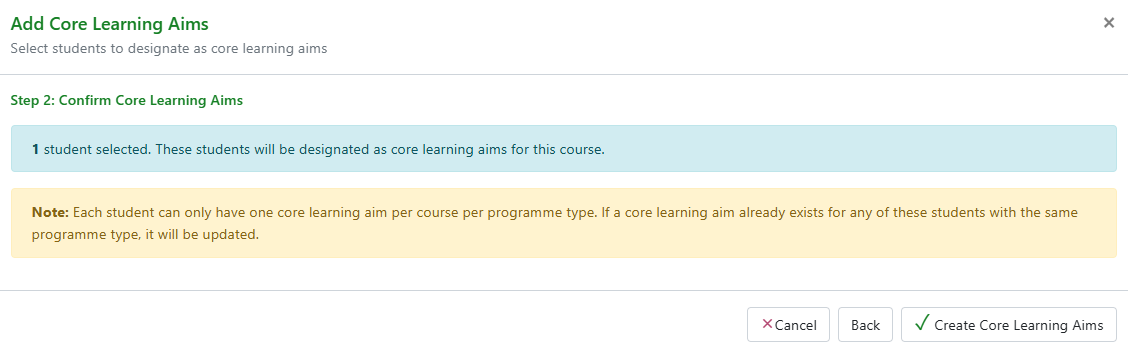
This will update the overview tab on the course management page and also on the SRP.
To remove the core aim, select the student and then use the 'Select item' menu to Remove.
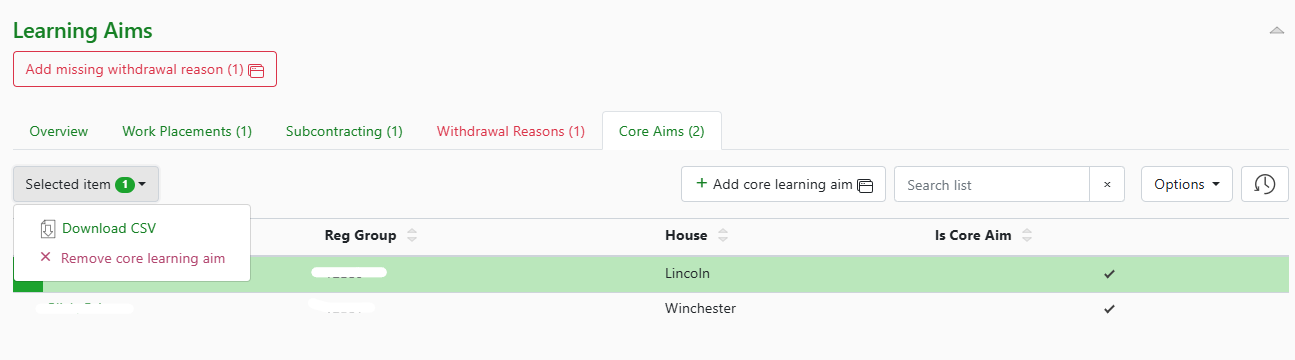
Note: Academic qualifications should not have a core aim, this includes Alternative academic qualifications (AAQs). Core aims are only recorded for vocational learning aims. Where Academic Learning aims are set with a core aim 'true' a census error code will show to be resolved.
Updating Work placements
Select the Work placements tab and '+Add Work placement' to access the student selector and then the modal to add details for the work placement. This includes options for 'Internal' and 'External' placements, placement hours with start and end dates.
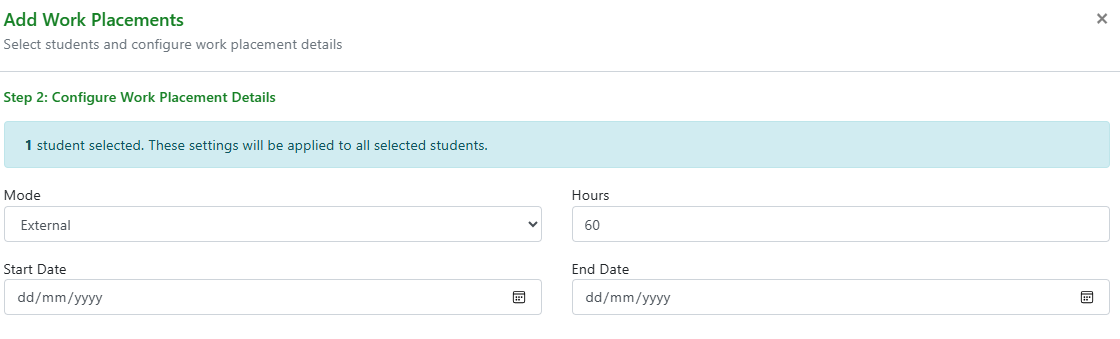
Once added work placements can be edited i.e. dates changed, or removed by using the 'edit' or select menu options.
Subcontracting Partners
What is a subcontractor?
Any delivery to a learner’s programme of learning by a separate legal entity. It does not matter if this is by a third party recruited to deliver on site (travel to teach), online learning or whether it is described as a service.
Details of subcontracting partners that deliver aspects of courses can be added to the learning aims from the Subcontracting tab. Details of their UKPRN (UK Provider reference number) is required.
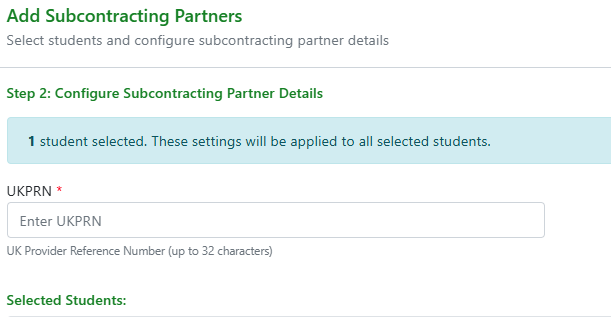
Once added this can be edited or removed via the 'Edit icon or Select menu option.
Override Learning Aim Status
Select the Override tab and then +Add Learning aim status override', select the student(s) where the status is changing and then select the appropriate reason:
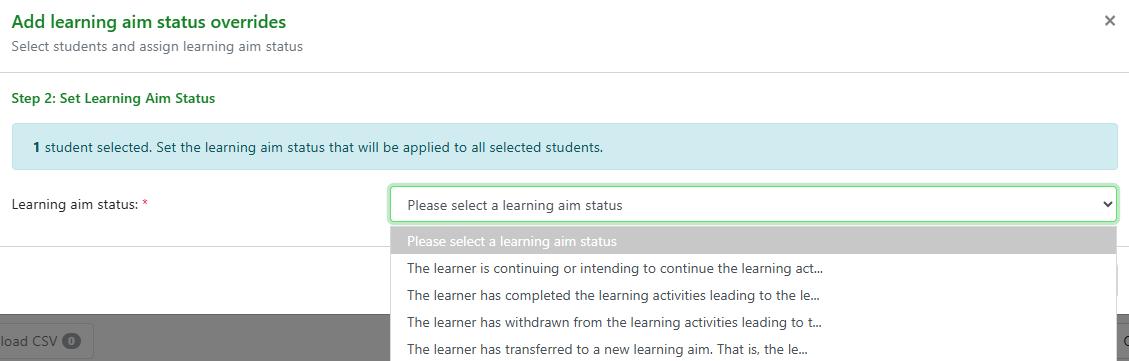
This will update in the course view of Learning aims and the SRP.

Withdrawals
If a student withdraws from the Learning programme a reason is required for the census. Using the Withdrawal Reasons tab students can be added using the '+Add Withdrawal reason'. The modal should then be used to select the reason from the list as required by the census return.

Or click on the Add to select the reason from the modal.
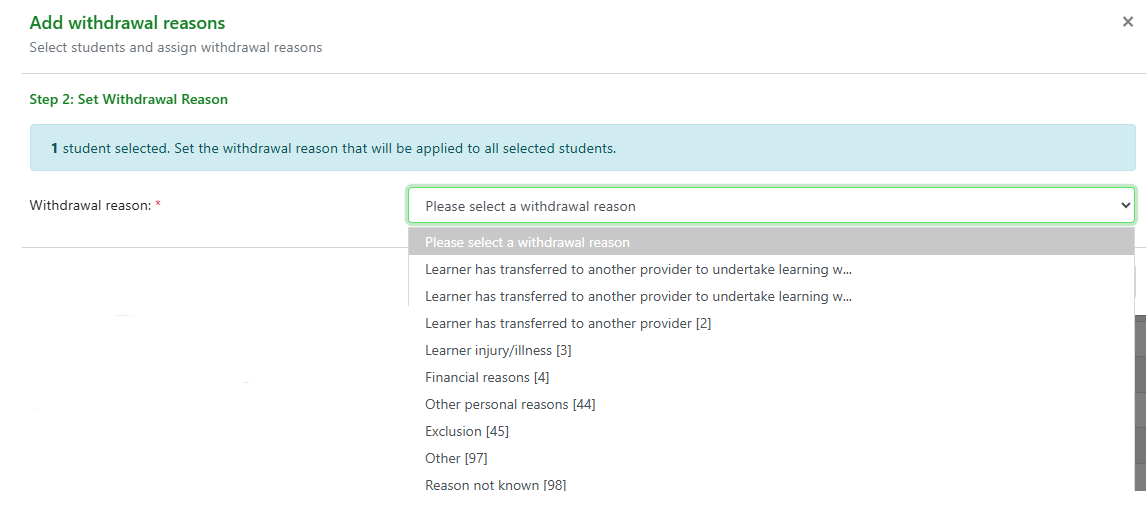
Any students marked as leavers with missing information will be flagged so the data can be corrected and updated. On the overview tab, we utilise group membership information to flag when a student is missing a withdrawal reason.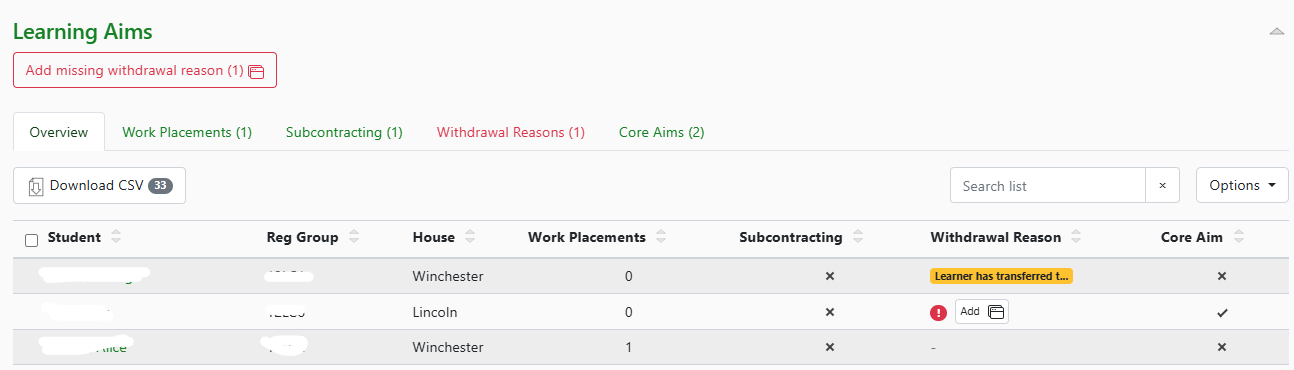
Validation errors
It is a census requirement that students only have one core aim per programme type. If more are added these are flagged as a 'Core aim violation' as this causes errors in the census. This shows on the course management page and the SRP. 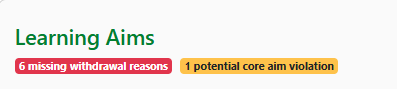
Transferring Core Learning aims
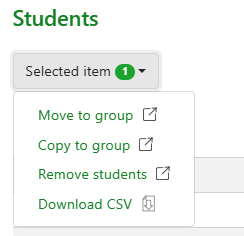
Curriculum > Groups > Select group - to manage students Learning Aim status from the student list in the group page select the student and then 'Move to group'.
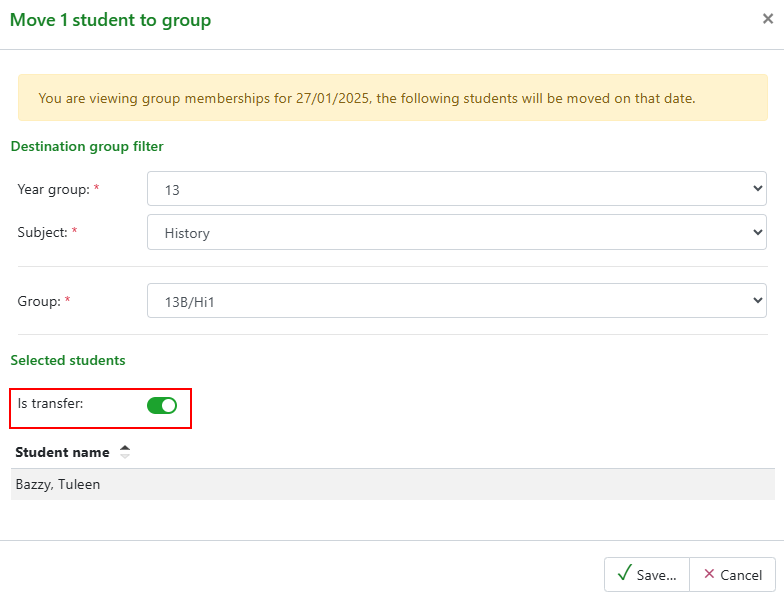
The modal will require the new subject and group details entering and then the 'Is transfer' toggle enabling.
The student will show on the group list as 'Transferred'.
 Managing learning aims from the Student Record
Navigate to the 'Learning Aims' block on a student record page. This has the same tab options as the courses page and can be used to add details for the specific student.
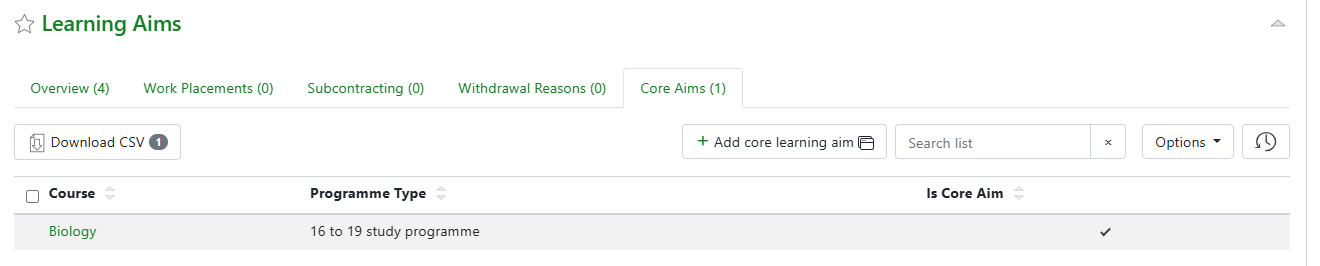
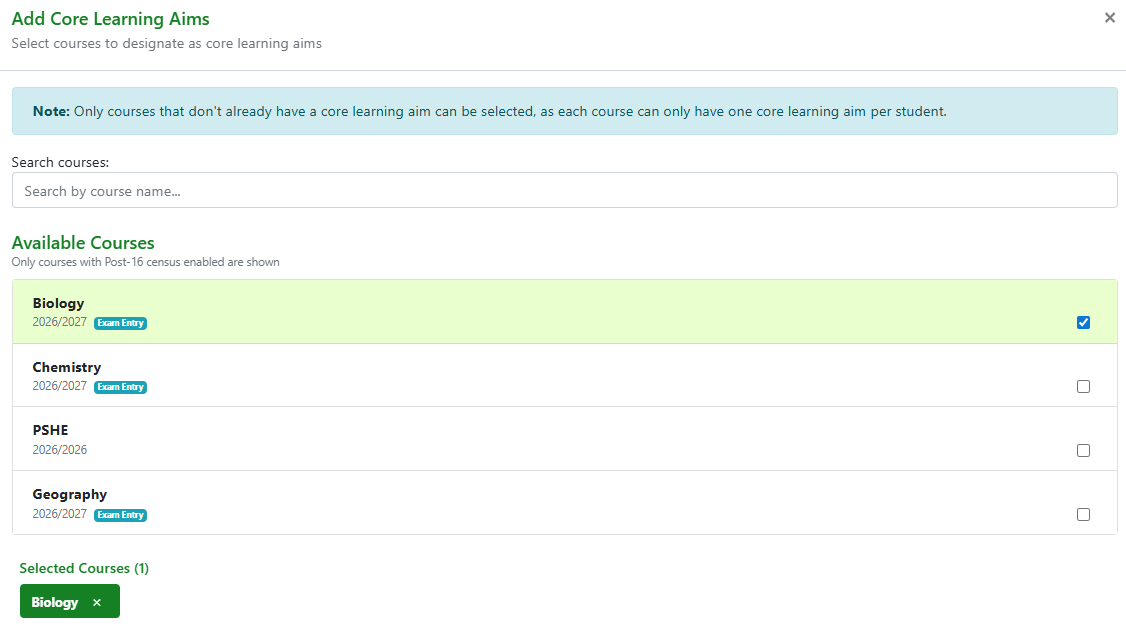
When adding a core aim the modal differs slightly as only the subjects where the student has a membership are included. The subject required can be selected by ticking the box and selecting 'Create'. This will then display on the student page. The core aim can be removed by selecting and editing.