
Timetable imports are managed via Curriculum > Timetable setup: Timetables > Timetable import.
At the moment you are able to import timetable revisions and apply timetable rules (please see guide on Managing timetable rules).
In the following scenarios our support team are able to import a 'new' timetable:
- It is the first timetable of the academic year
- You have switched timetable providers
- You have changed the period structure of your timetable
Importing a timetable revision
To import, drag and drop the timetable zip folder into import area of the 'Timetable provider' tile.
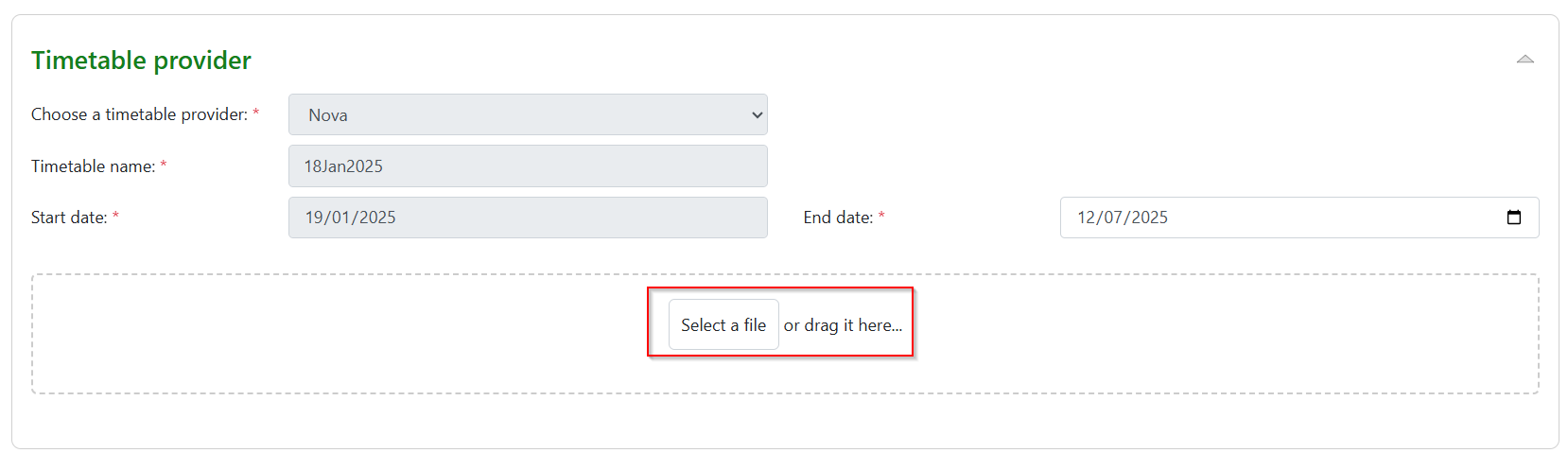
The upload will take a little time due to the amount of data. You will automatically be directed to the Timetable rules page where it is possible to add/amend/remove the rules already in the rule set. Note that making changes will update the rules within the set. Once saved the timetable can be previewed.
Timetable preview
Once imported the timetable can be previewed:
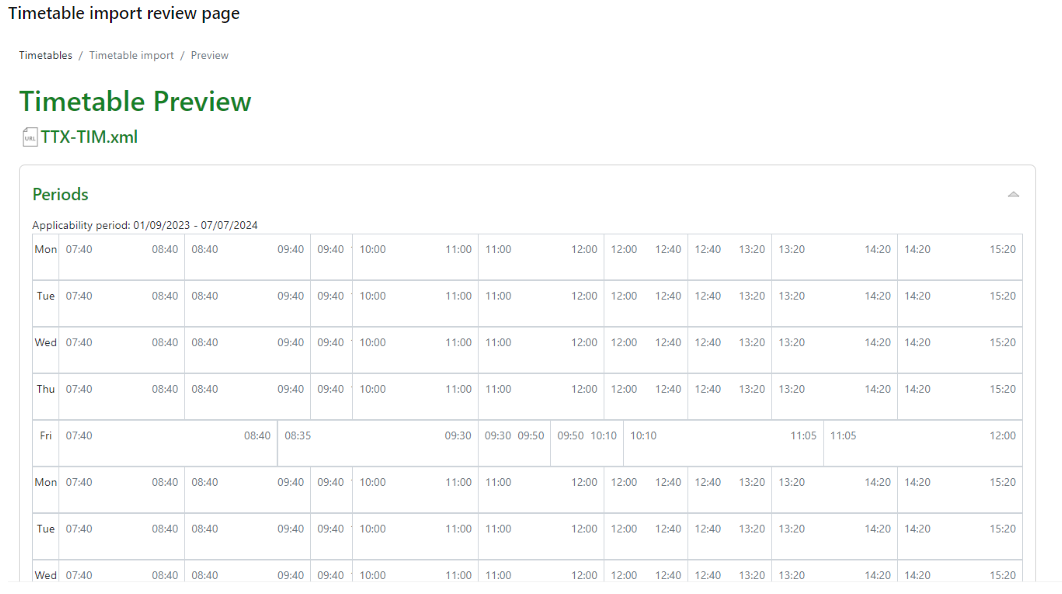
A report of the files imported will display.
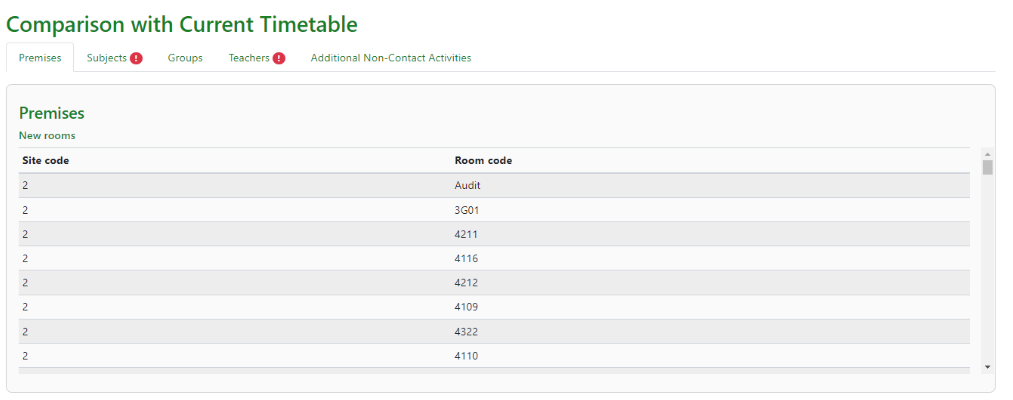
Tabs to compare premises, subjects, groups, teachers and non-contact time are available, errors will display for any data that is preventing the import.
- A list of new rooms not in the MIS will display and create these for you.
- New subjects that are in the timetable that do not exist in the MIS will display as an error, so this can be set up as a new course and then the timetable re-imported. New courses are not automatically created.
- Groups listing can contain mis-matches between the timetable and the MIS as we will create any new groups not found in the MIS.
- Teachers will show an error for any teacher codes in the timetable that do not exist in the MIS. The staff member will need to be created or removed from the timetable.
- Non-contact time activities will be listed.
The timetable can then be uploaded to the MIS.