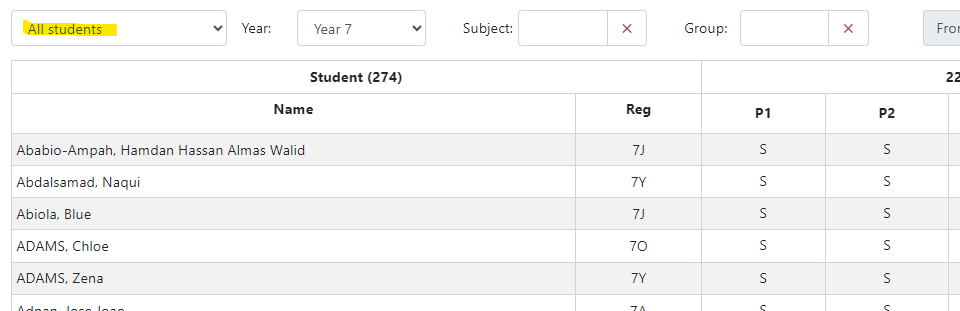
Curriculum > Timetable set up > Timetable suspension to access the page to manage timetable suspensions. The timetable may be suspended for collapsed curriculum days for Careers or PSHE for example.

- Set the dates that the suspension is to be applied from and to.
- Select the year group and/or subject/group to apply the suspension to.
Once the list of relevant students are displayed you have four options to change the status (suspend or clear):
- Fill a single cell
- Flood fill cells to the right for a single student
- Flood fill for a day for all students listed
- Flood fill a lesson (column)
1. Fill a single cell
Click on the cell, select either Suspend or Clear and click Apply changes.
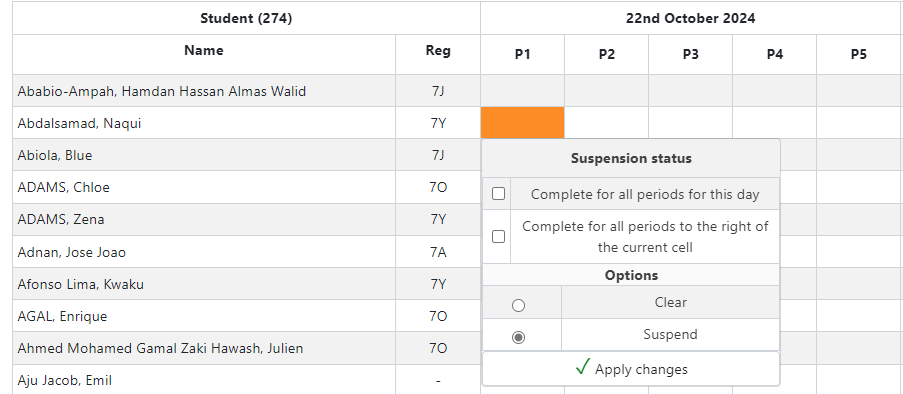
2. Flood fill cells to the right for a single student
Click on the first relevant cell to the right of the student's name, select 'Complete for all periods to the right of the current cell', select status, and click Apply changes.
3. Flood fill for a day for all students listed
Click on a cell, select 'Complete for all periods for this day', select status, and click Apply changes. Please note, even though you may have selected multiple days in the date pick you will need to repeat these steps for each day.
4. Flood fill a lesson (column)
Click on the lesson header (e.g. P2), select the status and click Apply changes.
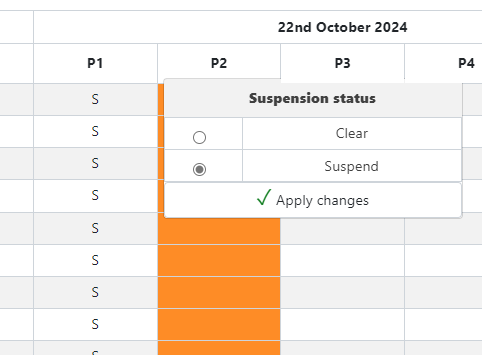
All students with a suspended timetable will display on the page.