
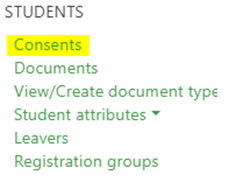
To add new consents for students, access the Consents link under the People menu:
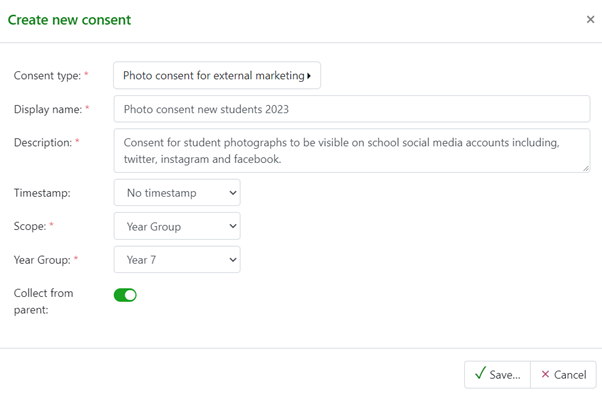
 On the consents page, at the top you can Add new consent, a pop-up form allows the details to be completed as required:
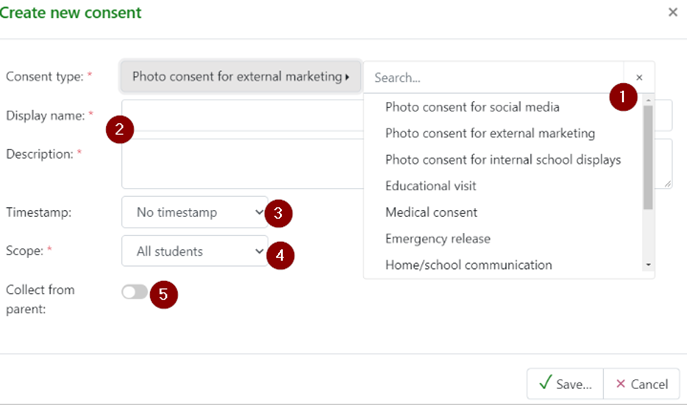
- For the consent type select from the drop-down list of system or custom consent types
- Complete the name and description of the consent, ensure this is clear to parents and students as these are the details they will see.
- For the time select No Timestamp if the consent will be used in future academic years for the students, however if you collect consents annually then select the academic year which this applies to
- Then select the students who the consent is applicable to, for example a year group. Options are:
- All Students
- By year group
- Chosen students - this option then allows you to select students from specific groups.
- by default, consent will be collected from students. If you require parental consent, enable the Collect from parent toggle.
- Once completed click the Save button.
Selecting students
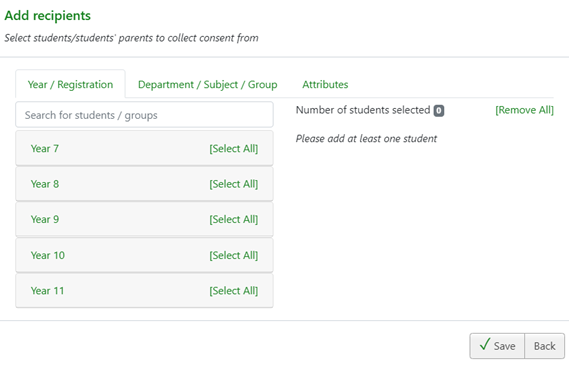
If Chosen students is selected for the scope of the consent, there is then an option to select students. The Add recipients window has options for:
- Year group/registration groups
- Department/Subject/Groups
- Attributes (to select any attributes that are flagged for use in consents/messaging)
- Individual search for specific students
At this stage student can be added to the list by group or individually, as well as be removed from the list once selected.
Once the group of students has been selected they will be added to the consent with a consent status of Not requested. Whilst all entries are in this state, the consent can be edited, and the students removed.
Adding a student to an existing consent
If a new student joins the school or additional students need to be added to an existing consent, this can be done by selecting the consent, and then using the Edit consent tool in the top right corner of the page. A pop-up displays the option to Add/Remove students which will return the user to the Add recipients pop-up where additional students can be searched and added. Once added to the consent this can be sought from parents/students by following the workflow described.