
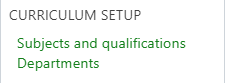
When your school starts using GO 4 Schools, a list of subjects is retrieved from your school's MIS. GO 4 Schools allows you to group the subjects into Departments for ease of navigation and analysis of statistics The grouping can be done using the Manage departments page which can be reached by clicking Departments in the Curriculum menu:
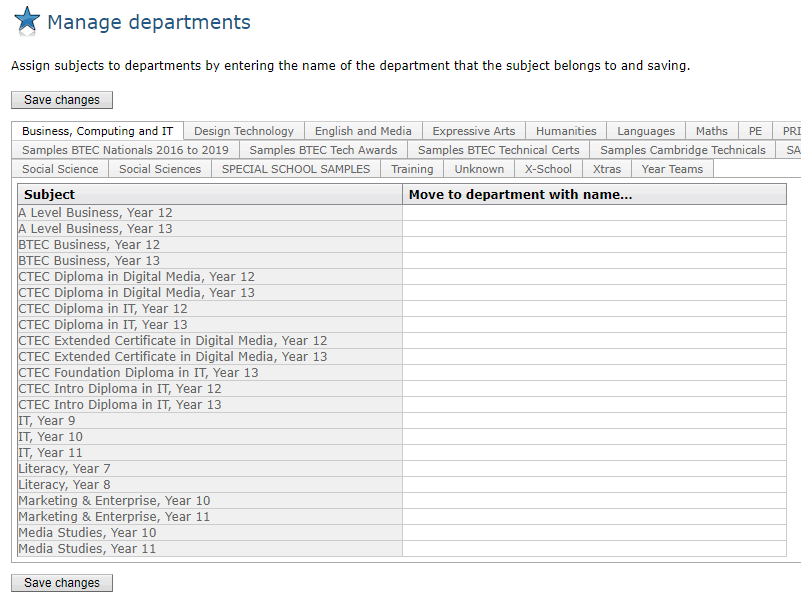
 On this page existing departments are listed in tabs across the top of the page. By default, every subject starts off in a department called Unknown. You can click on the tabs to see which subjects are allocated to which departments. To change the allocation of a subject, type in the name of the department that you want to move it to in the right-hand column. If a department with that name does not exist it will automatically be created when you Save changes. You can change the allocations of multiple subjects in one go.
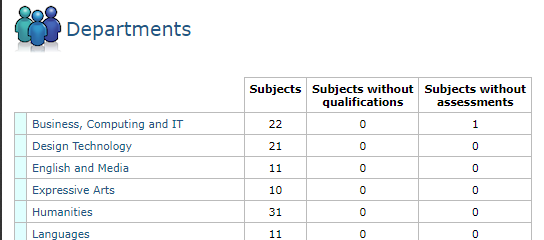
 The departments that are created a listed in the Pathfinder under the Departments section. The link to Departments here will also take you to the Manage departments page, while the All departments link will take you to a listing of all your departments where you can quickly see which departments have subjects without qualifications, as well as which have subjects without assessments.
Subjects need allocating to departments when your school starts using GO 4 Schools and at the start of each academic year.