
Whether setting a pre-defined homework or creating an ad hoc one, the user should navigate to the group for which they want to set homework and should then click the set homework link:

Homework can also be set for all students in a subject by clicking the same link on the subject page:

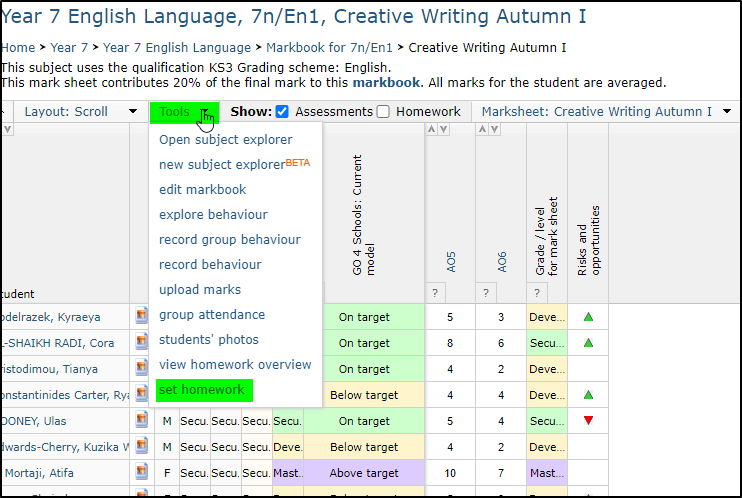
The same set homework option can be found in the Tools menu in the marksheet page:
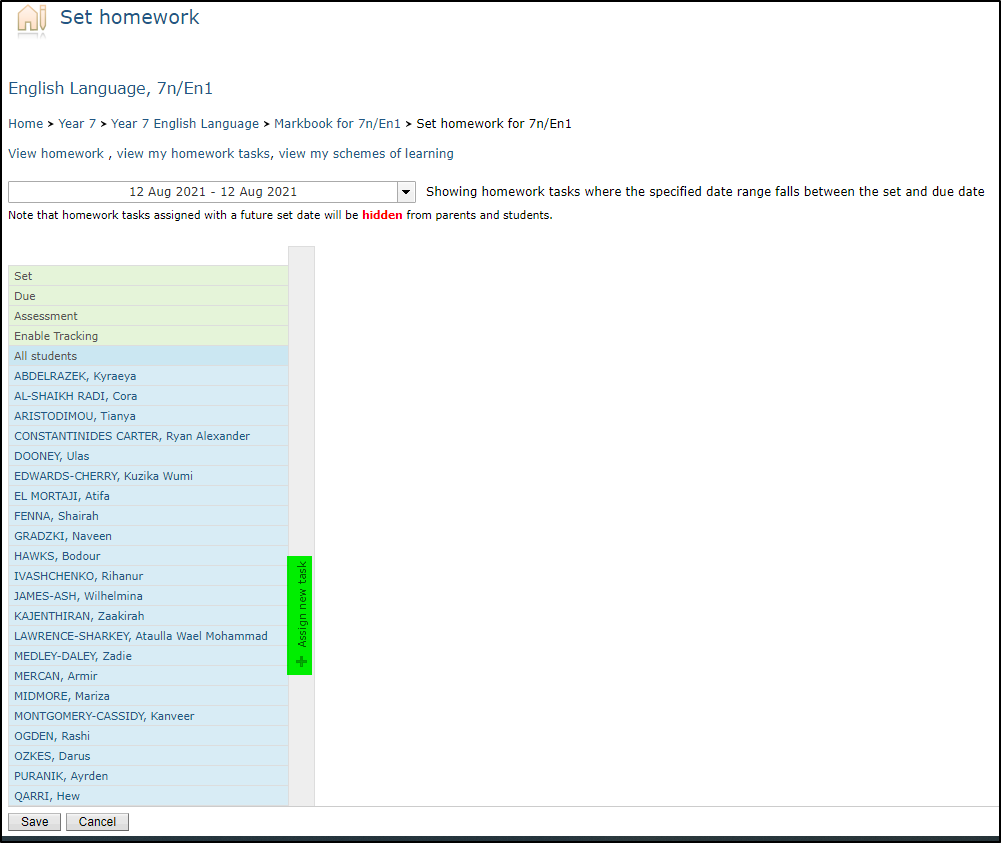
You should click on the Assign new task button to assign a homework task. Note: if setting homework for a whole subject the text is at the midpoint of the grey bar. Rather than scrolling down to it, you can simply click the grey bar:
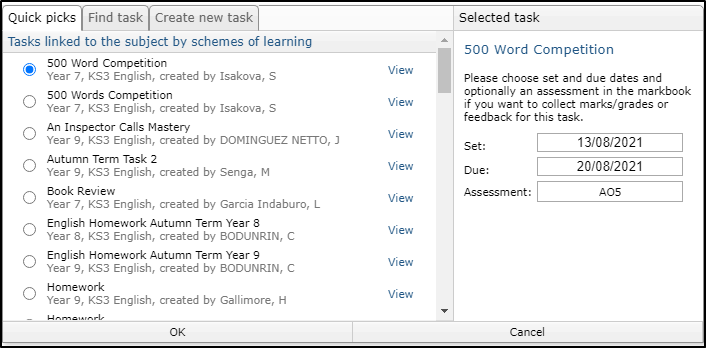
Existing homework tasks can be selected from the list on the left. On the right you can choose a Set and Due date. If you choose a set date in the future, the homework will not display to students and parents until that date is reached.
You will not be able to choose an assessment unless the homework task has been linked to an assessment as described in the Homework Tasks guide .
Alternatively, you can create a new ad hoc homework task via the Create new task tab:
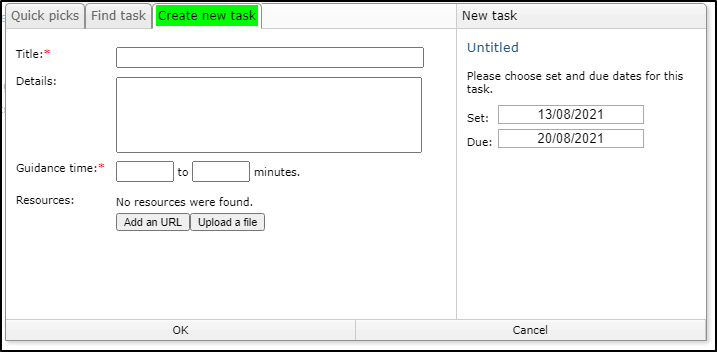
This could be useful for setting extension or catchup work outside of the predefined scheme of learning.
When all the details have been entered, click OK.
NOTE: Homework created in this way will have tracking enabled by default. To disable this, you would need to edit the task via the option My set homework.
You can choose whether to set the homework task for all students in the list, or just a selection of students using the checkboxes.
If tracking homework is used teachers can also select the option to track whilst assigning the homework task.
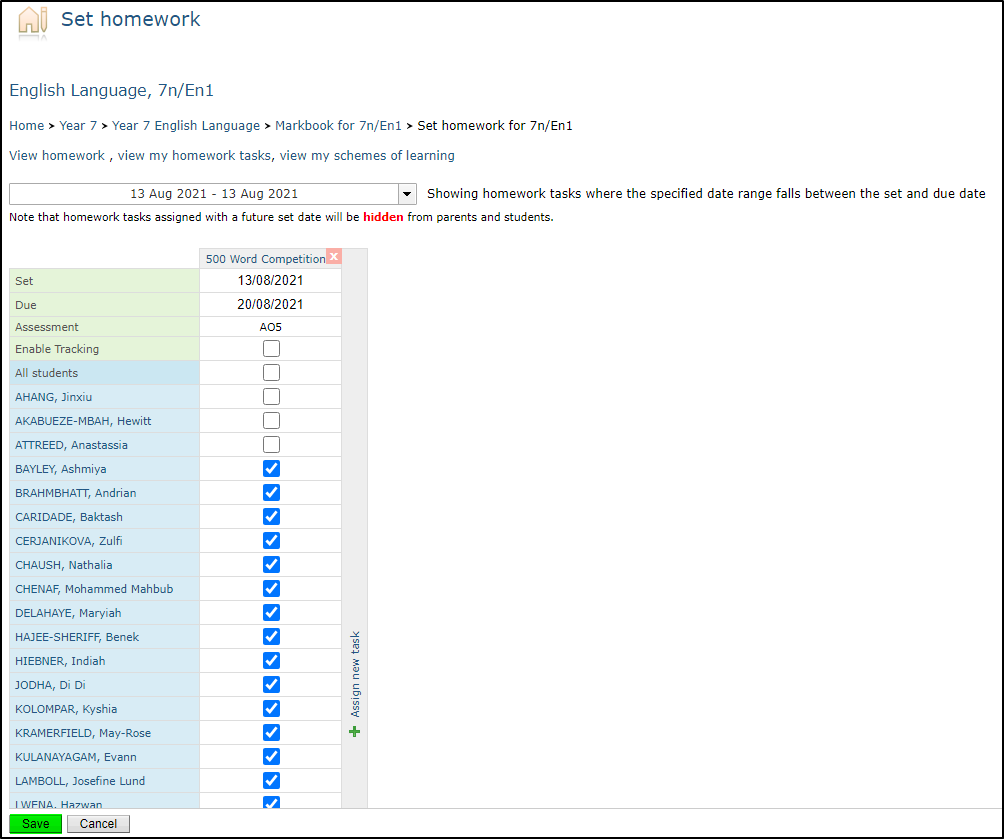
Finally, click Save.