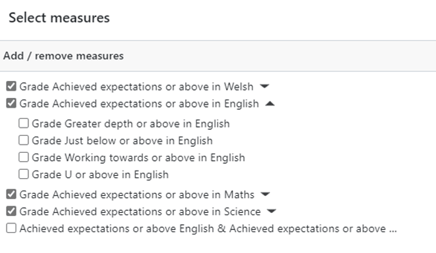
The Attainment over time page allows users to view performance measures by key stage based on any selected grade type, focus group and side by side comparisons of snapshot data. This enables a quick view of changes of patterns in student attainment. The tables can be viewed using live data and be easily downloaded for quick analysis of the Key Performance measures applicable to the key stage or the school-based assessment schemes your school has set up in GO 4 Schools.
The statistics will display using the same applied rules for the year group key statistics tables and using the appropriate applied methodology from the DfE. See the explanatory notes. The tables will also follow settings in GO 4 Schools including:
- Students statistics rule to remove any student from performance measures
- Excluding subject(s) from statistics
- All first entry rules for the DfE
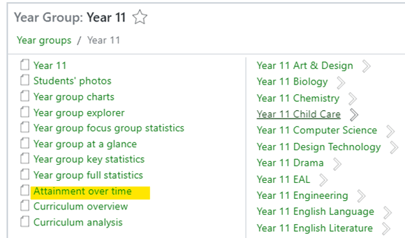
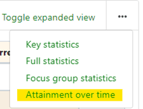
The attainment over time page for any year group can be accessed the Pathfinder menu > Year group > Attainment over time. It is also accessible via the Key statistics or from the year group At a glance page via the more options on the key statistics block of the page.

Page features
The menu gives the user far more flexibility in the options of the data they wish to view:
Add measures
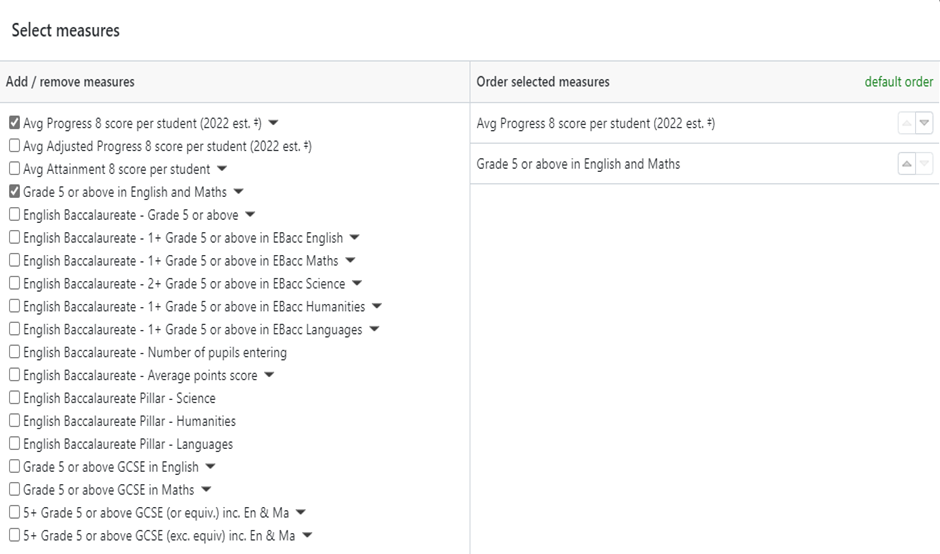
The Attainment over time page (AoT) has a menu to allow the user to select the measures for analysis, this means that specific details of the Attainment 8, for example, can be reviewed more easily. The performance measures included in the list are taken from the DfE accountability measures documentation.
Once selected the order of the selected measures can be altered by the user by using the Order selected measures option on the right-hand side of the pop-up.
Add focus groups(s)
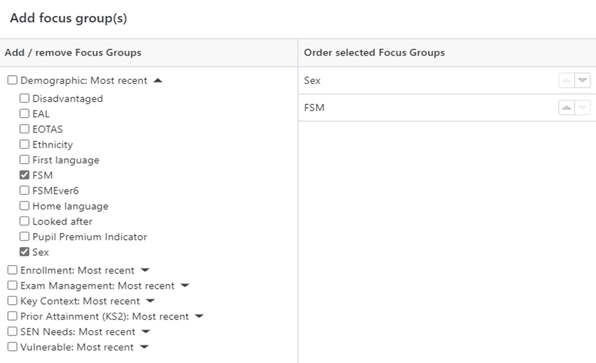
The focus group modal allows any student attributes set for analysis of attainment that is included in an attribute set to be selected. The groups will display by attribute set to enable selection for analysis.
Once selected from the attribute set the order of the selected focus groups can also be changed.
Select grade types
Users can select the grade types they wish to view. By default, all enabled grade types will be visible, but this feature allows, for example, the actual grade to not display in the table. This is useful for schools who do not want to view this grade but need to keep the actual grade enabled and visible to view outputs for prior attainment data e.g. KS 2 scaled scores.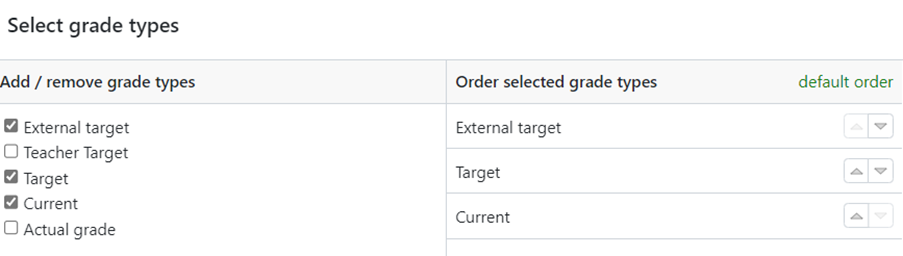
The pop-up allows you to select the grade types you wish to view and alter the display order.
Select snapshots
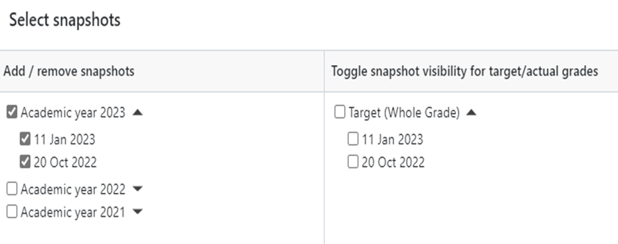
Once reports are prepared and a report snapshot is available, you can now select the data from each of the snapshots to view within the performance measures table to compare side by side. It is important to note that currently the snapshot will:
- Exclude subjects not included in the report.
- Exclude students not included in the report.
- Exclude grades not included in the report.
You may want to consider when completing a reporting cycle also completing a full data snapshot to ensure none of the data listed above is excluded.
Load/save column sets
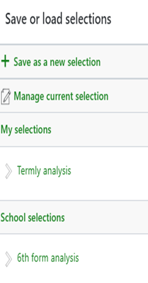
As with our Data explorers you can also Save selections to quickly reselect. These can be saved by the individual user or shared with other users for school-based data views. Any saved data views can be managed and renamed or deleted if no longer required.
To save a view simply select all the data from the menu required to display in the table; measures, grades, snapshots etc and then select ‘Load/save data sets’ from the menu, then ‘+ Save as a new selection’.
The pop up will give you the option of naming the saved data set and adding this to a group of similar data sets e.g. Y11 tracking data.
Note: Focus groups are not retained in the saved data set.
Downloading column sets
Once the table is set up as preferred you can then use the Download CSV to extract the table of data. Where the measure is a threshold, you can also toggle between displaying a percentage or count of students in the table to check for small numbers of entries.
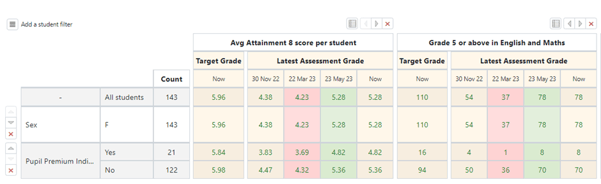
Student level data is visible via the mini-explorer pop-out when clicking on any number in the table. The link to the Data explorer will also be available.
Downloading column sets
When drilling into a previous academic year snapshot a Change option has been added to the data explorer tools to display student level performance measures data. This is because the explorer is showing measures from the previous academic year so any additional columns added for focus groups will be populated from the selected year’s data.
The default column set opening from the Attainment over time data will include ‘Leaving date’, so it is easy to see if any students left at the end of the academic year and the grade data will display the selected date stamp.

To change the data to the current academic year, use the Change button to select the required data snapshot.
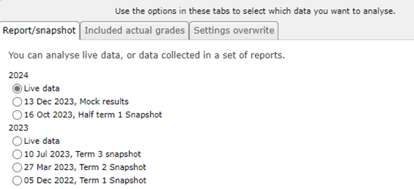
This feature will also display in the year group explorer. The existing selection of ‘Reports and snapshots’ will remain so data can be displayed from subjects side by side.
Note: only the data for attainment measures will change in the year group explorer when the 'Change' button is used.
Key Stage 5 Attainment over time
The same functionality is available to review the 16-18 performance measures as listed below:
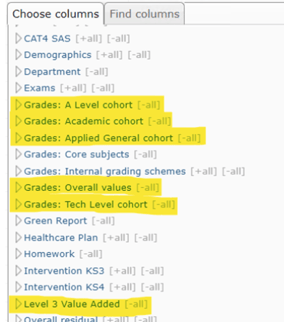
When drilling into snapshot data in the "L3VA by subject" section of the curriculum overview page, available in KS5 year groups in English schools, clicking the "Open in data explorer" button in the mini explorer will load the year group explorer at the chosen snapshot in the appropriate academic year.
Internal grading schemes over time
For key stages using Internal grading schemes the same features are available, when adding measures you can select from all grades included in your grading scheme for subjects using the Core grade schemes; English, Maths, Science, Welsh for KS3 plus Reading, Writing and GPS for Primary schemes.