
To allow schools to block the view of published reports to parents and students the special attribute ‘Block student and parents viewing reports’ can be used. Further details on attribute management can be found here.
This special attribute can be used by schools who may wish to block the reports for specific parents and students, for example independent schools where parents have overdue fees to pay.
Setting up the student attribute
Go to People > Student attributes > Student attributes and in the Special attributes block select ‘Manage values’ for the ‘Block student and parents viewing reports' attribute.

‘Add a new set of values’ with ‘No timestamp’. This attribute requires values to be added and updated on an ‘as needed’ basis, so should not be timestamped.
When the student has a value of ‘Yes’ the visibility of report will be removed from the parent and student site. When viewing in the school site the report will still be visible, but NOT when viewing as a parent or student.
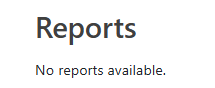 Will display on the school site viewing as a student or parent.
The attribute can be populated by manually typing ‘Yes’ for each student, or the bulk upload can be used. Each year group's data can be managed by using the Upload attribute in a file and using the csv template to add the values.

The whole school can be populated in bulk by using the 'upload attribute data' from People > Student attributes > Upload attribute data in the main menu. Ensure the name of the attribute is used in the file, and the attribute is added to the 'Enrolment' attribute set. See here for more details.

To regrant permission to view reports you will either need to remove the 'yes' value in the attribute, or you can upload a file with 'No' to replace the yes.