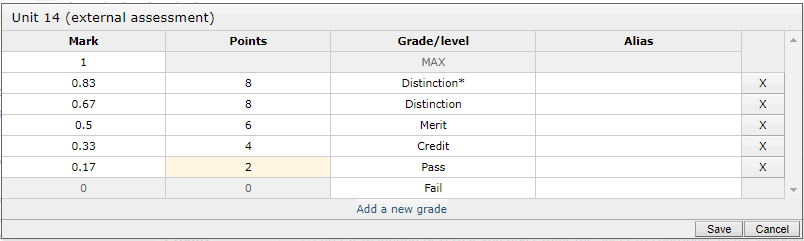
Each BTEC style marksheet typically represents a unit of the course. The external marksheet is for tracking one or more attempts at an externally assessed unit.
The top section allows the sheet’s name and credits values to be adjusted. You can select whether the sheet is a core, mandatory or other type of unit. You can also set a sheet to be private, meaning it is not visible to students and parents, by default this will set the sheet weighting to zero, you can change this, but it can lead to parents and students seeing discrepancies when they see an overall grade. You can flag the sheet to use the residual scheme for the subject, as well as change the marksheet grading scheme. Finally, you can set the assessment/marksheet visibility settings for the student page as well as in the markbook/marksheet. The top area also allows you to edit the grading scheme for the marksheet.
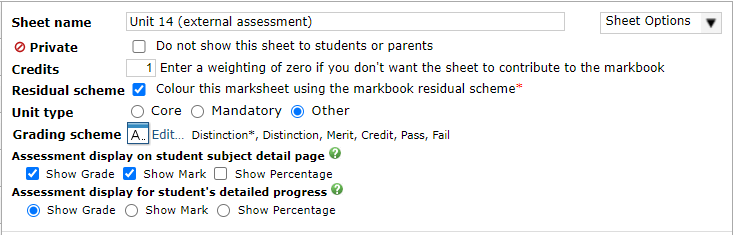 The central section allows the way in which the assessments are combined to be changed. Option include a simple average, a weighted average, find the sum of the best n assessments, etc. If you select the option Do not calculate an overall grade/mark this will automatically zero-weight the marksheet. Once an actual exam mark is entered we recommend this is changed to the rightmost assessment, and that the exam result is put in the last column.
 The bottom section allows you to add columns to your marksheet for recording the initial and any resit attempts at the externally assessed unit, plus any notes you want to record. Each of the items you add can have a name, a due date and can be given a colour coding which affects the background colour of the label when the marksheet is viewed by a member of staff. You can also lock columns, which prevents their contents being changed unless they are unlocked again. The sequence of the items can be changed using the arrows on the left hand side, and items can be removed by clicking the X button on the right. As with other sheet types, you can change most aspects of a marksheet at any time, but some aspects will be locked if marks have been entered.
 Understanding the behaviour of grades, marks, checkboxes, and notes:
- Notes fields (up to 200 characters) always have a weighting of zero, and never have an impact on the grade calculated for a marksheet even if they hold text that looks like a number or grade.
- If you are adding a mark-entry item, you can specify how many marks it is out of. You can change this until marks have been entered by staff.
- By default, missing mark/grades are simply ignored in the calculation of the overall grade for the marksheet, but you can treat them as a zero if you use the =0 tick box
- If you are adding a checkbox, you can specify how many marks are available for the item of work. If the checkbox is ticked the student will get all of the available marks, but if it is unticked then the column will be ignored unless you have indicated that the missing mark should be treated as zero.
Setting up the marksheet grading scheme
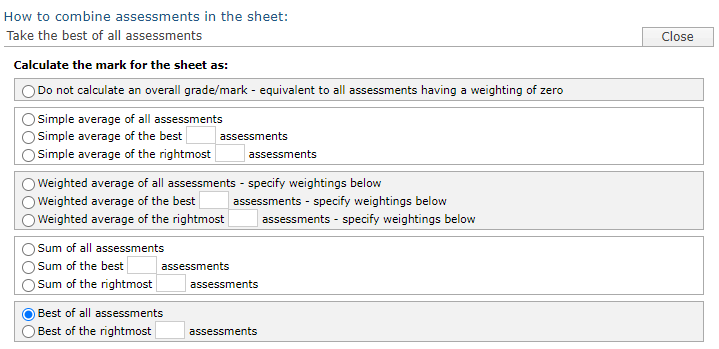
Due to the complexity of BTEC qualifications, you must review the grading scheme that is created automatically for the marksheet. This can be accessed by clicking the Edit... link that appears just to the right of the Grading scheme label in the top screenshot. This requires a familiarity with the calculations used for grading BTECs.
You can use the sheet's grading scheme designer to add/remove grades and set the Points per credit that are used to convert the sheets credits into points. You can also set mark boundaries.