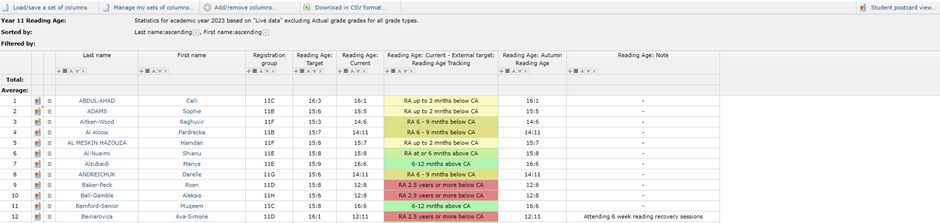
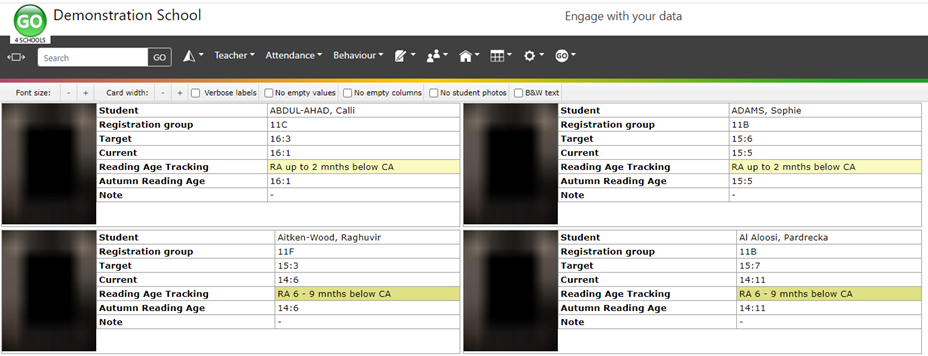
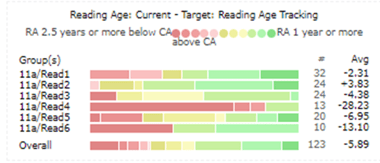
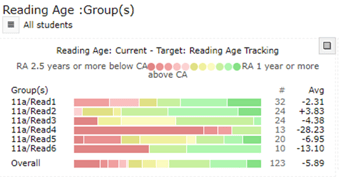
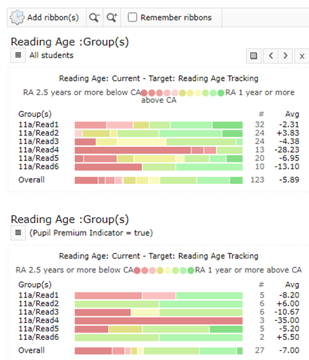
This guidance document is intended to support school leaders with the analysis of student reading ages using GO 4 Schools. It outlines how to setup GO 4 Schools to track student reading ages and how this information can be easily viewed using the enhanced ribbon functionality, as shown below.
Why is comparing reading age to chronological age important?
Reading is widely acknowledged as a key skill that underpins most activity in school, within employment, and throughout life. The increasing complexity and use of subject specific language, combined with the increasing reading ages required to access GCSE and non-GCSE level examinations compels us to ensure that as many students as possible have a reading age that is at least in line with their actual age.
In addition to this, Ofsted in the 2023 Education Inspection Framework cite that inspectors will make a judgment on the ‘quality of education’ by evaluating several key indicators. This includes the extent to which “Reading is prioritised to allow pupils to access the full curriculum offer” that the reading curriculum “ Develops pupils fluency, confidence and enjoyment in reading” and “At all stages, reading attainment is assessed and gaps are addressed quickly and effectively for all pupils”.
To both support the fundamental life skill of reading and ensure the rigorous approach expected by Ofsted, tracking student reading ages is essential. This guide focusses on how to compare a student’s current reading age with their chronological age so that we can see whether the student has a reading ability at the same level as their age. This comparison will highlight the students in your school who have reading ages below their chronological age and will therefore struggle when reading certain levels of text, such as subject specific terminology, and may therefore achieve lower outcomes than their peers unless suitable support is provided. It will also identify which students are above their chronological age and therefore enable staff to set appropriate challenge for these students.
The National Literacy Trust is an independent charity dedicated to giving children, particularly disadvantaged children, the literacy skills they need to succeed. A link to their website is available here.
The Education Endowment Foundation provide evidence-based summaries as part of a teaching and learning toolkit of key strategies to improve the outcomes for young people. Here is the link to the ‘Reading comprehension strategies’ toolkit strand that, based upon extensive evidence, has suggested can enhance learning by up to 6 months.
The full Education Endowment Foundation Teaching and Learning Toolkit can be access here.
Setting up GO 4 Schools to track reading age
Creating a new reading age subject
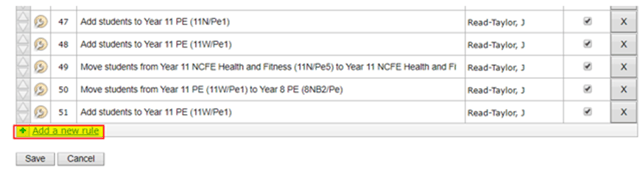
To setup GO 4 Schools to track reading age most schools will copy all the groups from a whole cohort subject, such as English, maths or registration groups, so that you can create a new subject called ‘Reading Age’ in each year group you want to track. Some schools will create a subject with multiple groups from different year groups e.g. a Key Stage 3 Reading age subject with all Year 7, 8 and 9 students in it. For either approach create a feed rule.
Setting up the reading age markbook
Once you have assigned your new ‘Reading Age’ subject to the correct department or created a new Literacy or Reading Age department, you can copy the reading age markbook from the GO 4 Schools template and use this version or amend it to your requirements. To copy the GO 4 Schools template markbook, click on the white box (edit markbook link) next to your new reading age subject.

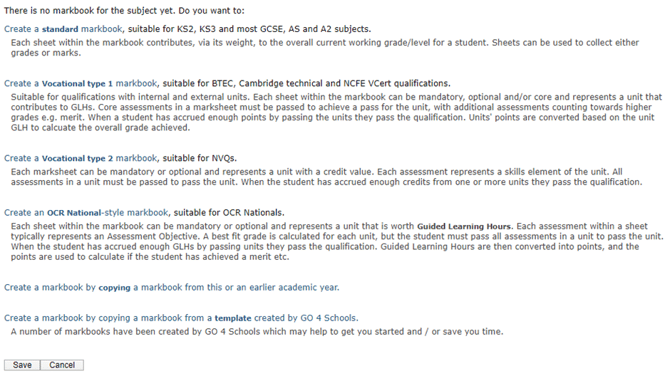
You will then see the markbook designer. Click on Create a markbook by copying a markbook from a template created by GO 4 Schools, as shown below.
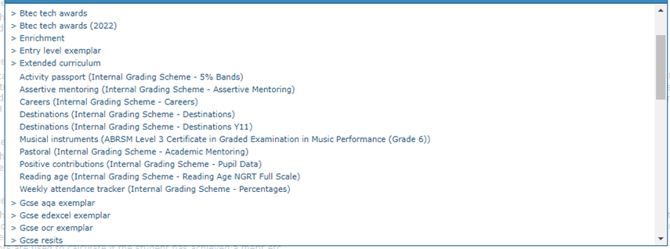
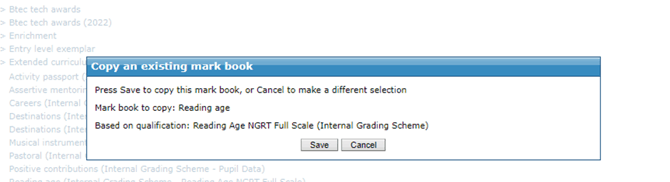
You will then be able to select the Reading Age template from the Extended curriculum section and then click Save, as shown below. Finally, click Save on the markbook designer page to save the template markbook.
Setting up and amending the reading age internal grading scheme
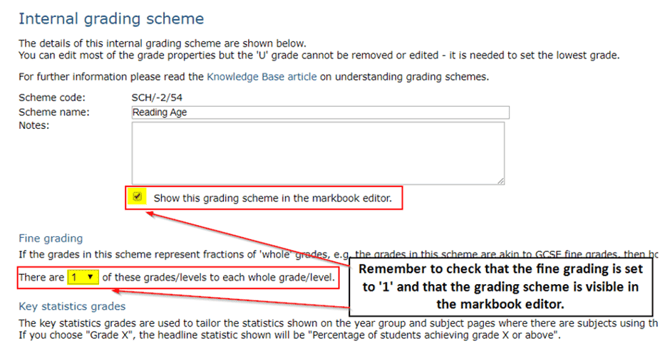
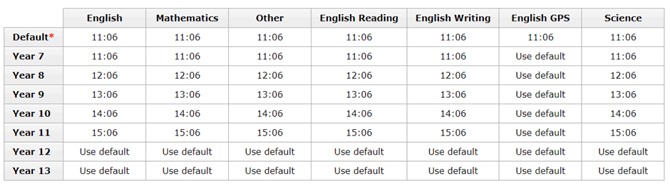
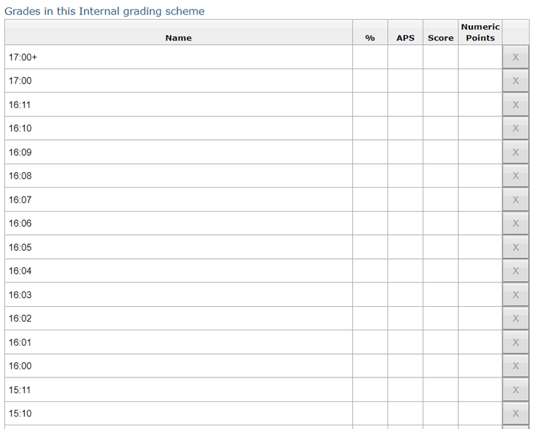
You can either begin to create your custom reading age internal grading scheme or you can use/amend the version that was copied over when you copied the template markbook. The template version includes the reading age grading scheme shown below. The template markbook is in NGRT format, but this could be changed to a format of another reading test product that you may be using.
Your grading scheme will need to include all the reading ages and format that are applicable to the reading age assessments completed in your school. If you want to set up your internal grading scheme from scratch, please see this article.
The internal grading scheme from the reading age template has been provided below to demonstrate how the scheme setup will appear in the markbook. If editing this scheme to add more ages, remember to click Save when done.
Setting up the reading age residual scheme
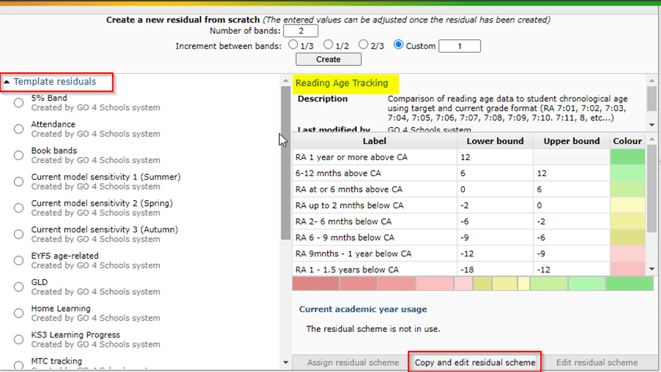
Once you have copied the reading age template markbook into your new reading age subject, you’ll need to add the residual scheme. We have a template available via Curriculum > Residual schemes, then select 'Create a new residual scheme'. Click on 'Template residuals' and then select 'Reading Age Tracking'. You will be able to copy this in to your own site and then edit and apply to the appropriate subjects:
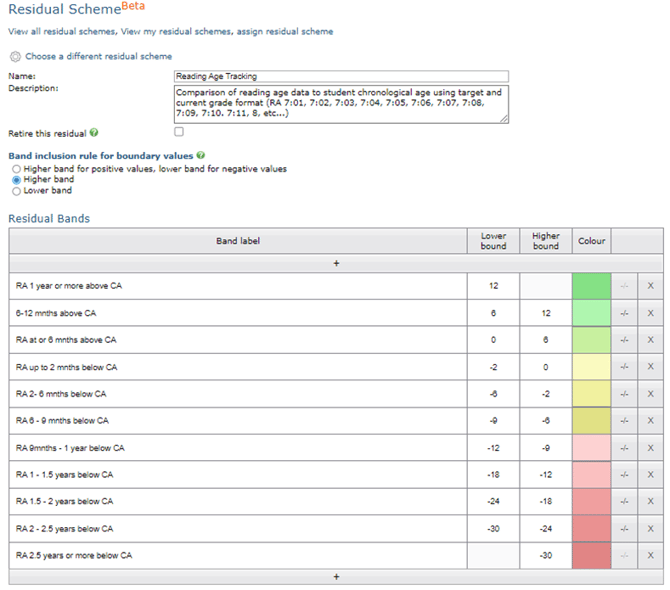
Alternatively, you can use the example shown below to create a new residual scheme:
Uploading student chronological aged as a target grade
Once you have completed the steps above you are able to create a file to upload each student’s chronological age as a reading age target grade. This will enable the residual scheme to calculate the difference between the student’s reading age assessment data and the student’s chronological age. We recommend to use the chronological age from the test data file as you will be comparing the their reading age from the day they sat their test to their age on that day.
If this is not possible, to identify the latest chronological age for each student in the year group, you can use the information available in the year group explorer to select the ‘Age in months’ for each student as shown below.
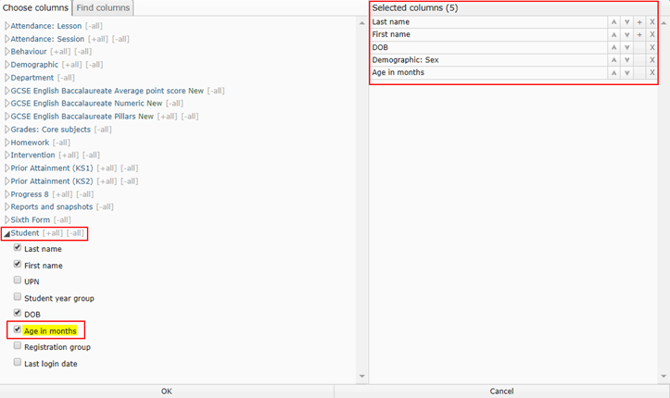
Once you have the columns selected you can download the data in CSV format and then convert the age in months for each student into their age in years and months using the formula shown below.
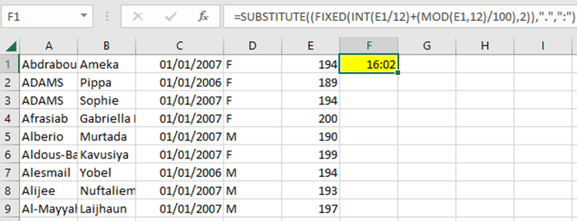
=SUBSTITUTE((FIXED(INT(E1/12)+(MOD(E1,12)/100),2)),".",":")
Alternatively, if you are using UPN to upload you can use the following formula below.
=SUBSTITUTE((FIXED(INT(B1/12)+(MOD(B1,12)/100),2)),".",":")
To use the formula, you will need to remove any surplus columns or rows so that only the key data is viewable. Your formatted file should look like the version shown below. You will then need to paste the formula shown above into cell F1 and press enter, as shown below. This process converts the age in months to an age in years and months consistent with the formatting in the reading age internal grading scheme. You will then need to copy the formula into the remaining cells for each student in column F.
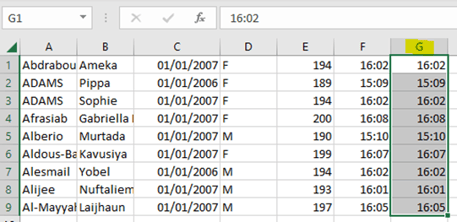
Once you have the reading age in years and months displaying in column F, you will need to copy all of column F and paste only the values into column G. This will then enable you to delete the existing data in columns E and F without losing the age in years and months, as shown below.
Your file should appear with columns as shown below.
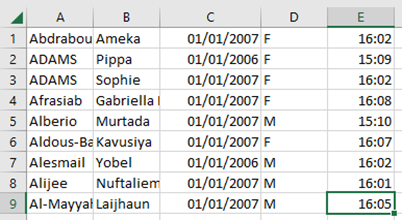
The maximum reading age listed in your reading age internal grading scheme is 17:00+. If you would like to have specific values over 17:00 you can adjust the reading age internal grading scheme to include the wider range of ages.
Once you have your file formatted to include this information, you are ready to save the file as a CSV file type and upload the target data into GO 4 Schools in the same way you have uploaded all other target data.
Using the reading age markbook
When you have the template markbook copied into your reading age subject markbook, you can add your reading age data. This can be done by selecting the correct reading age for each student in each markbook or via upload marks to a markbook using the link at the top of the reading age subject page.
You can enter the data into a markbook in the same way as attainment or attitude to learning data. The reading age template also includes a notes column so that any useful information can be recorded during reading intervention, English lessons, or for follow up later by the reading co-ordinator or senior leader. Additional notes columns can be added as required to keep a record of meeting actions. This could be particularly useful for underachieving students receiving support or students supported by additional funding, such as pupil premium/catch up premium, where more detailed notes may be required and reviewed in the future. The screenshot below shows the reading ages entered for the autumn term and the notes column being used to capture the reading intervention provided for the students.
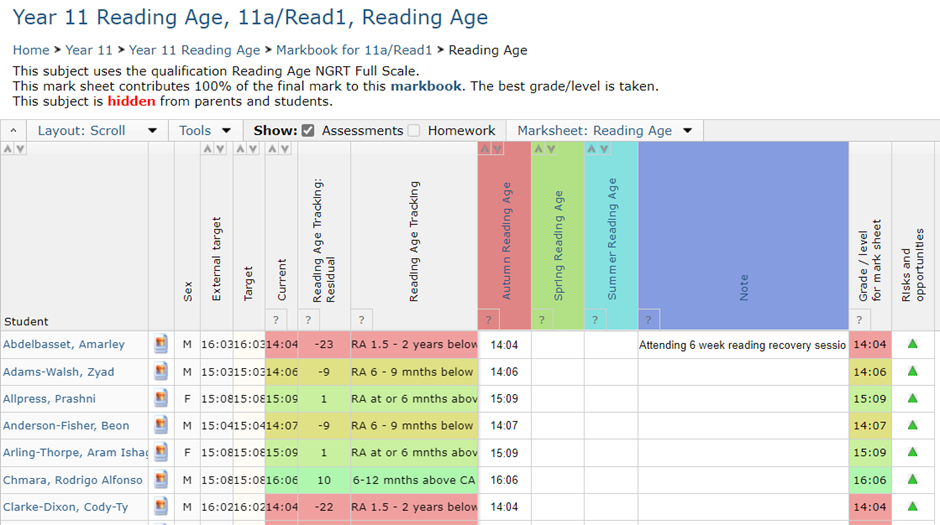
A video guide on uploading marks is also available here.
Visualising the reading age information
The information contained in the markbook can then be used to support discussions about how to improve students reading ages. The information can be viewed using the enhanced ribbons and using the subject or group explorer.
As the current reading age information has been added to the markbook as a current grade, and the students chronological age has been uploaded as a target, the ribbons will display the residual or ‘difference’ between the students’ chronological age and the reading age. The ribbons will display as shown below, depending on your tracking and progress settings. You will be able to remove sets of ribbons by clicking the X on the top right of a ribbon set whilst hovering over the image.

Enhanced ribbon view
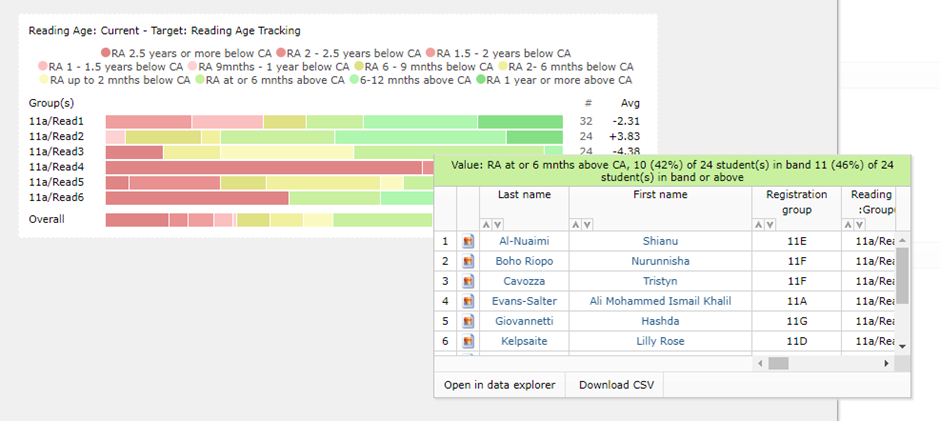
Clicking the grid shown below will pop up a larger version of the enhanced ribbon where you can easily explore the reading age information for the whole cohort using the ‘overall’ ribbon line. The ribbons are interactive and will provide percentages, numbers and names of students if clicked.
You can also quickly compare the reading age of all students with students supported by pupil premium using the ribbon filters. Clicking the menu shown below enables you to select any additional filters for comparison and produces another ribbon below the original showing all students.
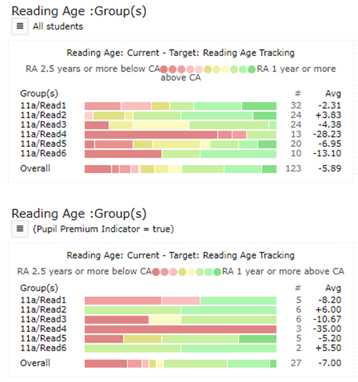
Repeating this process using the Pupil Premium Indictor = True menu enables you to filter this information further, potentially so you can see the reading age information for high prior attaining students supported by the pupil premium.
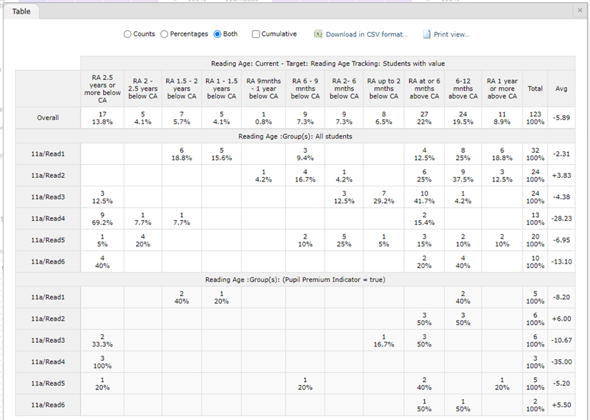
An interactive table view is also available showing counts, percentages or both values and includes all the ribbons selected. You are also able to easily print or download this information, as shown below.
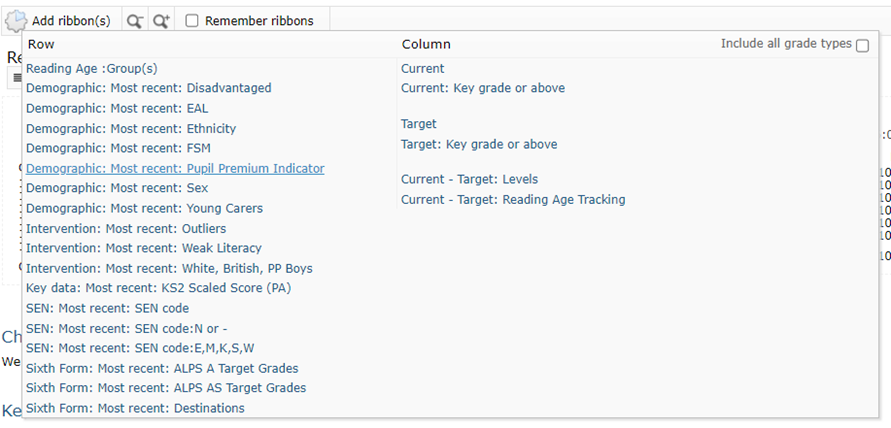
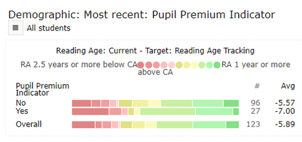
In addition to this by selecting Add ribbons and then Pupil Premium Indicator you will be able to see a different view of the data showing both pupil premium and non-pupil premium students average scores together as well as the average for the cohort.
Subject and group explorer view
Using the subject and group explorer view you can access the reading age data for all the students or a single group. Using the explorer, click on the add/remove columns button and select the ‘Grades’ column then select ‘Residual: Band’ then select ‘Reading Age: Current Grade – End of KS4 Target: Reading Age Tracking’ or whichever grades your tracking and progress settings are set to use.
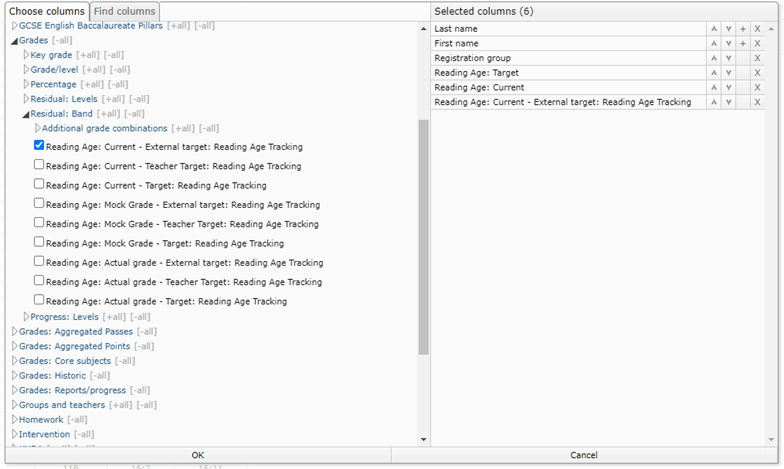
Then select ‘marksheet data’ column then select the ‘Reading Age: Note’ to add any notes that have been added to the marksheet. The reading age residual band will display the reading age tracking residual information as shown in the markbook. You can also add any additional columns as required.
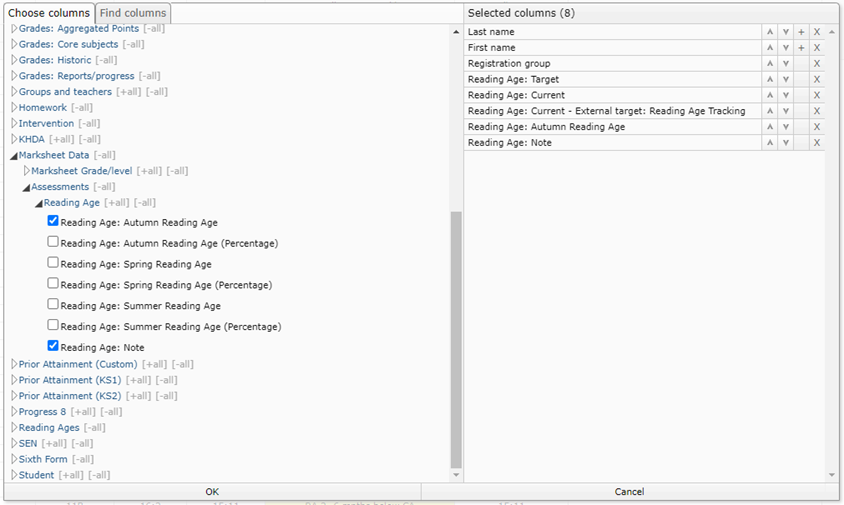
The information is then viewable in the explorer or as a student postcard view, as shown below. The postcard view also provides the option to hide empty values and hide student photos.