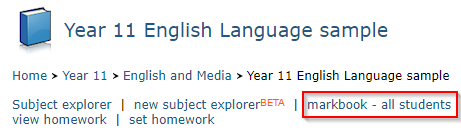
A sample marksheet is below. The marksheet's name is 2018 Nov QLA Paper 1 and it is for a subject called Year 11 English Language. It lists students in group 11g/Ee1. The qualification linked to the subject is AQA Level 1/Level 2 GCSE in English Language. The left hand side of the marksheet view shows similar information about each student to the markbook view, although there are no popouts or extra columns available in this view. The right hand side displays the individual assessments for the marksheet.
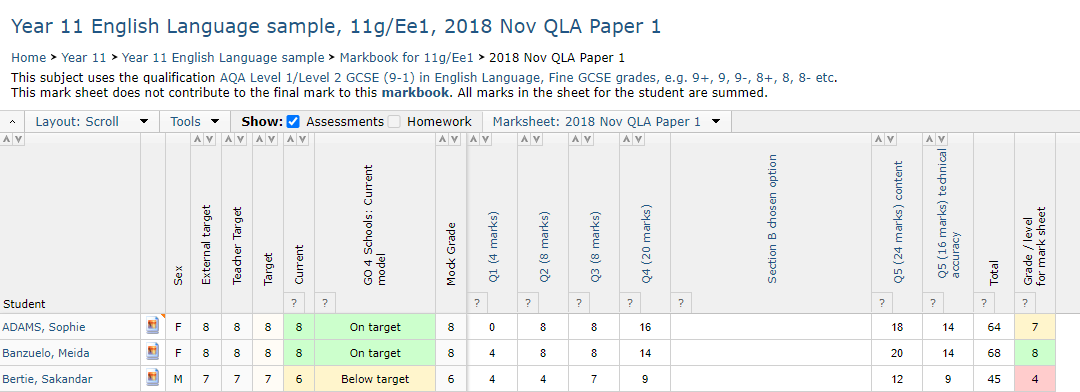
In the top left of the marksheet view you can choose between two possible display options by clicking on the Layout button. The scroll option will freeze student names and column headers while you scroll through the marks. On smaller screens the Simple option may be preferred to give you more control over the use of the space on your screen.
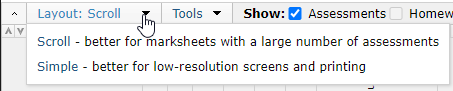
The Tools menu allows you to quickly access the listed areas of functionality.
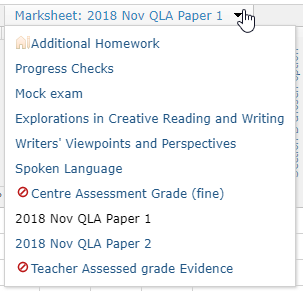
Other marksheets can be accessed via the Marksheet drop-down.
Depending on how the marksheet has been set up assessments may be recorded as one of the following:
- Marks - e.g. marks out of 10, 20, 100.
- Grades, e.g. 9-1, A*, Pass, Internal grading scheme names.
- Checkboxes, e.g. to indicate done/not done.
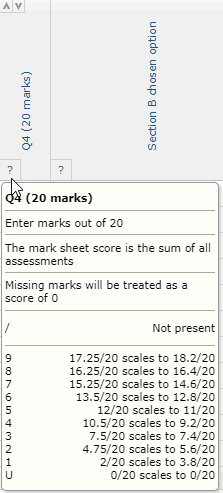
You can click the ? at the top of each column to check what you should enter.
There is also the ability to add a Note column to allow teachers to write comments alongside the grade information. In the above screenshots, the Section B chosen option is a note field. Notes are limited to 200 characters.
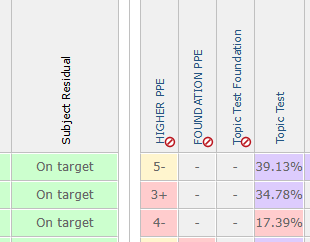
If mark assessments are used and the markbook is set to display a percentage the view of this can be a detailed view or the percentage can be truncated.
This is how the percentage would normally display to 2 decimal places.
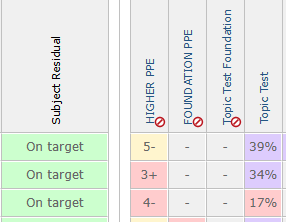
At the top of the markbook is a tickbox to truncate the percentage display.

When ticked the markbook will display a simpler view, this is only a visual change and the setting will need to be set each time when visiting the markbook page.
In BTEC marksheets – if enabled by your curriculum leader - you may see a mixture of checkboxes and a single grade-entry assessment. When you see this, the grade-entry assessment will be a Teacher’s Minimum Unit Grade – i.e. the minimum grade that you think the student will achieve in the unit. If a student completes enough Learning Outcomes to exceed this minimum grade, the higher grade will be used instead.
“Not present” marks – If a student was not present for an assessment, you can enter “/” instead of a mark or a grade to indicate that no mark is available. In contrast to entering a zero or a U, entering “/” does not lower the average mark for a student.
When viewing a marksheet teachers can also use the sort feature to rank students by individual marks or grades in both the marksheet and the grades. This function is only visible when viewing the marksheet and is helpful specifically if the teacher is looking at question level analysis.
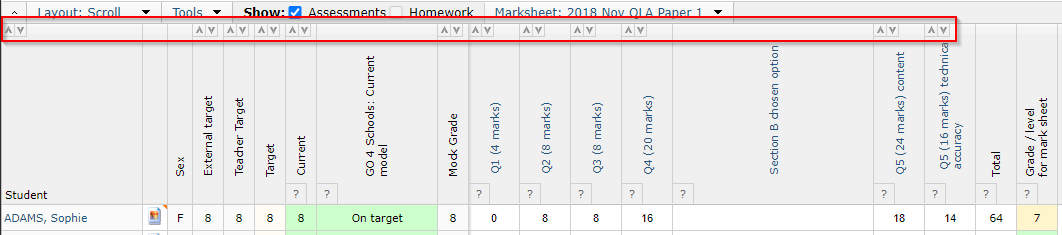
This functionality can also be used in the All students markbook available from the subject page.