Exam Results Report Template
Added to the Standard report template in GO 4 Schools is now a ‘Exam Results’ template for schools to use with existing report management steps. The template will allow schools to publish a report for Actual grades for formal examination results or to publish Trial/Mock exam results data.
Currently the template is available by request via a support ticket.
If you are new to setting up and creating reports use the Report Management guidance and online resources to understand how the reports are set up and managed in GO 4 Schools.
Pre-report set up preparation
Set up all required subjects
Ensure all subjects have been set up in GO 4 Schools to be included into your Exams Report. If you have qualifications that would normally be uploaded as UPN/QAN only into GO 4 Schools, such as individual music or language qualifications we would advise that you use a feedrule or Manage subjects to create new subjects that are populated with the students taking these exams.

To add candidate information
Create or use a spare subject e.g. Registration and in the Subject and Qualification page mark as a Tutorial subject. This will be used to populate information about the student i.e. UCI/ULN/UPN.

To add Subject qualification information
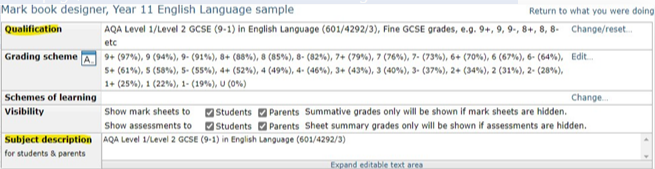
Using the Subject and qualifications page, click on the Edit markbook icon to navigate to the Markbook designer page. Copy the QAN from the top of this page and paste into the Subject description. You may also wish to add some further information about the subjects i.e. Unit overview.
To create an Exam report for external qualifications
From the Curriculum area, click on Manage under Reports & Snapshots, then Create a new report.
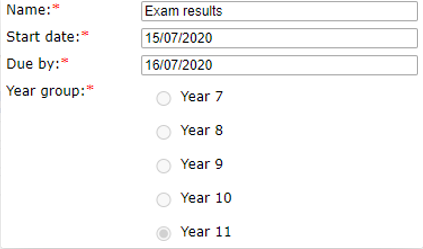
Step 1- Add Name of the Report eg; GCSE Exam results or A Level Exam results.
- As the reports can be set up well in advance of the results days set the Due date to the exam publication date.
- Select the required Year group i.e. Year 11
Step 2
-
Select all subjects included in the exam results to populate the report. Make sure you have included the subject used for candidate information. Check that all pastoral/tutorial subjects are removed from the report – except the one to be used to populate the student exam details.
Step 3
- Remove any students who should not be included in the report.
Step 4
-
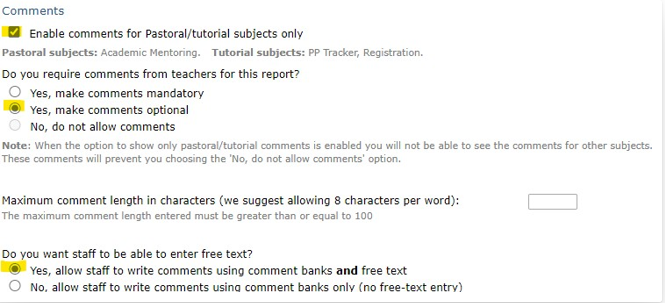
Tick the Enable comments for Pastoral/tutorial subjects only.
- You will need to ensure comments are optional.
- Select Yes allow free text. Do not select any report attributes to be included.
Step 5
-
From the Templates select Exam results for the Web template and PDF template.

- Overall report settings – you can have some options here:
- I.e. layout preferences portrait or landscape.
- You may also want to add a report description with some information regarding the results publication, transition to the next phase etc. We advise adding your centre number here.
- If you want to ensure the school details are included on your report then select the cover page and include the school name. Add the Report name as required.
- Remove target and progress grades, selecting actual grades only.
- Set attendance information to None.
- Set subject description as required, if you have entered the QAN codes they ensure this is selected to display this information on the report.
- Remove all other report data content.
Populating the report
Adding candidate information
GO 4 Schools already has system attributes for your student’s UPN and UCI, we suggest adding a custom attribute for the ULN. Adding this information alongside any special arrangements to an attribute set labelled ‘Exams’ is a useful way of sharing this information across the school.
Using the Year group Data explorer select columns for UCI and ULN, the UPN will automatically populate. Include the registration group as this will help with copying the data into the report.
Order the sheet columns as below: Firstname, surname, UPN, UCI, ULN.
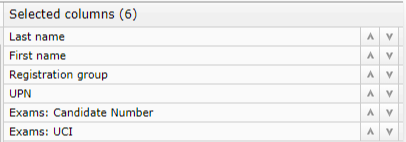
Download this as a CSV. Add the title inline with each piece of data. As below:
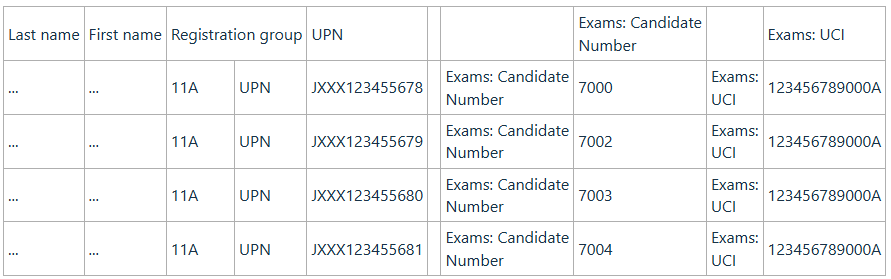
Open the report page and view the report for a Tutor group. The data from the CSV download can now be copied across the cells in Excel and pasted into the report comment box for each student. Ensuring each item is on a new line will help with the display on the report.
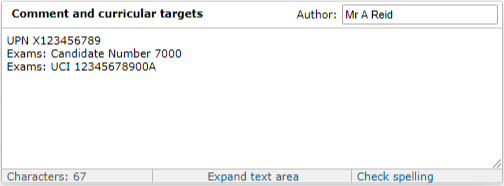
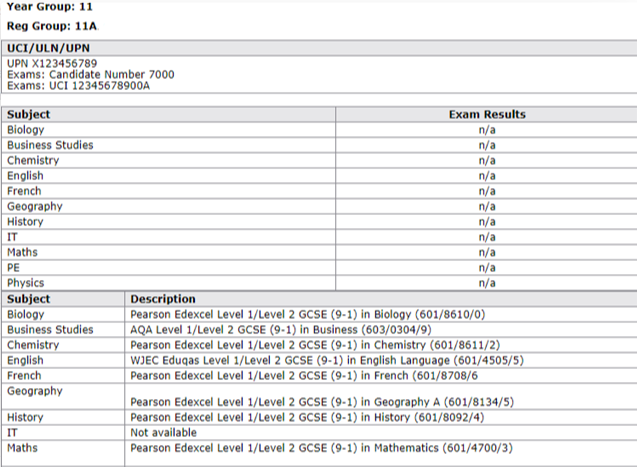
The candidate information will display in the report as:

Uploading the actual grades.
Ensure you have enabled the embargo on the ‘Contact details and settings tab’ prior to uploading
your results into GO 4 Schools.
Follow the guidance for uploading exam results in the School managers guide or see the videos in online resources.
As your report is already set up the actual grades will now populate the report which can be previewed and checked for missing data prior to publication or producing as a printable PDF.
Engagement
If you publish the exam report online, it is useful to check the read receipts. Parents will also receive an email informing them that a report has been published. Some of our schools use this later on Exam results days once students have visited school to collect their results. This also allows those families that may be away for the results to access them online.
We would then recommend that you consider printing the exam report and posting out to student with the examination detailed report from your MIS to include further details of unit results.
The Exam report template can also be used to publish Trial/Mock exam results to students by selecting your preferred ‘Mock result’ grade.
Final report preview