
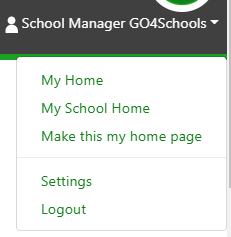
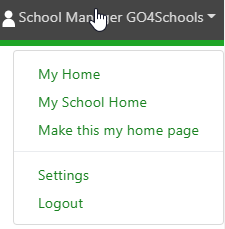
The settings page allows you to change your password, link yourself to a teacher, subscribe to the GO 4 Schools newsletter, and manage email notification rules (if enabled). To access the page, click on your name in the top right, and then the Settings link:
Changing your password
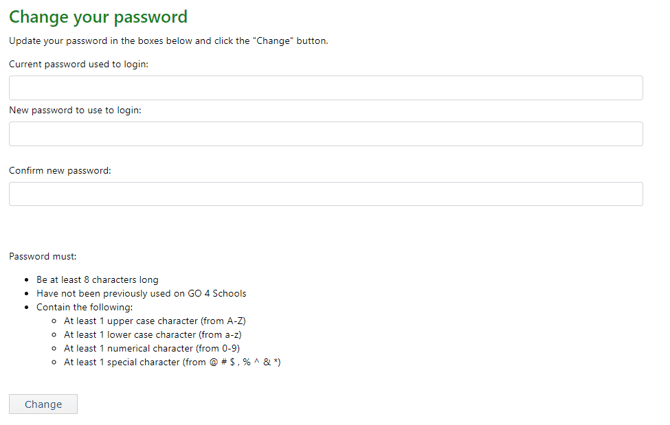
To change your password you need to enter your current password, followed by your new password twice to ensure it is set correctly. The password needs to meet our requirements which are included in the screenshot below:
Setting a preferred teacher
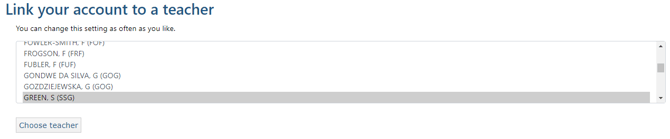
Once you have logged on you can associate your user account with a teacher in your school's MIS. The benefit of setting up this association is that you will be provided with shortcuts to the chosen teacher's groups and reports in the Teacher menu, as well as your timetable on your user dashboard. This does not have to be your actual teacher record either - if you are covering for a teacher you can link yourself to them and see their links. Browse through the list until you find the teacher you want to select, highlight them, and click Choose teacher.
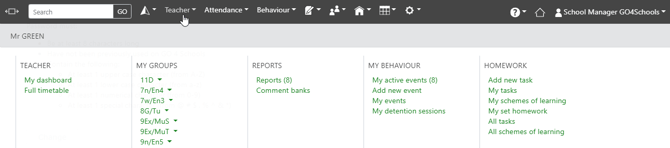
 The User menu at the top will change to Teacher, and you'll get links to your dashboard, as well as quick links to your groups:
 Setting a preferred homepage
By default the year 11 page is set as your homepage, however you can set any page in GO 4 Schools as your preferred home page. It will be the page that you see first when you log in. To set a preferred home page, just click the Make this my home page link in the menu that appears when you click on your name, when you are viewing your chosen page, for teachers this is generally their dashboard page which shows their timetable and groups in one place.
Subscribing to the GO 4 Schools email newsletter
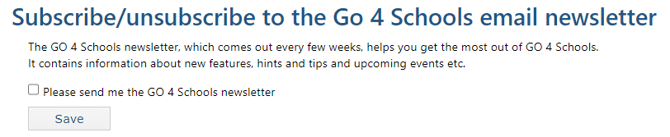
From time-to-time GO 4 Schools sends out an email newsletter with information on new features/guidance, and you can opt into this newsletter here:
 Email notification rules
The last section of the settings page shows email notification rules. This is part of the behaviour module, and if enabled you'll be able to see the rules you've created, as well as create new rules. If you are a school manager, you'll also see the rules you've created for other users. You can also download the rules to review them. Creating behaviour notification rules is covered in detail HERE