
The new student page and menus are the initial release of the GO 4 Schools user interface refresh. They can be enabled just for school managers, or turned on for all staff, parents and students. Ensuring parents and students are viewing the data in the same style as teaching staff helps avoid misunderstandings.
Enabling the new menus and student page can be done from the Manage > School > contact details and settings page, for more information please see the GO 4 Schools guide to Parent/Student view settings.
This guide explains the information and navigation through all aspects of the new student page in the school site. A document that can be edited by schools to send to parents to explain information on the parent site is available by request from our Customer Services team.
Access
A student page can be accessed easily by teachers in GO 4 Schools from any page displaying a list of student names; in GO 4 Schools the student name is a hyperlink directly to the student page to view all the data available for an individual student.
Search function
The search box embedded in the menu bar can be used to find any student, this will work on part or full names or UPN. This will return a list of similar names from which the required student can be found.
Generic tools
To support the user’s experience, we have added some consistent features throughout the new student page that offer a range of functions for the user.
 |
To expand chart details – enables the user to view a pop-out of the chart to select options of viewing the chart, an image of the chart suitable for embedding into documents and a table of the data used to populate the chart. |
 |
To display an interactive chart that will display tool tips as your move the cursor onto the graph area. |
 |
To display a .PNG version of the graph that can be snipped and added to any documentation or presentations. |
 |
To display a chart in a table format. |
 |
To download the data from a table or a chart as a .CSV. |
 |
More options …. To display further related links from the information displayed.
|
 |
Sort option to organise columns of data in a table by sorting alphabetically or numerically.
|
Student page – Overview
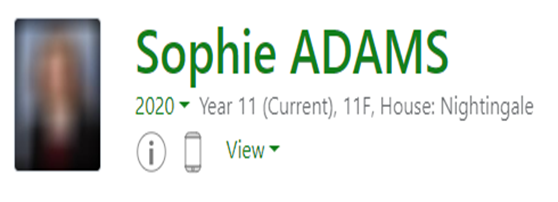 Links at the top of the page enable further detailed information to be viewed.
The academic year can be changed from the current academic year drop-down list if previous years are available.
 The icon will display any student attribute data that is shared with staff including SEND, FSM, PPI etc. Show more will extend the key data visible or a full student profile can be viewed with all information including details from the MIS.
 The icon displays a pop-out of parent contact details including email and contact telephone numbers.
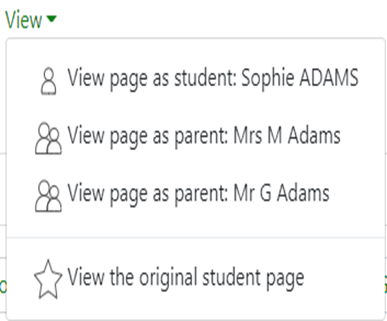 The view option allows staff users to view the student page impersonating either the student or the parent to support any conversations with home.
 Quick notes: Can be viewed by selecting the link to see information (SIMs schools only). This will appear in a pop-out.
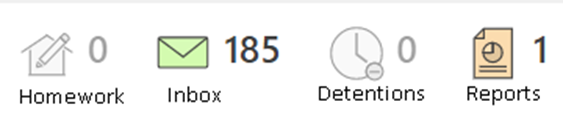 Alerts for items that have not been viewed will be displayed alongside the icons for each of these areas in GO 4 Schools.
Timetable
Today’s timetable is visible with a link to the full timetable, group pages and each teacher’s homepage.
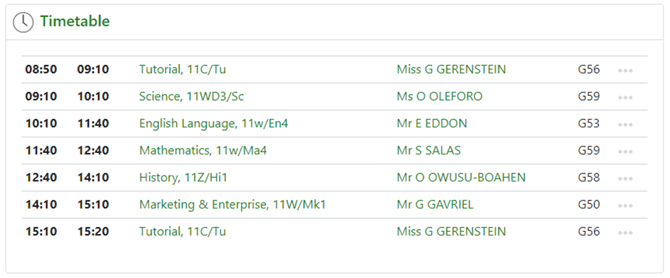
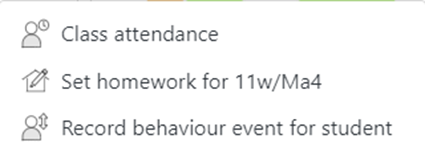
The … [More options] link to the right of each lesson allows for quick navigation to key links to record attendance, raise a behaviour event or to set homework for the group.
Homework
A list of current homework tasks is visible with links to the task and subject. If a student marks a homework task as done this will display (read only) for teachers.
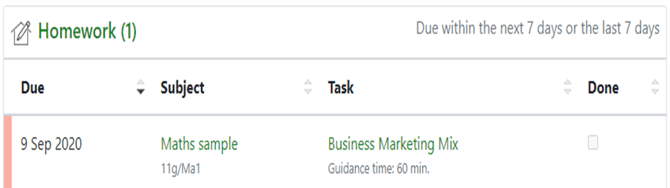
When clicking on the homework task a pop-up will display the task description and any resources linked to the task.
Attendance
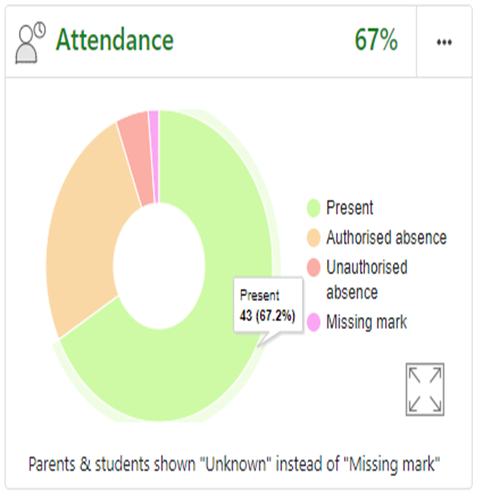
An attendance summary chart displays the percentage of present and other key absence marks recorded by the school with a tooltip showing the count and percentage specific detail.
The …[More options] displays a link to record individual attendance for the student and will navigate to a view of a register.
When clicked, the expand icon will display the attendance chart as a pop-out where the data can be viewed in various formats or exported as a .CSV.
The detailed attendance page can be reached by clicking on the green Attendance text.
Behaviour
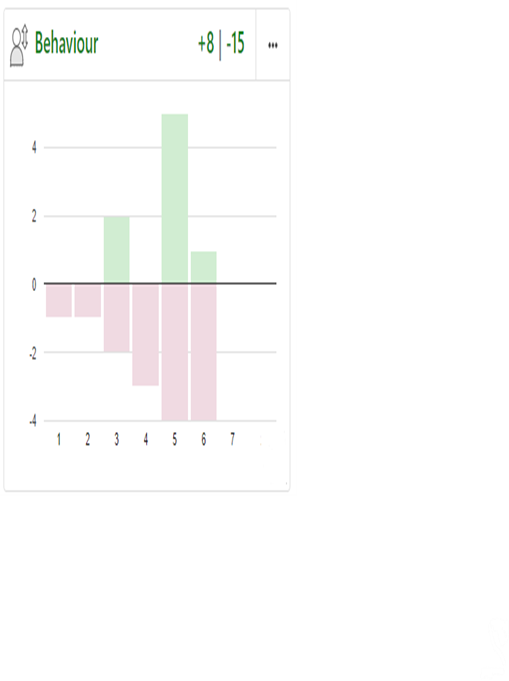
A behaviour summary chart will display a count of behaviour events for both positive and negative events for each week.
The …[More options] is a link to record a new behaviour event for the student.
The expand link will display the behaviour data as a pop-out where the data can be viewed in various formats or exported as a .CSV.
The detailed behaviour page can be reached by clicking on the green Behaviour text.
Progress
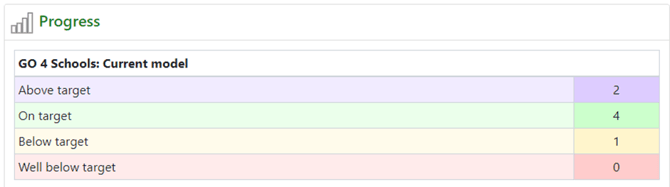
A progress overview table displays any residual schemes in place with a count of subjects within each residual band. If different schemes are in use for different subjects that the student is studying, then each of these will display on the page.
Menu Links
Attendance
 This page has two tabs, an attendance summary, and a calendar view.
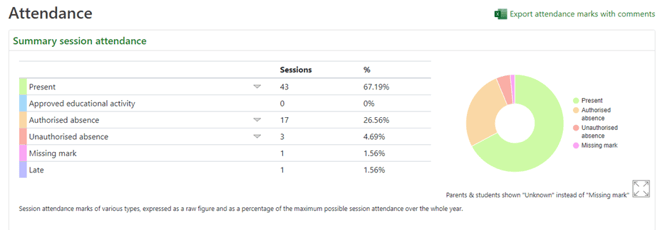
The summary session attendance table shows a count of all attendance marks received by the student and as a percentage of total possible school attendance. More detail of specific mark types can be viewed by using the down arrow.
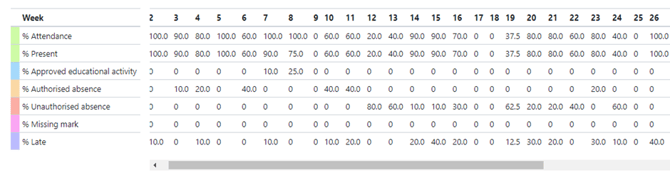
Additional charts show the student’s overall attendance pattern as the academic year develops week by week, all with options to download the data or to expand each of the charts to view the data as a table in more detail.
Tables and charts include:
- Session attendance by type – cumulative
- Session attendance by type – weekly
- Heat map
- Lesson attendance by subject [if enabled]
As attendance data grows throughout the academic year the charts become scrollable so all data can be easily viewed.
The calendar view tab shows details of all session attendance marks entered for the student during the academic year.
Behaviour

 Tabs on this page will show various details of behaviour recorded in GO 4 Schools. Each of the tables can be downloaded as a .CSV with the detailed information for each behaviour event.
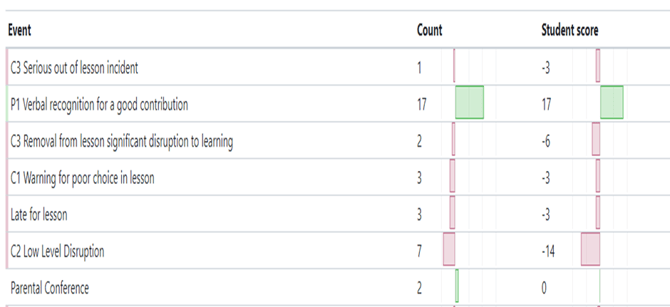
The summary of all events table is a count of all types of event recorded for an individual student and the total score for each event raised for all event types, showing positive and, negative events.
Behaviour by subject and group displays a student’s behaviour net score from both positive and negative events and then compares this to the subject average score for all other students who study this subject in the same year group.
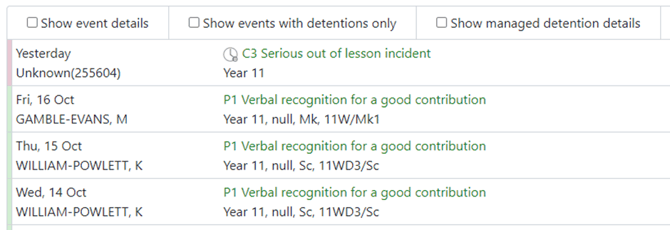
View behaviour events: this tab enables the display of all recorded events in date order with options to view additional details including school notes and detention information if applicable.
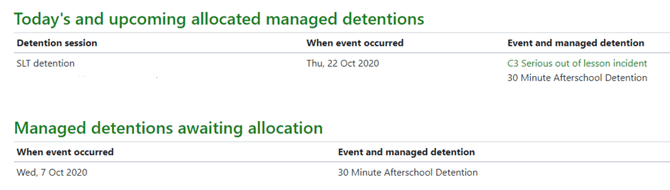
Detention summary (If enabled) will show a count of all detentions allocated, completed, or pending for a student with details for set detentions or those awaiting allocation to a timeslot.
Homework
 Multiple tabs on this page organise the student’s homework tasks according to their status. Clicking on the task name will show the details in a pop-out. If the school have enabled the ability for students to mark their homework as done, students will see an editable checkbox on their view, and staff will see a read-only version of this.

Homework tasks can be selected by time set date and by recent/historic tasks. In GO 4 Schools teachers have an option to track completion of homework which displays as a status – complete, incomplete, absent when set, absent when due.

Online inbox
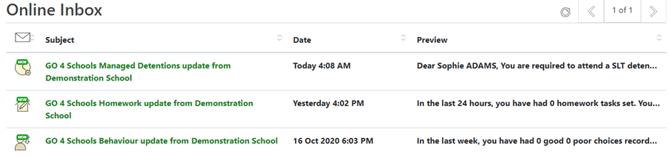
 This is the summary of all emails sent to parents and students that are auto generated for homework, behaviour and progress reports or sent by the school for notifiable detentions, attendance absences and general messages. This allows staff to review and read specific messages sent.
Progress
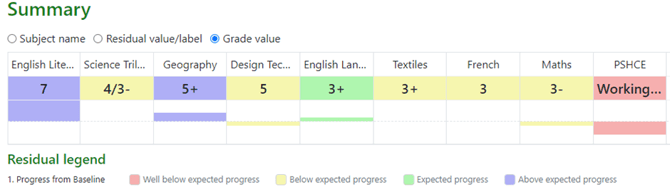
 The summary table can be set to show progress by residual value or grade value for all subjects, with the subject sort order changing according to the values
The grades table has options to display main grades, all grades or a detailed view showing marksheet grades (like the legacy site).

Using the View subject in detail tab a drop-down menu for each subject can be selected to show assessments within marksheet or individual assessment level including formative assessment.

The student flightpath tab displays the preferred progress grade when this has been snapshot over time as a report. This will display the points value in use behind a grading scheme to plot a working flightpath for a student. An additional flight path link is available to view individual subject data.
Progress Reports
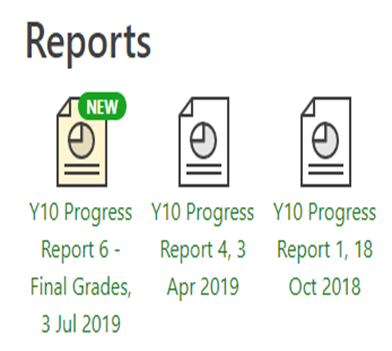 Published reports are displayed as icons that can be used to open the PDF report to view the details. Any unread reports are highlighted as shown.
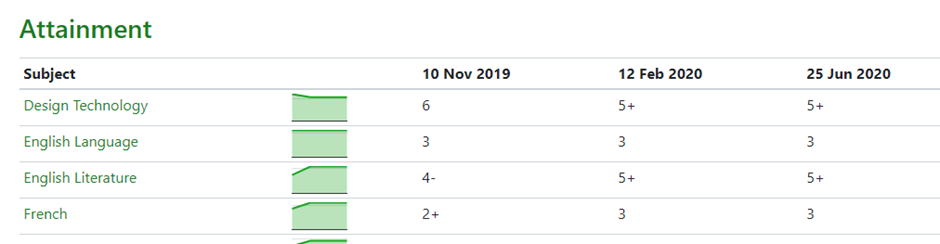
The attainment table gives an overview of progress across subjects for each report in the academic year.
Previous report grades can be viewed on this page with a thumbnail graph for each subject to show if progress is improving. Key attendance data is also visible for each report published.
Timetable
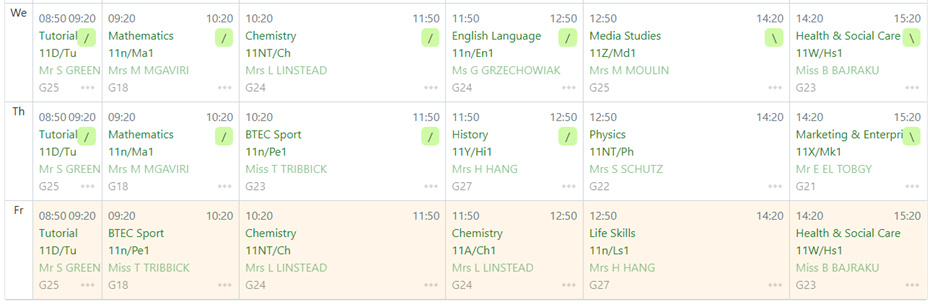
 The timetable page displays a weekly timetable of subject and group information, also showing teachers, rooms, and attendance marks if enabled. Smaller time periods can be viewed by hovering your mouse over the lesson, so it expands to show further details in full.
To support quick navigation for teachers, all items in the timetable are links to the subject page, markbook and teacher page.
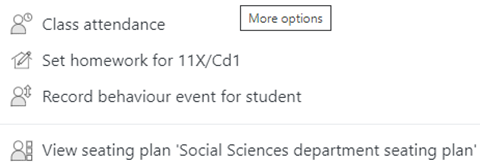
The …[More options] icon displays links to record group attendance, set homework or record group behaviour as well as viewing any seating plans created for the group.
Documents
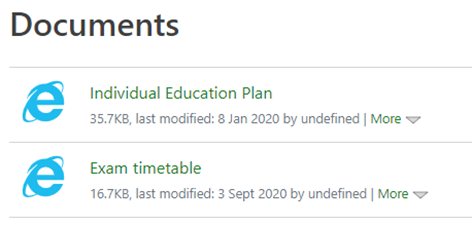
 This page will list any documents the school has uploaded and linked to a specific student. A Link to edit or delete are available if you are a document manager.
Consents
The school can request consent from a parent for a student to participate in a range of activities or to use specific information about the student in a public domain i.e., school website, social media. The school can request a consent through GO 4 Schools.
From the consents icon on the student page, you will find the consent listing page that will show all consents requested by the school, clicking on the name or title will show further details about the consent. School staff can see a read only view of the consents and the status:
- Given – consent is agreed for the item described.
- Withheld – consent is not agreed.
Any items that you have not updated the status for will show as pending and will be viewed as consent not given until this is updated.

Consent can be given or withheld at any time by the parent/student. Users can see if a consent has been requested from both parents/guardians or from the students, as well as the date these were last modified.
Exams ( MIS only)
 For users of the GO 4 Schools MIS using the examinations module there is an option to publish exam timetables to the student page for parents and students to view. Any published exam timetable is visible on tabs and will display in sequence the exam papers, date, time, venue and seat to parents and students. On the school site users can also view access arrangements and the details of these.
Both internal and external exam seasons can be made visible.
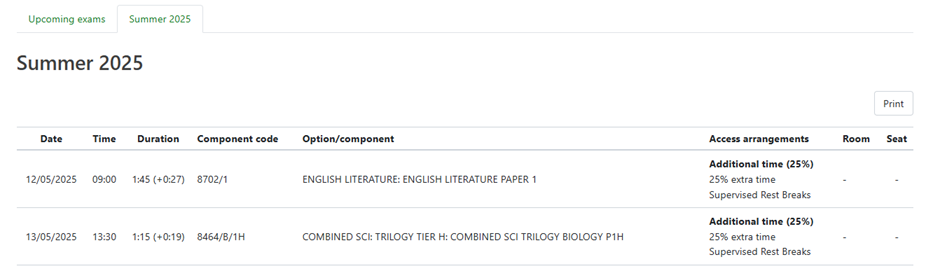
A print option is also available to quickly print and exam timetable.