Skip to content
English - United Kingdom
  • There are no suggestions because the search field is empty.

Quick Guide to monitoring homework


Monitoring homework set – a subject overview

  • Select the ‘view homework’ link at the top of the subject page.
  • Use the date picker to set the date range.
  • You can then view each of the teaching groups within the subjects and the corresponding homeworks that have been set over your chosen time frame.
  • Each class has been allocated a different colour to make the Gantt chart easier to interpret.

Note: clicking on the homework title will take you to a page where you can view the details of the task set.

1.


2.


3.


Monitoring tracking of homework via markbooks

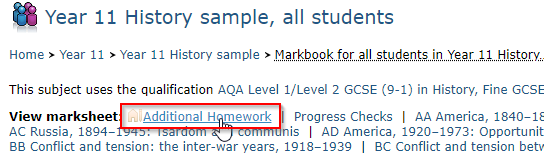
  • ·         Select the ‘markbook – all students’ link at the top of the subject page (image 1). This will allow you to view all students studying the subject in one combined markbook.
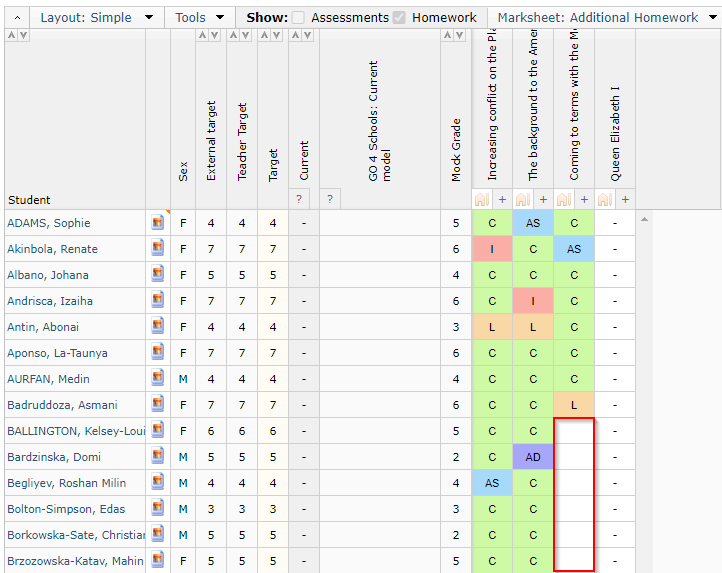
  • ·         Select the ‘Additional Homework’ marksheet link (image 2).
  • ·         From this page you can view all students within the cohort and the corresponding completion states.     Scrolling down the list also allows you to identify those students who do not have a tracking status at that point in time (image 3).


1.


2.


Monitoring homework via the subject and new year group data explorers

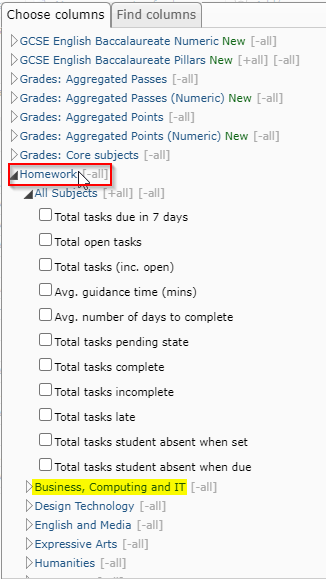
  • Links to the explorers are found at the top of subject and year group pages (image 1).
  • There is a section titled ‘homework’ that provides you with tracking information for homework set across all subjects (image 2).
  • It also allows you to pull through the same information but on a subject by subject basis.
  • You may also find it beneficial to pull through the class code or teacher.     This is accessed via Department > Department name > Subject name.


Data explorers continued…

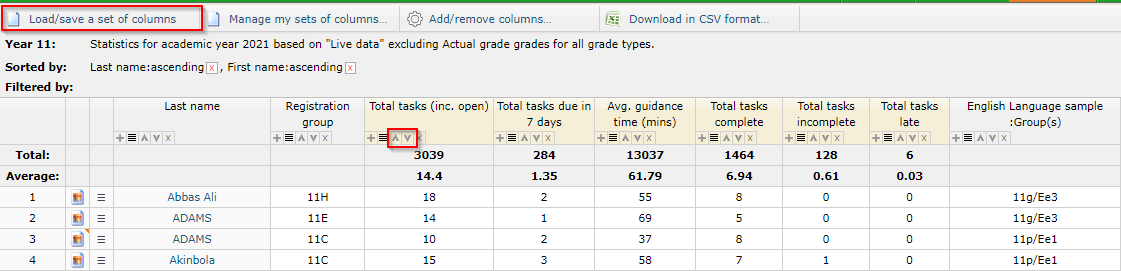
  • Data in explorers will update live.
  • Column sets can be saved and accessed at a later date via the ‘Load/save a set of columns’ link.
  • Columns can be sorted and filtered to identify key students for homework intervention.

Markbook pop-outs

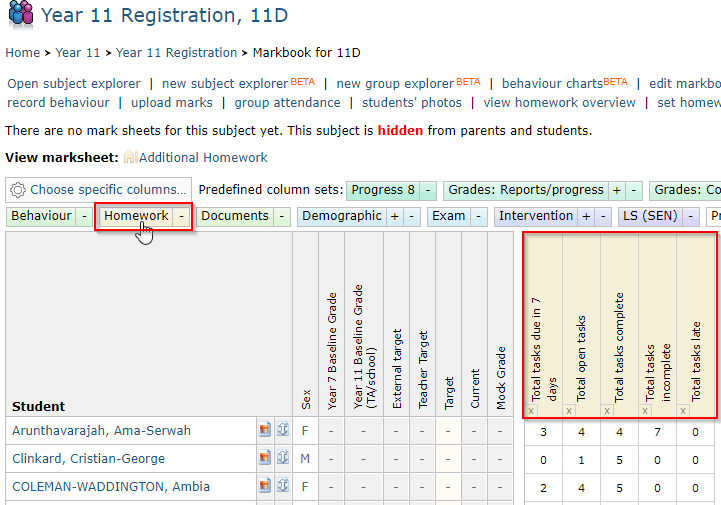
  • Each subject, including registration/tutorial, markbooks contain a ‘Homework’ pop-out.
  • Provides both a general overview of homework information for each student, and also a subject specific overview.

CSV download

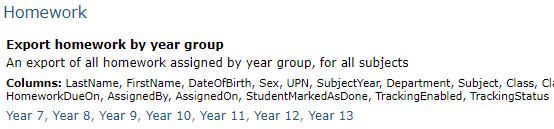
  • Accessed via manage > School > CSV Downloads.
  • Data relating to homework set across all teaching groups since the start of the academic year can be downloaded at a year group level.