
Steps for grade check in report module when you are using grade data drops in markbooks.
Please note the following caveats:
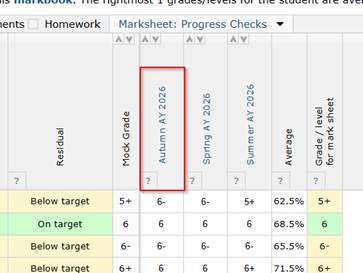
- The assessment in each subject (within the same year group) will have to have the exact same name, and will have to be unique within the markbook, e.g. ‘AY 2026 Data Drop 1’.
- The data entered within that assessment would have to be a grade entry, this will not work for marks or checkboxes.
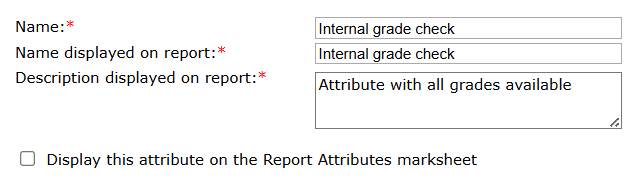
- Create a report attribute with a title that means it is for internal use only, e.g. ‘Internal grade check’. Do not tick ‘Display this attribute on the Report Attributes marksheet’.
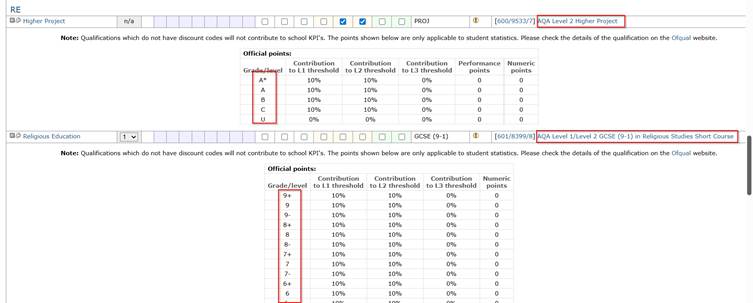
- Populate the report attribute with all the possible grade options. E.g. all the options in these drop-downs on the Curriculum > Subjects and qualifications. Please note you will have to include a row for each of the fine grades. You can include grades for all qualifications including GCSEs, vocational subjects and internal grading schemes.
- Check assessments within the markbooks are names consistently across all subjects within that year group. Please note: this process will only work if there aren’t multiple assessments called ‘Term 2’ for example, in the same subject markbook. The data within the assessment must be a grade and must match the options in the report attribute.
- Open a report via Curriculum > Reports & snapshots: manage. Will need one for each year group. Give a start and end day in the future to prevent this ‘report’ from appearing in a teacher’s ‘Reports which require input/review’ section. For example you may want to choose a date at the end of the academic year, e.g. July.
- On step 4 select ‘Internal grade check’ attribute. No need to select any other attributes.
- On step 5 select ‘Name’ as the attribute output.
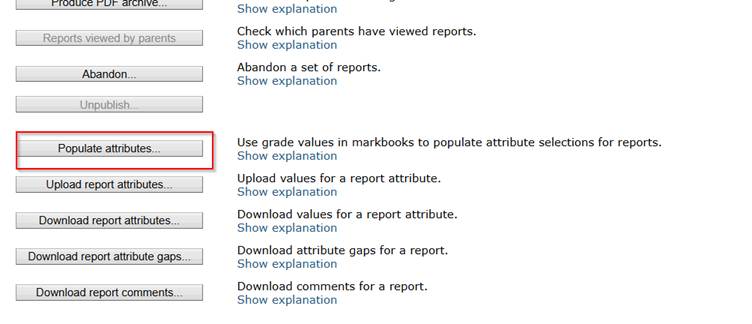
- On the report manage page, select ‘Populate attributes’. If you do not have this option please open a ticket with our support team for them to enable this functionality.
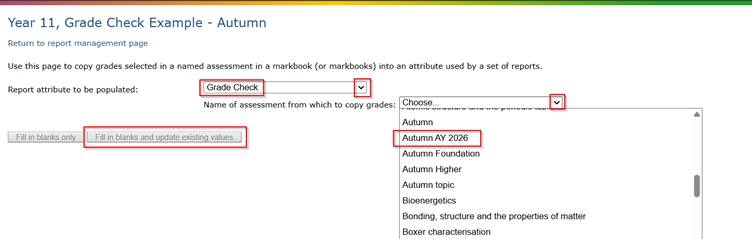
- Select ‘Internal grade check’ from the drop-down. Select the appropriate assessment title from the drop-down, e.g. Autum AY 2026,or Data drop 2. Then click ‘Fill in blanks and update existing values’:
- Click on ‘return to report management page’.
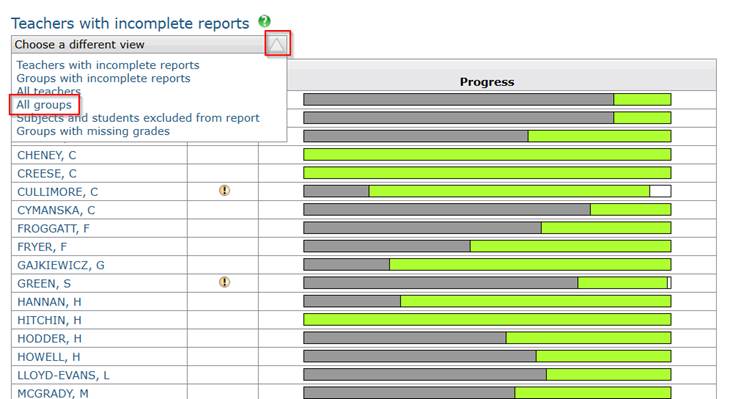
- Progress bars will be green if data is present in that assessment column. You can change the view so it isn’t by teacher, instead using group.
- You can re-use this report for further data drop checks in the academic year, simply choose a different assessment from the drop-down and ‘fill in blanks and update existing values’.