
You can monitor the progress of a set of reports more closely or change settings for the report by clicking on the report name on the Report Management page which provides access to various tools to work with a given set of reports.
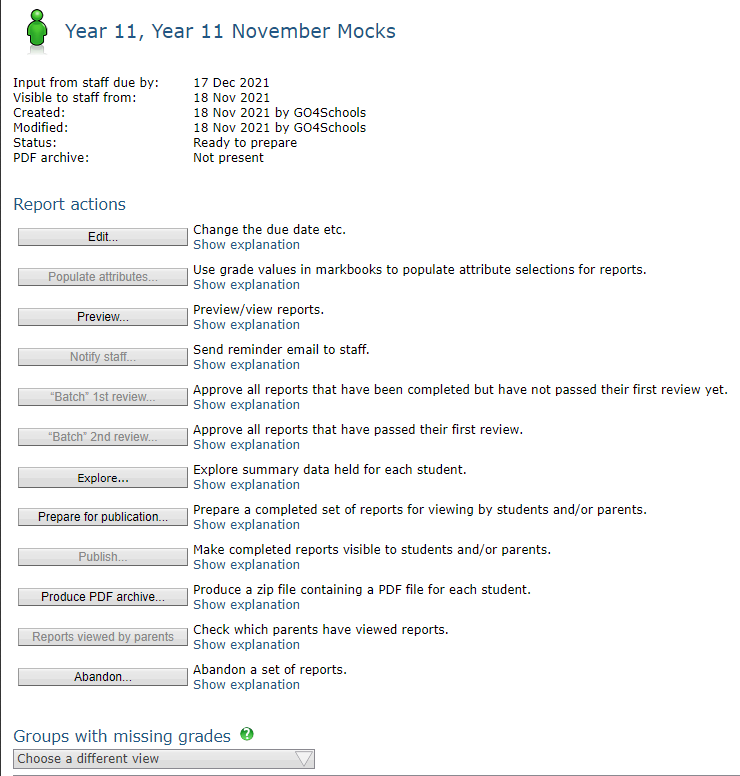
- The Edit button allows you to step through the report wizard again, to change various settings for the set of reports.
- The Preview button allows you to look at the content of individual reports.
- The Notify staff button allows you to send an email to all staff to notify them about the set of reports.
- The Batch 1st review button allows you to skip the first set of manual checks on any reports in the set that are ready to review. The button will be active only if there are reports in the appropriate state.
- The Batch 2nd review button allows you to skip the second set of manual checks on any reports in the set that are passed 1st review. The button will be active only if there are reports in the appropriate state.
- The Explore button allows you to view, sort, filter and export the data collected for the set of reports.
- The Prepare for publication button takes the snapshot of grades from the markbooks and locks the reports to prevent further change by staff. The button will be active only if the reports in the set are considered to be complete. For example, where teacher input is required they will need to have all passed their second review. This action will also make student’s grades and summary attendance information for this report visible to teachers only on a student’s page.
- The Publish button allows you to make reports visible to students and/or parents. The button will be active only if the set of reports has been prepared.
- The Produce PDF Archive button generates a PDF file for each report in a set, incorporate them into a ZIP file and then make the ZIP file available for download by a report manager. You will be asked who the intended audience of the PDF files is, and this will affect whether GO 4 Schools includes information from previous reports that have not been made visible to students and/or parents.
The production of the ZIP file can take several minutes, or sometimes up to half an hour if we have received requests from multiple schools. Once ready, the report manager will be sent an email containing a link that allows them to download the ZIP file. Alternatively, a hyperlink to the file will be available at the top of the page next to the PDF Archive label. Note that PDF archives are not held for download from GO 4 Schools indefinitely, but you can always request production of a new ZIP file if you need one.
- The Reports viewed by parents button allows you to see which parents have viewed published reports, and when. The button will be active only if the set of reports has been published to parents.
- The Abandon button allows you to delete a set of reports that has not yet been prepared. Note that this will delete all input collected from teachers and is intended for use only when experimenting with the system.
The section below the Report actions allows you to view progress bars showing progress by each teacher or group, to view where there are gaps in the reports (e.g. missing grades) and to review what has been excluded from the set of reports.
An option at the bottom of the page allows you to download all report comments. This can be useful if you want to review the comments across a range of subjects for a particular student, i.e. if you require a tutor view of a student across subjects.