
GO 4 Schools calculates a residual score for each student in each subject as a measure of the difference between their target grade and their progress grade. The Residual Schemes functionality in GO 4 Schools allows you to convert this score into a textual label and/or colour which can be displayed in markbooks, to parents and students, as well as used in progress reports. You can create multiple schemes and assign different schemes to different year groups and/or subjects.
Example residual scheme
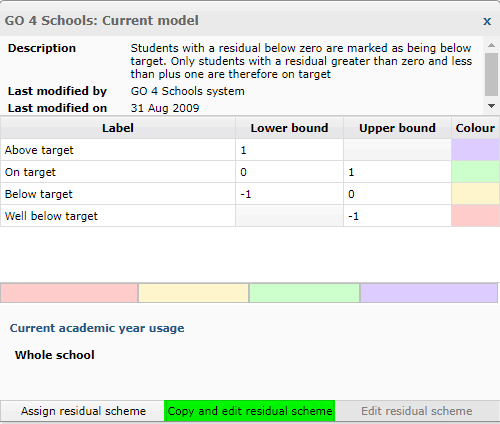
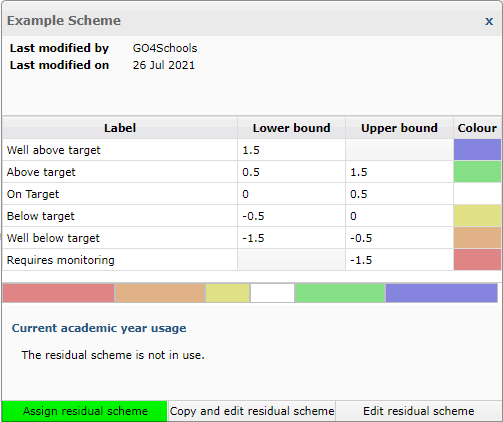
Consider an example residual scheme shown below, which consists of 4 bands:
| Residual label | Lower bound | Higher Bound | Colour |
| Above target | 1 | None | Purple |
| On target | 0 | 1 | Green |
| Below target | -1 | 0 | Amber |
| Well below target | None | -1 | Red |
A student with a residual of +0.5 is considered to be “On target” because their residual score lies above the lower bound and below the higher band of that row. The functionality in GO 4 Schools allows the text label “On target” to be displayed as well as or instead of the grades that are compared to calculate it. For KS3, schools may want to use this to communicate to parents that a student is ‘On target’ without showing what the target is.
When creating a residual scheme in GO 4 Schools you can specify how to treat students on the boundaries, i.e. whether to allocate them to the higher or lower band.
Example residual calculation
The residual label that is displayed is derived from the residual scheme and the student’s residual score. It is worth looking at how the residual score is calculated. Consider the example grading scheme shown below (which is not intended to represent any real qualification):
| Position of grade in scheme (index) |
Grade name |
APS points |
Numeric GCSE points |
School score |
| 10 |
A* | 58 | 7.0 | 100 |
| 9 | A+ | 56 | 6.6 | 96 |
| 8 |
A | 54 | 6.3 | 93 |
| 7 |
A- | 52 | 6 | 90 |
| 6 |
B+ |
50 |
5.6 |
86 |
| 5 | B | 48 | 5.3 | 83 |
| 4 |
B- |
46 |
5 |
80 |
| 3 | C+ | 44 | 4.6 | 76 |
| 2 | C | 42 | 4.3 | 73 |
| 1 | C- | 40 | 4 | 70 |
Imagine a student who has a target grade of B- and a progress grade of B+. Their residual score can be calculated in a number of ways using different columns in the table:
- Using the APS points, their residual is 50 - 46 = 4
- Using Numeric GCSE points, their residual is 5.6 - 5 = 0.6
- Using School score, their residual is 86 - 80 = 6
- Using the index, the residual is 6 - 4 = 2
The residual score depends on how you choose to measure it. The functionality in GO 4 Schools allows you to define which residual scheme to use for a year group/subject AND how to calculate the residual score (your preferred scale).
Of course, not all grading schemes in GO 4 Schools have information available for each column shown in the table above. For example:
- Only internal grading schemes (typically used for tracking KS2/KS3 without NC levels) have ‘School score’ values.
- 9-1 GCSEs do not have APS points
Key points to note:
- When linking a residual scheme to a year group or subject, you need to make sure you choose an appropriate method of calculating the residual score which takes into account the courses assigned to the subjects.
- When setting up an Internal Grading Scheme, you are at liberty to specify APS points, Numeric GCSE points and/or a School score, so you have flexibility when it comes to using residual schemes in KS2 and KS3.
- Only the index is always available
Creating a residual scheme
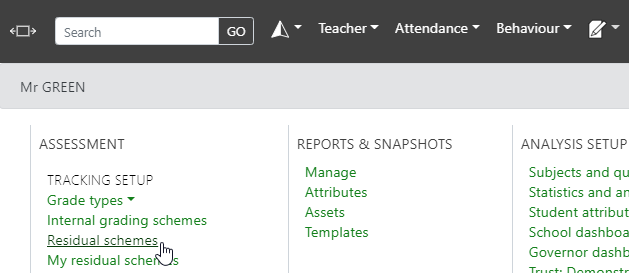
Residual schemes are available under the curriculum menu:
All schools will have access to the original three GO 4 Schools models:

By default your school will be set to use whichever model you selected when we set up your GO 4 Schools, you can use this model, copy and edit it to your liking, or create a new residual scheme from scratch.
Creating a residual scheme based on an existing scheme
To create a copy of an existing scheme you can click on the scheme name, and then choose to copy and edit:
This will then open up the residual scheme editor, where you can assign a name, description, labels, boundaries, and colours: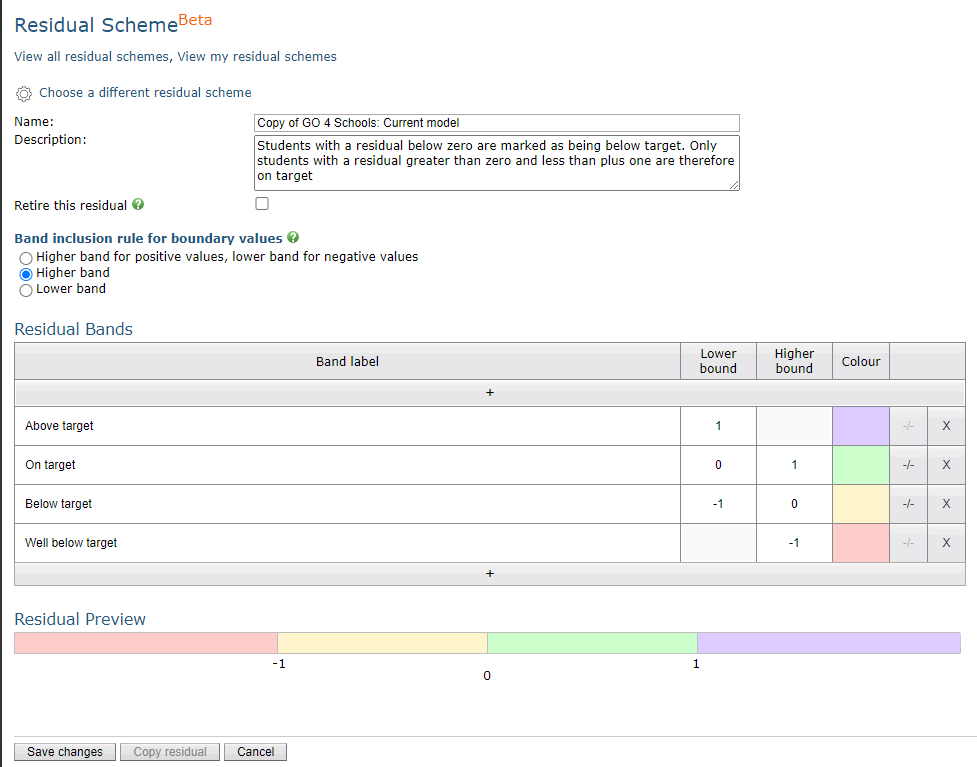
Once you completed your edits and save, you'll be able to assign your edited residual scheme to year groups and subjects.
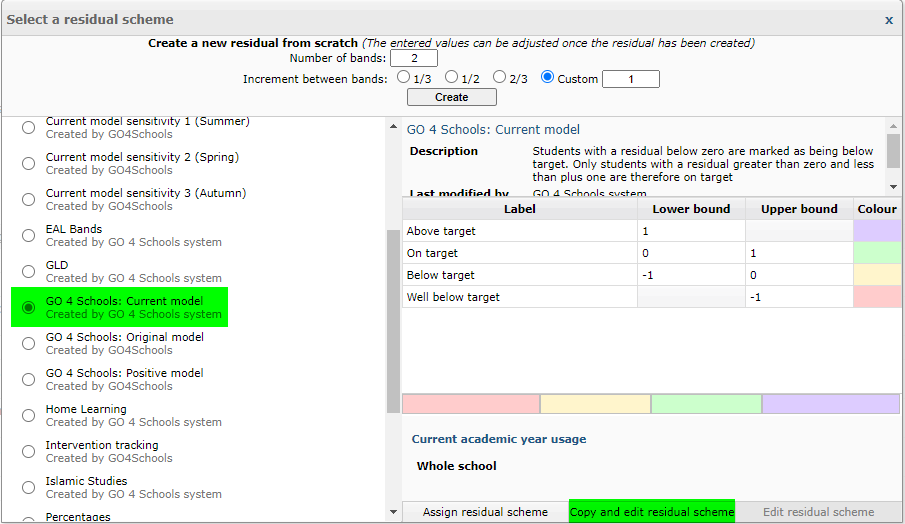
Alternatively, you can also click the Create a new residual scheme button, and then choose one of the existing schemes to use as a template:
Creating a new residual scheme from scratch
To create a new scheme from scratch, click the Create a new residual scheme button, and then set how many bands and what increment you'd like between bands, then select Create:

If you are unsure what values to set as an increment, select 1, as the values can be changed in the editor.
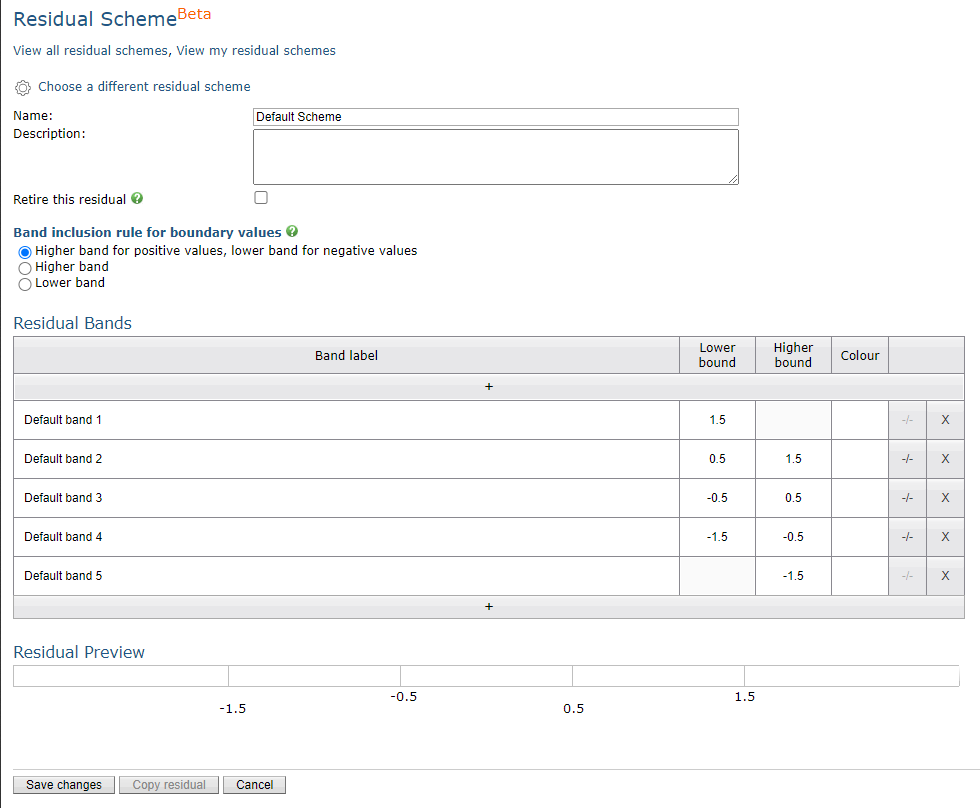
A template will be created based your entries, but you can still edit any part of the scheme. The bounds for example, don’t have to be of equal size.
The Band inclusion rule determines how values are treated which fall on the boundary between two bands. Three options are available:
- Lower band for positive values, higher band for negative values
If a value is on the boundary between two bands and is positive it is included in the higher band, if the value is negative it is included in the lower band. - Lower band
A value on the boundary will be included in the lower band. - Higher band
A value on the boundary will be included in the higher band.
You can add more bands above/below by clicking on the + button as appropriate and a row will be added to the table for you to edit. When editing the bounds, bear in mind that there cannot be any gaps between adjacent bands.
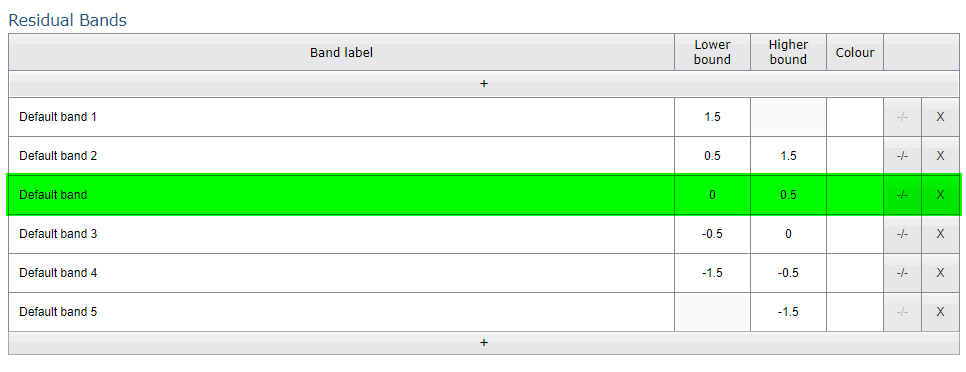
To add bands between the existing bands click on the -/- button, on the row below where you want it to appear. The new band will be created exactly halfway between the band above and below.
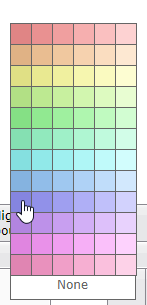
Assign colours to each band by clicking in the ‘Colour’ column and making your selection.
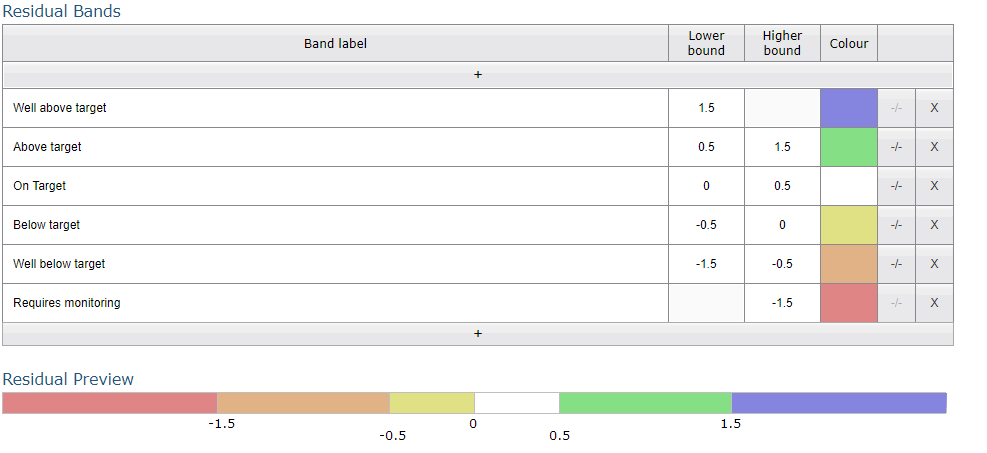
Once all of your values are entered, and your colours assigned, your residual preview will show you the size/colours of your bands:
Assigning a residual scheme
From the residual schemes page you can see which schemes are in use, and for which year/subjects. By clicking on a residual scheme name, you can assign that scheme to a year group/subject.
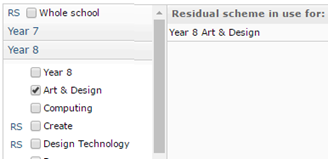
You can assign the scheme to the whole school or navigate through the menu to select your chosen year group or subjects. Your selections will appear in the window on the right. Where you see the initials ‘RS’ before a checkbox, a residual scheme is already assigned. If you choose the option anyway, your chosen scheme will overwrite the existing one. Once you have finished choosing where your residual scheme should apply, click Save.