For a video covering this guide please see this video.
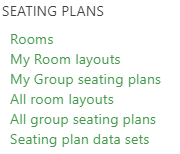
Room names are pulled through from the school timetable feed. If you wish to create a seating plan for a space that is not in the feed, e.g. library, school hall, it is possible to type a room name of your choice. The seating plan module allows you to assign layouts to rooms, with seating positions and labels of key features. Room layouts can be created by all users, but only school managers and curriculum leaders will have the option of editing a layout which they did not create. If other users wish to edit a room layout that they did not create, they will have the option of saving a copy for their own use. For some schools it may be best practice for a school manager or curriculum leader to create a library of room layouts for teachers to use, or copy and edit as required. It is possible to assign multiple layouts to one room. It is also possible to create a copy of a saved room layout to apply to other rooms. Rooms and layouts are both available in the User/Teacher menu:
 To create a new room, click the create a new room layout link:
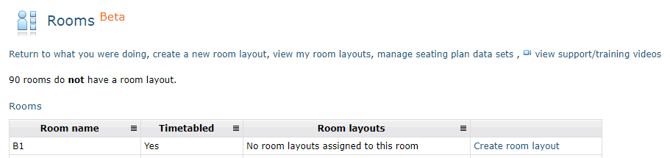 To create a room layout for an existing room, find it in the list, and click on the Create room layout link in the far right column. This will open the layout editor.
Clicking the Add text button will allow you to drop text boxes onto the layout. Double clicking the text box will let you label the text box, this is useful to orientate the layout to the teacher's desk or smartboard. Once done adding your text boxes, click the Add text button again to switch off the tool:
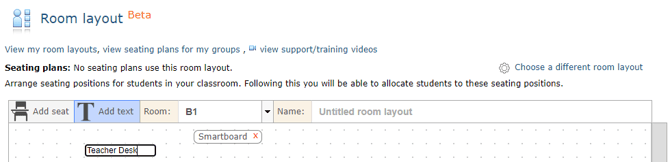 Use the Add seat button to drop seating positions onto the layout. When you're done, click the Add seat button again to switch off the tool:
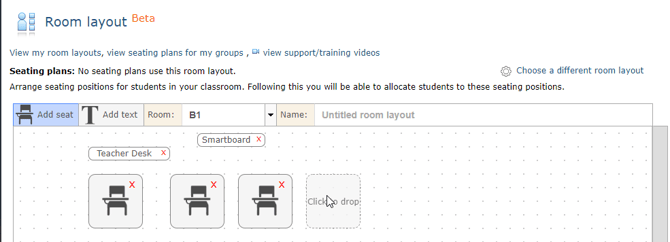 NB:If creating a library of seating plans ensure all possible seating positions are created in the room layout, this will ensure that when teachers are adding students to the seating plan, they can clearly indicate empty positions.
The room name will be populated from the timetable feed, although the drop down will allow you to choose an alternative room, as well as type into the field to create a new room. The Name box allows you to give the layout a notable name to find it easier when creating seating plans.
 To expand the size of the room, there are buttons on the right and bottom:
 As the room layout is added, a seat count is maintained. Once done adding seats and labels, clicking the Create button will save the layout: