Introduction
This document aims to provide insight into how a school might set up and then use GO 4 Schools Behaviour module. It doesn’t cover the mechanics of setting things up – those are covered in the Behaviour module user guide – but it does cover some of the more strategic aspects of set-up and how the various features can be used together to get the best out of the system. It is not intended to be prescriptive and pulls together some exemplar practise from users of GO 4 Schools. We recognise that all schools are different, and the patterns of use discussed below may not be right for your school. Also please note that this document does not include information for managed detentions.
Planning for set up of the Behaviour Module
Prior to setting up the module check the Behaviour Managers Guide to plan how your Behaviour Policy will translate into GO 4 Schools. Some useful tips may be:
- Have a small working party to discuss what you need the output data to show you and therefore what you need to input into GO 4 Schools to maximise the effectiveness of the Behaviour module.
- Use your school-based terminology to ensure consistency with teachers and students.
- Run a short pilot with a few teachers to “test” the set-up works for your school.
- Start simple and add to your behaviour model as required as it becomes more established.
- Embed consistent use of the system to ensure “accuracy” in the data before allowing student and parent view.
The table below shows how the behaviour events link to Immediate ACTIONs and Follow-up ACTIONs:
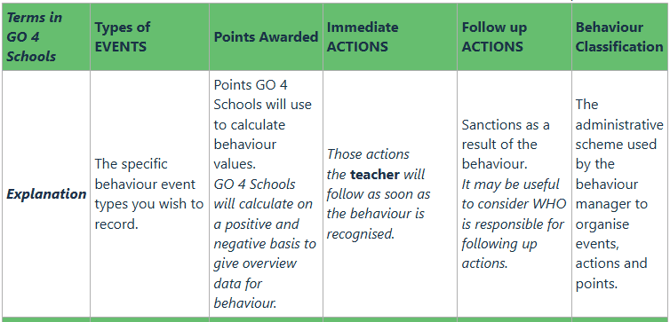
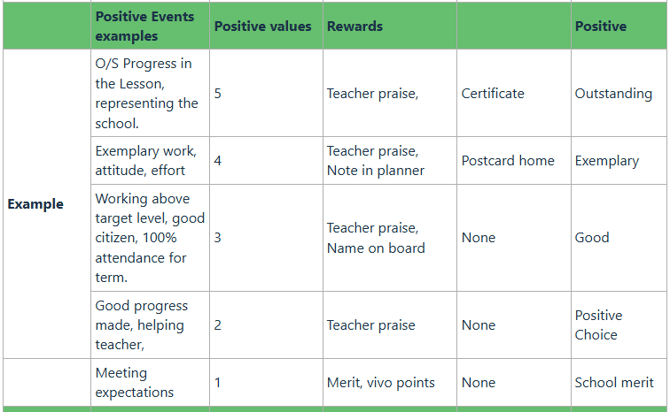
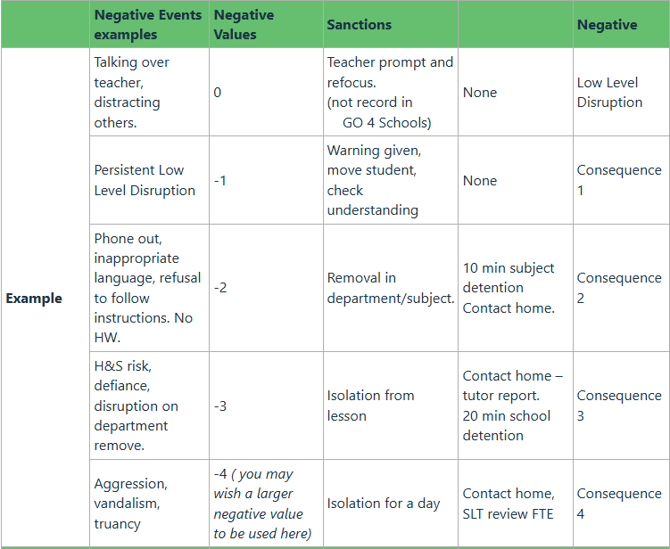
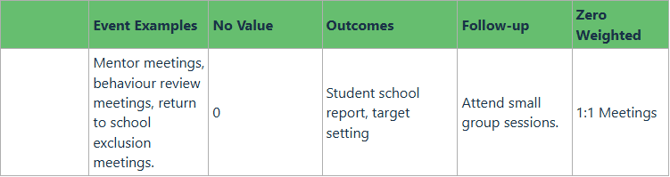
THIS IS ONLY AN EXAMPLE TO HELP YOU CONSIDER THE STRUCTURE OF YOUR EXISTING BEHAVIOUR POLICY.
This is the most simplistic model for behaviour which you may wish to implement to trial and then add more behaviour classifications as confidence and consistency grows in the use of the GO 4 Schools Behaviour Module.
The Sample Behaviour for Learning Policy may help you to review your own Behaviour policy to implement into Go 4 Schools. (Appendix )
Behaviour classification
It is easier to first consider the range of student behaviour events that occur in your school that you wish to record and track in GO 4 Schools, this also enables you to put these into sequential order and award the appropriate points which may also link to the rewards/ sanctions that you allocate to them. Defining event classifications
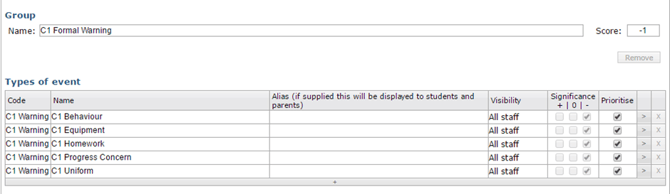
Lists of events can be endless and you may want to consider the descriptions which cover a range of behaviour, or types of behaviour that are a priority for intervention and improvement. The classification enables you to group the behaviours together but distinguish specific types that you may wish to track. Events can easily be moved to a different classification by using the > arrow on the right of the event. The significance will indicate whether events are positive, negative or neutral.
Behaviour classifications with ‘0’ score – can be used to track events but do not add to the overall behaviour score of the student. Schools often use these to record mentoring conversations, attendance meetings, exclusions etc.
Prioritising the event will add the type of behaviour to the ‘Group Behaviour’ accessible as a link in markbooks, attendance registers and teachers’ timetables.
Events can be set with different visibility levels, ranging through ‘All staff’, to different management tiers, to ‘No staff’. Any events which are not visible by staff will be ‘retired’ by GO 4 Schools in the next academic year. This is useful if you only require behaviour managers to record high level events such as exclusions in GO 4 Schools.
Note: You can use a single code across different behaviour classifications, so when you wish to analyse the data in the behaviour explorer you can pick events by 'code'. For example: all recordable events for sexist/racial etc.
Group Behaviour
When a behaviour is prioritised this allows staff to quickly record them for a group from their markbook register, or using the link at the top of the page:

This is useful to enable schools to encourage the recording of positive behaviour events and tracking of low-level disruption. Try to keep these events to the type of events that are more frequent in your school as this will help to improve the consistency of use by your staff.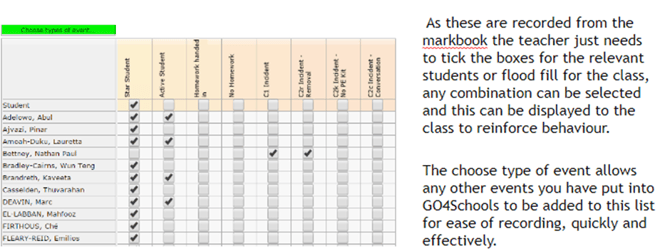
Event actions
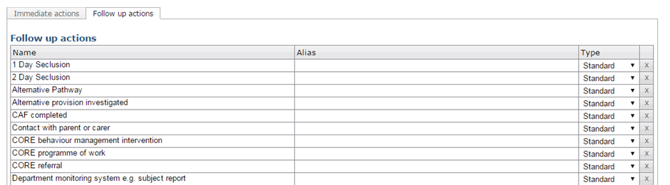
In GO 4 Schools there are two types of event actions ‘Immediate actions’ and ‘Follow up actions’ described as:
- Immediate actions must be performed in response to an event as outlined by the school's policies and procedures
- Follow-up actions are performed later as part of the follow up to a given event
If you plan out the types of action in response to specific behaviour events this will ensure you have a measured response that accumulates appropriately, and teachers are clear about what actions they are responsible for.
Both types of actions can be set as a standard response, a detention and a follow up action can also be classed as a managed detention, this enables you to filter by type in the behaviour explorers so you can analyse detentions.
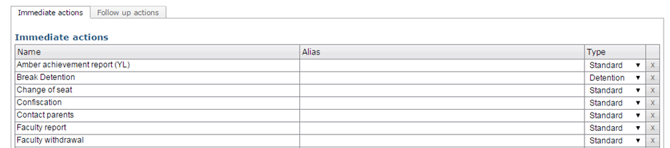
Follow up actions tend to be a record of the actions the school has taken to follow up higher level behaviour events, both positive and negative.
Structure for recording
From the Behaviour classification page, you can now manage your event actions. This is where you can consider the best practise for your staff and what you expect to ensure a consistent response to behaviour events by making the responses either optional, recommended or mandatory.
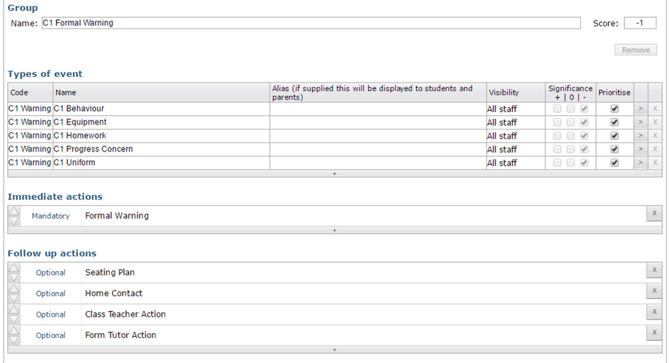
This set up view enables you to clearly show what responses you expect to take place in response to specific behaviour events and making these mandatory ensures that staff are responsible for classroom behaviour.
Exemplar behaviours
Most schools ask for examples used by other schools so here are some to support your ideas:
|
Positive |
Negative |
Zero points |
|
Meeting expectations/ targets |
Persistent and Low Level disruption |
Attendance concern |
|
Exemplar work |
Direct Inappropriate language |
Attend mentor meeting |
|
Good citizen, peer mentor |
Defiance- refusal to follow instructions |
Poor organisation – no PE kit, equipment |
|
100% attendance |
Lateness, |
Monitoring report |
|
Representing the school |
H&S misdemeanour, mobile phone in lessons |
Exclusion |
|
Extra-curricular group |
Poor uniform |
Parent meeting |
|
Homework completed |
No Homework |
|
|
|
Vandalism, bullying, fighting |
|
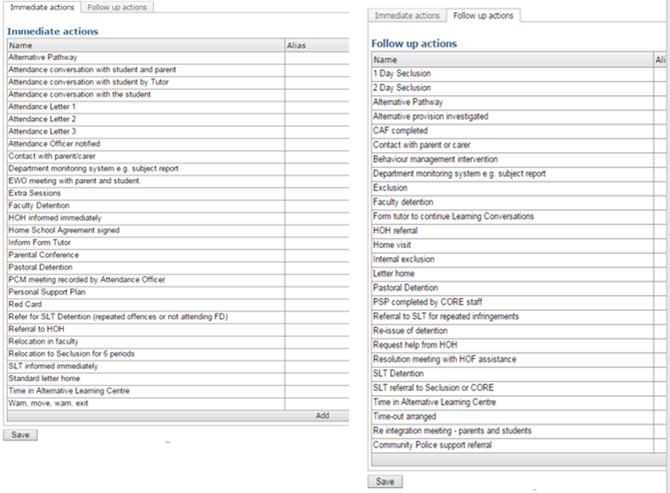
This screen shot shows exemplar immediate and follow up actions, the set up of these will depend on your behaviour policy and whether this runs through a year group system or a House system.
Remember : Using behaviour e-mails to parents and the behaviour view on the parent and student page may require you to adjust some day to day practice ie:
- Remove the need to send letters home for behaviour
- Follow up ‘Home notes’ may replace some phone calls to parents.
- Upload of points to 3rd party software i.e. Parent Call, support administration of behaviour.
Getting the best from your behaviour data
Once behaviour is recorded in GO 4 Schools you have a range of options for reviewing this information:
Behaviour tracking menu
Behaviour Charts and custom date ranges,
Behaviour explorers – student behaviour explorer, behaviour event explorer,
New explorers – added as columns to other data in GO4S.
Student page – overview for individual and detailed behaviour profile
Behaviour Pop-outs – embedded in markbooks.
CSV Downloads – export data by year group, export detention data
Behaviour Explorers
These can be viewed from the year group pages or from the behaviour menu. Each one gives a slightly different view and range of information.
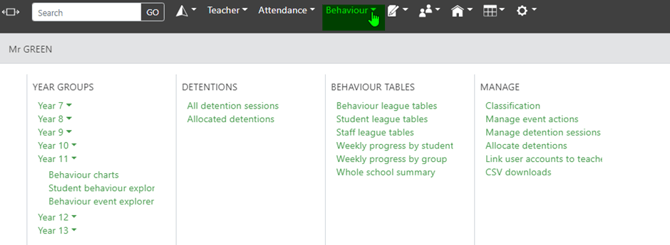
Events can be added using the My Behaviour options on the teacher menu and individual teacher active events viewed to enable your staff to manage and close events in progress once actioned.
Notified staff can also manage events from this menu.
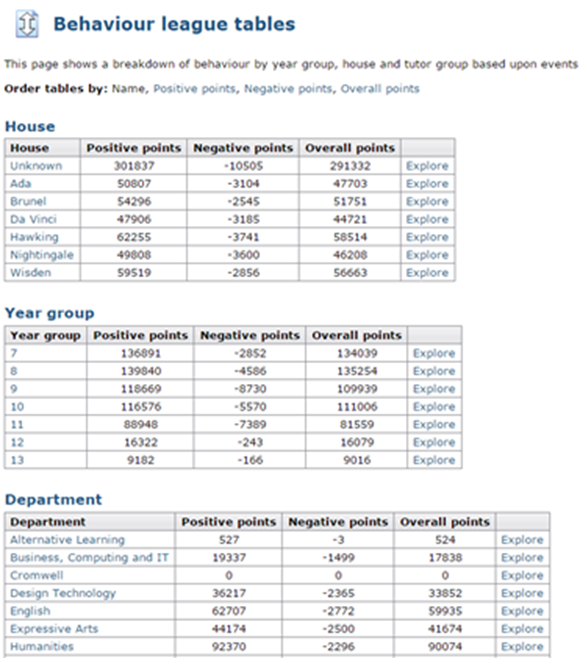
The league table view is most useful for those who need to interrogate behaviour data i.e. heads of subject, heads of year and heads of house. From here, clear overviews of behaviour points for houses, year groups, departments and tutor groups can be viewed or ‘explored’ in more detail.
Information can be interrogated in a range of ways to get the same information i.e. A search from design & technology can be filtered by year group and then event type to interrogate Y9 students with a C1 and C2 level behaviour.
or
A search from Y9 filtered by subject and then event type will drill down to the same information, see below:
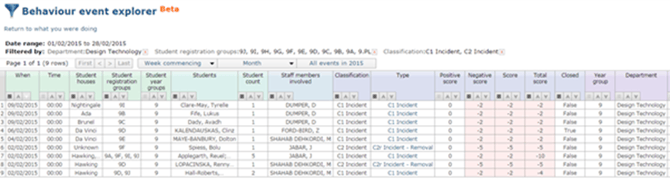
The Year Group Student Behaviour explorer gives all the specific data for behaviour in each curriculum area with residual scores for individual students, again this can be sorted by a range of filters but is a large document. This can be copied and pasted into Excel for further manipulation of the information.
The Year Group Behaviour event explorer shows you the range of events by type and this again can be filtered so that specific events can be seen, in this view you see a student count for recorded events and then by hovering over the student name you can see the list of those involved.
Behaviour pop-outs
In the markbooks the behaviour pop-out is an easy way for teachers to view student’s overall behaviour points if they have a new group and wish to see an overview of the class behaviour for individual students, alternatively the student page gives detailed behaviour information.
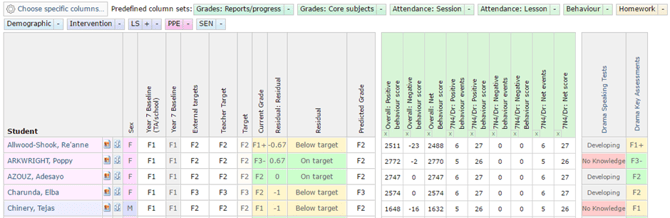
This view can become quite powerful when viewed alongside other student data i.e. attendance, PP, SEN.
Columns can be removed with the small cross to select only the data that you need.
Behaviour charts
Behaviour charts can be selected from the top of the year group, or subject page. It is important to consider how you track student behaviour and how the charts can support intervention and reward. The output analysis of school behaviour builds an evidence trail of the effectiveness of student pastoral support.

Behaviour charts can have a pre-determined or custom date range; year, term, weeks, days or custom range.
This allows schools to measure changes in behaviour patterns over user defined periods of time. Charts can show the behaviour analysis of year groups, subjects, and also focus groups as defined in student attributes.
Charts over time can help a school to identify key weeks in the school year.
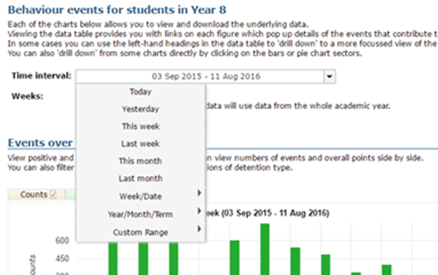
All charts have the functionality of being viewed as Pie charts or bar graphs.
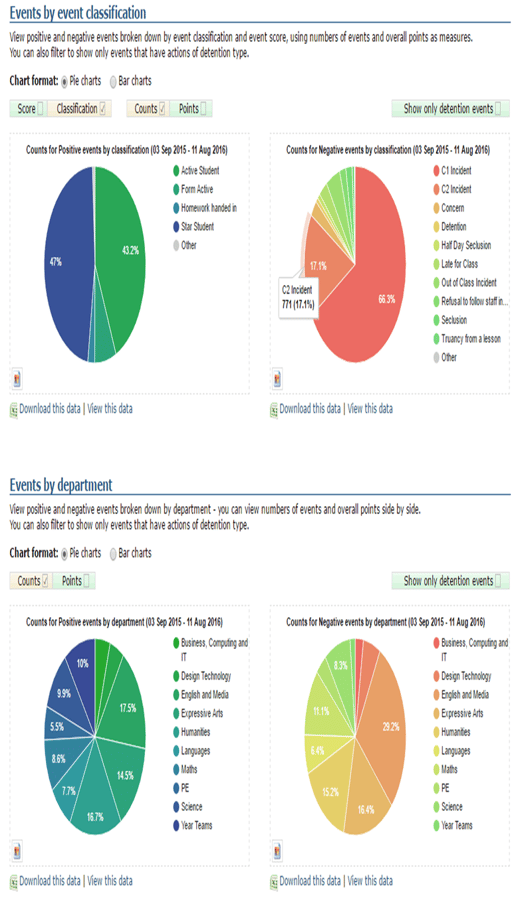
Information can be based on the number of points that have been amassed, or as a raw count of how many events have been recorded.
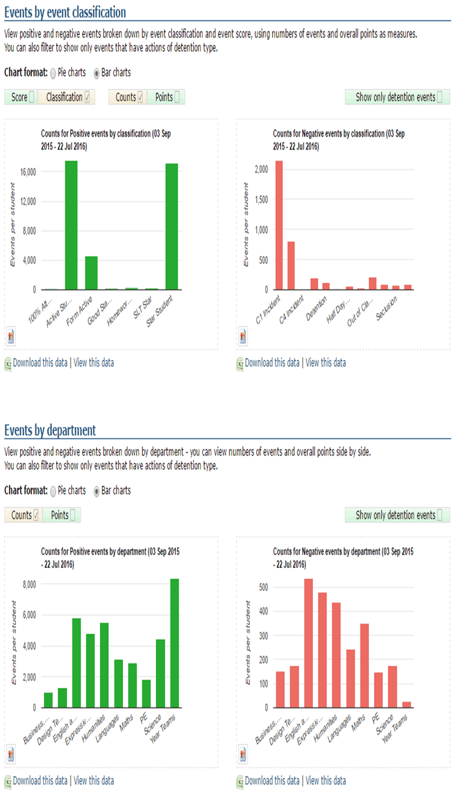
The clarity of charts will also depend on the initial structure of the schools behaviour classification groups, as these are the categories that will populate the charts.
Charts can also display data by score, which could help to analyse the number of low level or high level incidents that are occurring.
The tick box on the right allows you to filter by events that have been categorised as Detention events in follow up actions.
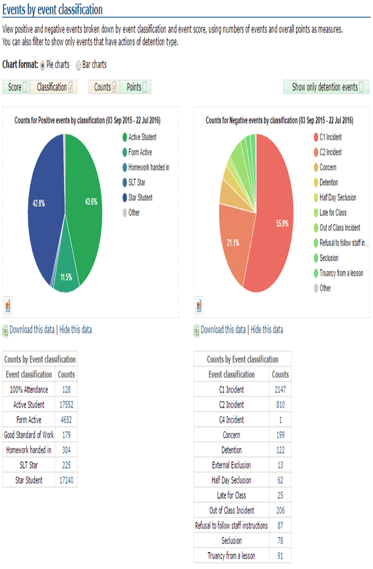
Each chart gives the option of seeing the data from which the chart has been created. This data can also be downloaded directly Excel as a .CSV file. Alternatively once you have viewed the data table the number for each event can be selected to show the names of students, this list can then be easily exported.
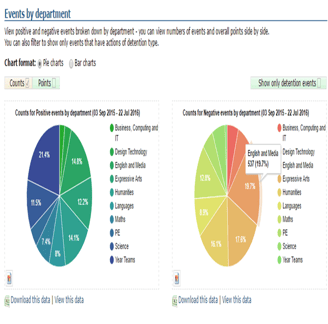
By hovering over the ‘Events by Department’ charts, the subject will be identified. By double-clicking the segment, the specific department information is displayed.
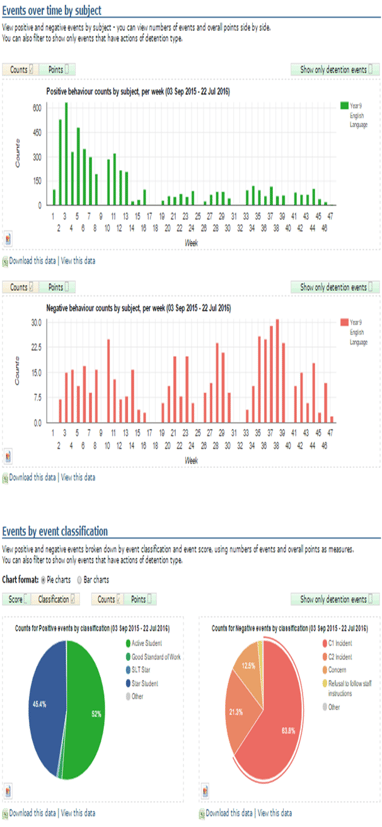
This now shows only the behaviour data recorded by the selected department. This is useful for the department to analyse ‘key weeks’ when behaviour events occur, and for managers to analyse which behaviour categories are most used in different subject areas.
Behaviour charts will also display data for any groups that have been created using student attributes. There is a link for school managers to make attributes available for analysis within behaviour charts. This then allows charts to be viewed for any user defined group that has been set within the school.
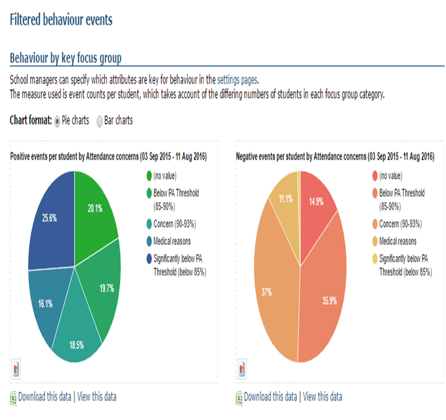
Attendance concerns: those students who are are risk of Persistent absence can be viewed in terms of their behaviour to check to correlation; the negative chart shows that the ‘concern’ and ‘Below PA’ group have over 70% of negative events recorded.
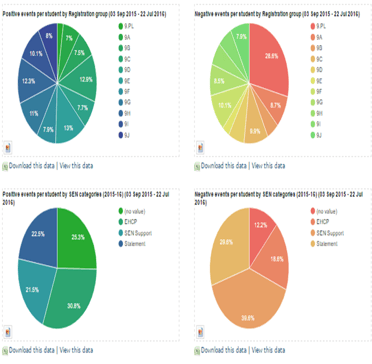
Registration groups: a good way a quickly checking that rewards and sanctions are evenly distributed across groups and that there are no issues with potential clusters of poor behaviour.
SEN categories: useful to see SEN vs Non-SEN groups and that positive and negative events are not disproportionate.
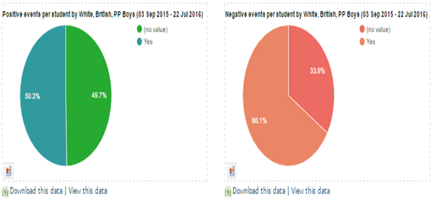
White, British, PP Boys – created as a custom attribute within this school, due to being a major concern. This clearly shows that this group has a larger number of negative behaviour events that will be impacting on student achievement.
This makes behaviour charts a very powerful tool for instantly creating clear, visual pictures which can be used in reports to managers or governors. Because GO 4 Schools uses live data, these charts are working with data that has been entered right up until the point that they are viewed. Schools can create their own attribute groups for behaviour interventions, attendance monitoring, ADHD students, etc. and create charts to show their behaviour over a specified time frame.
Student page
The school student page gives an overview and details for specific students, this page is incredibly powerful when attending meetings with parents and carers or during mentor meetings with individuals. The page can be viewed by all staff with access to GO 4 Schools to gain an overview of all aspects of each student: attainment, attendance, progress, behaviour and linked documents.
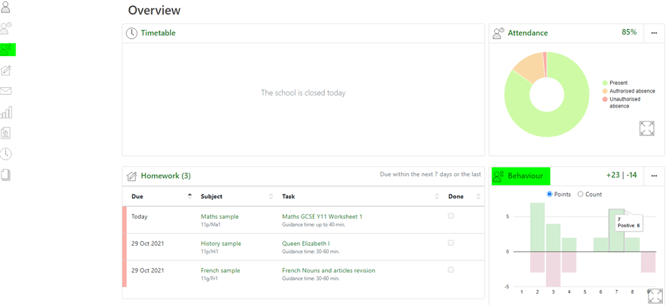
A full behaviour record can be selected by clicking the Behaviour icon or by clicking Behaviour
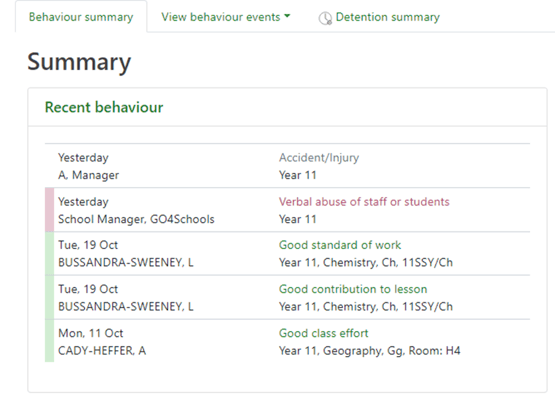
This gives a more detailed overall view of events recorded and behaviour by subject/group.
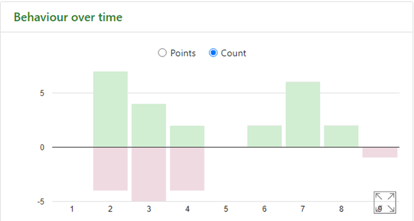
The behaviour over time graphs give a ‘quick view’ to trends of an individual’s behaviour patterns.
The detailed behaviour views showing the points count for types of events and across all subjects studied by the student.
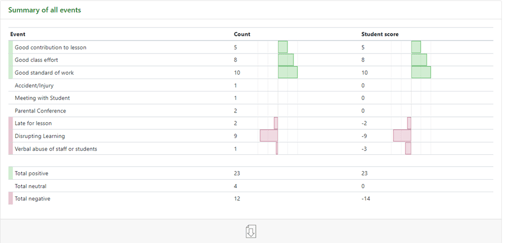
The residual score shows how this student’s behaviour compares to students within the same group and whether they are more positive or negative. This is useful to see inconsistency in the allocation of points across subjects or to pinpoint particular issues that may be subject specific.
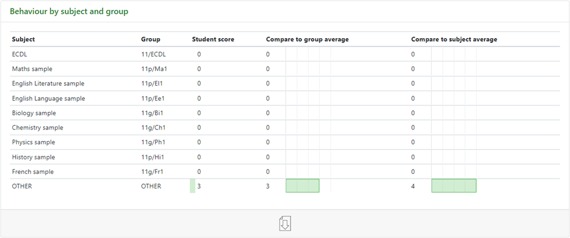
This is useful to see inconsistency in the allocation of points across subjects or to pinpoint particular issues that may be subject specific.

The download facility will provide a CSV file to use in Excel.
Recording behaviour
For the behaviour module to work effectively all staff need to engage and consistently record events in GO 4 Schools, having a clear policy for recording behaviour and who is responsible for specific actions will support this. Parents and students engaging with behaviour points and event activity will also support the school towards improving behaviour.
You may wish to set some common ground rules for entering information into GO 4 Schools when you launch the behaviour module. Some of these are highlighted below with the record behaviour screen.
When notifying other staff be clear about who is the next level to manage the type of event i.e. the HoY or SLT. You may wish to stipulate this in the follow up actions.
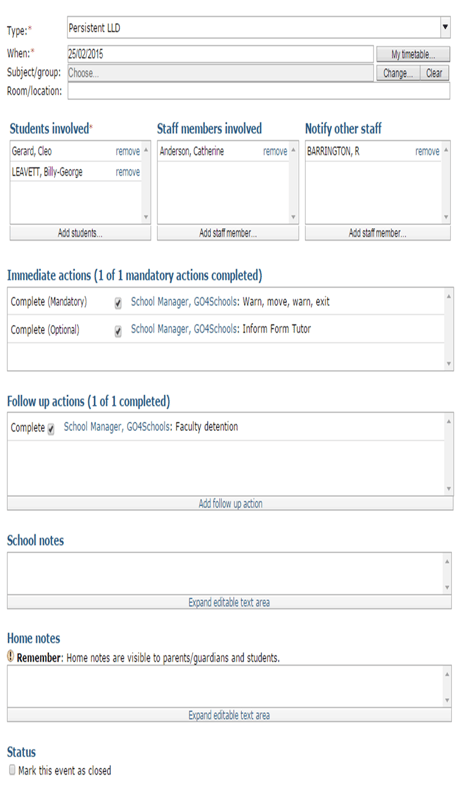
Set up mandatory actions for teachers to ensure low level behaviour is managed effectively in the classroom. Use these to support teachers in behaviour for Learning.
Follow up actions can be useful to track school interventions and support for improving behaviour.
School notes allow more detailed information to be provided and could be used to record notes from meetings and further actions required.
Home notes: some schools will want to manage this information that can be viewed by parents and students and will set up guidance that says only pastoral leaders, middle leaders or SLT can add information here and that teachers should only enter information in the School notes section. This can then be edited and checked for accuracy prior to been viewed by parents.
E-mail notification: staff can also choose to receive an e-mail about a specific event type for a group of student, this is enabled in the settings tab of the Contact details and settings option on the School menu, and can be set up for SLT or All staff to set up e-mail notifications for behaviour.
CSV downloads
The CSV downloads option on the Behaviour menu enables a quick and easy method for extracting data for behaviour managers, this may be used to upload to Vivo or to further interrogate specific data for year groups and detentions and options include:
- Export behaviour transactions – student spending for behaviour
- Export behaviour by year group – all event data
- Export behaviour data by student with focus groups
- Export behaviour data by student with focus groups for specified data range (all year groups)
- Export behaviour data by specified date range (all year groups)
- Export behaviour data by year group in format suitable for Vivo
- Export detention data – all events with detention associated follow up actions by date
- Export daily detention data
The detention download enables today, yesterday and this week data to be selected to enable setting and tracking of detentions. This can be easily uploaded to another detention system or third party parental contact system.
Appendix: Sample behaviour for learning policy
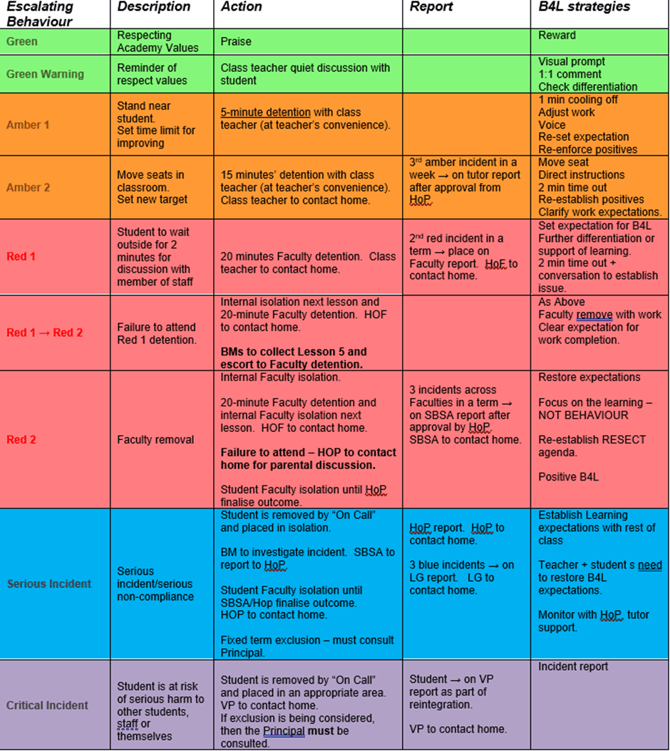
HoP (Head of progress/HoY), BM (Behaviour manager), HoF (Head of Faculty)