
Following the removal of KS1-3 National Curriculum levels, schools can now create their own measures for assessing student progress using one or both of the following:
- Internal grading scheme - School defined grading scheme that is like a qualification, but managed by schools. Can set percentage, APS, Score, and Numeric points for each level. Can define a key grade for statistics, and generates special versions of the grading scheme to track English, maths, reading, writing, GPS, and science. They can be used at markbook, marksheet, and assessment levels.
- Assessment grading scheme template - School defined grading scheme template that is used only to help staff populate marksheet and assessment grading schemes without having to manually add each grade.
Creating an internal grading scheme
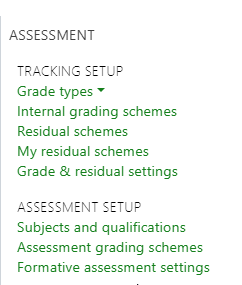
Internal grading schemes are available under the Curriculum menu:
Once on the IGS page, you can click the button to Create a new internal grading scheme. At the top of the page you can name your grading scheme, give it a description, and flag it to be usable in markbooks. The code, once generated, can also be used to find the grading scheme when setting up a markbook. You may not want to show this grading scheme in the markbook editor right away, so it’s best to leave the box unticked until you are completely finished setting up the grading scheme:
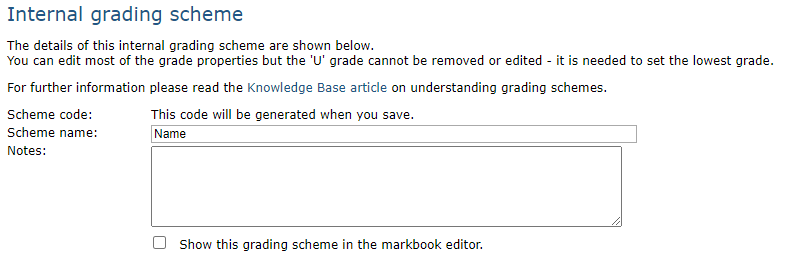
In order to allow for fine grading schemes, there is an option to set how many grades make up a whole grade, if using fine grades, you'll want to set this to 3:

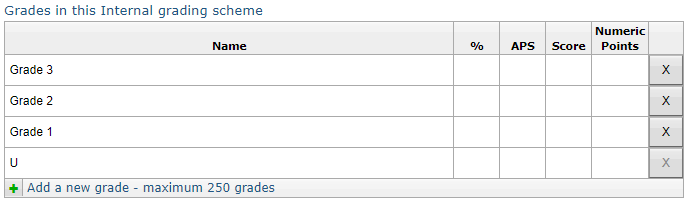
Now add your grades in the section Grades in this Internal grading scheme.
Please note, you can edit most of the grade properties but the 'U' grade cannot be removed or edited - it is needed to set the lowest grade.
- % - This column allows you to set the grade boundaries which will apply to each markbook where this scheme is selected.
- APS - If you add APS values, you will see them in the explorers and they will enable transition matrices to colour.
- Score - This allows you to assign a numeric score to a grade.
- Numeric Points - You can add the equivalent points scale from the new style GCSE 9-1 scheme.
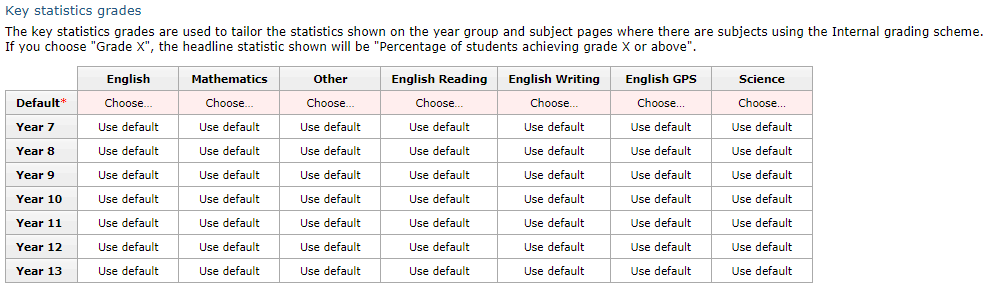
Now decide which grade you want to see by default in the statistics Percentage of students achieving grade X or above. You can set a default for each of the core subjects and for ‘Other’ subjects. You can also define this grade differently for different year groups.:
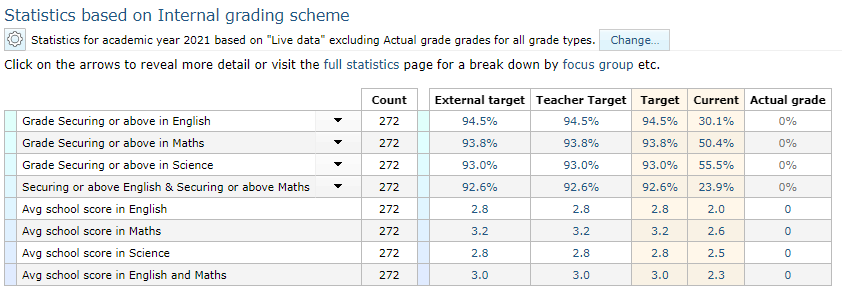
Your internal grading scheme will create key statistics where in use:
 Editing an internal grading scheme
Navigate to the internal grading scheme page from the Curriculum menu to see your existing schemes.
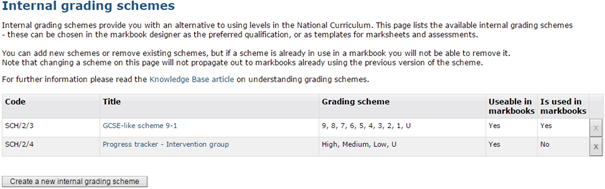 This table shows whether or not an internal grading scheme is currently being used in a markbook. If a scheme is currently in use, the X will be greyed out and you will not be able to delete it. You will also not be able to add or remove grades. You will be able to amend the %, APS, Score, and Numeric Points values, but they will NOT update markbooks already using the scheme, only apply to new markbooks. If you want staff to no longer use the internal grading scheme, you can de-select the option to show the scheme in markbooks.
Creating an assessment grading scheme template
Schools can define Assessment grading scheme templates which can be used for marksheet and assessment grading schemes. This will make it easier for schools to use the same grading scheme repeatedly. These are also available under the curriculum menu:
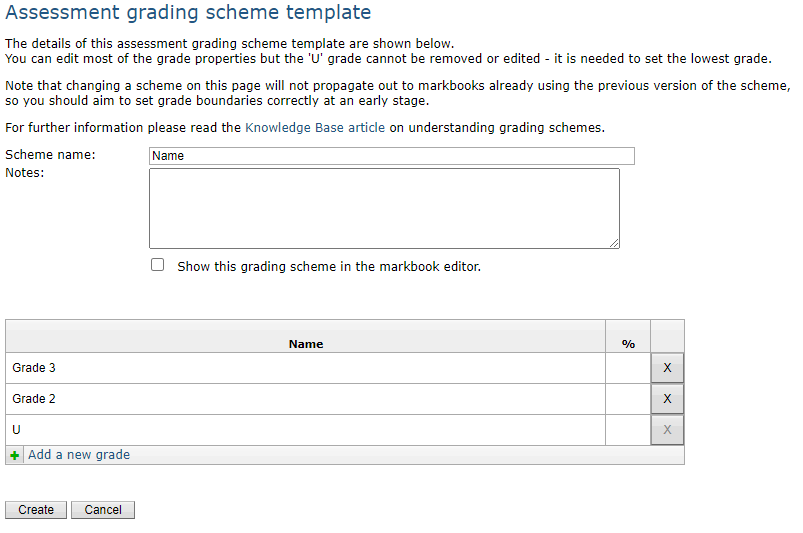
Click on the option to create a new assessment scheme, and then give the scheme template a name which can be used to easily identify it when being chosen in a marksheet/assessment. In the notes box you may choose to give a brief description of the grading scheme template. As with internal grading schemes, you may not want to select show this grading scheme in the markbook editor right away, so it is best to leave the box unticked until you are finished setting up the grading scheme. The % column allows you to set default grade boundaries for the scheme:
Editing an assessment grading scheme template
Navigate to the assessment grading scheme page using the Curriculum menu. Clicking on the scheme title will allow you to edit the scheme. Unlike internal grading schemes, you can add and remove grades at any time, and even delete the template. This is because it is simply a template to create a grading scheme within a markbook and does not retain any connection to the markbook and is not used anywhere else in GO 4 Schools.