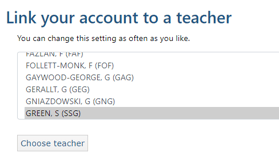
For quick access to your timetable, markbook and group data, you should ensure you have linked your account.
To do this, click on ‘my settings’, then find your name in the ‘link your account to a teacher’ section.
Click on your name and it will highlight blue, then click on ‘choose teacher’.
This will then link your timetable to your GO 4 Schools account and you will see the black menu bar with your name on the right hand side:
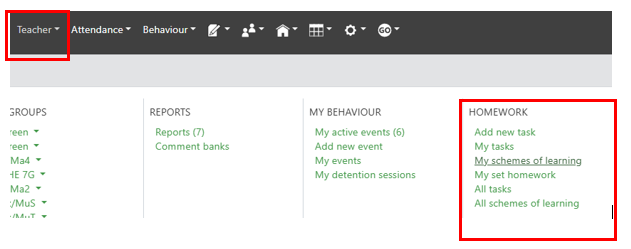
When you select Teacher you will see the HOMEWORK options listed:
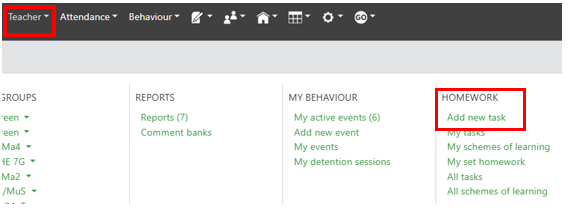
Homework tasks can be set in advance, e.g. by Curriculum Leaders, ready to be assigned to students and groups when the time comes or they can be created on an ad hoc basis for the group, e.g. to set catch-up or extension work for individual students. To create homework task select Add a new task.
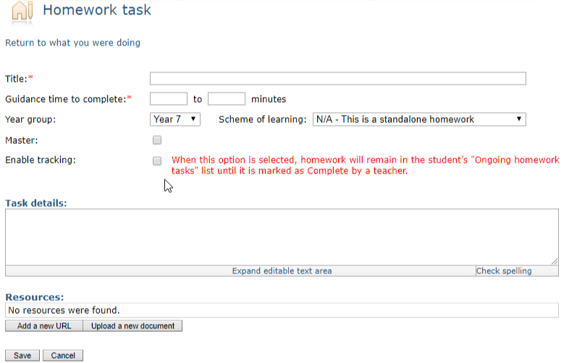
A homework task much have a Title, guidance time for completion, you can add links to web pages and upload documents. Setting a year group for the task will make it easier to locate when setting homework for a group but it will prevent the task being assigned to other year groups.
By ticking make it a master task it can be assigned by other teachers in the same format or be used by other teachers to copy and update to suit their specific needs.
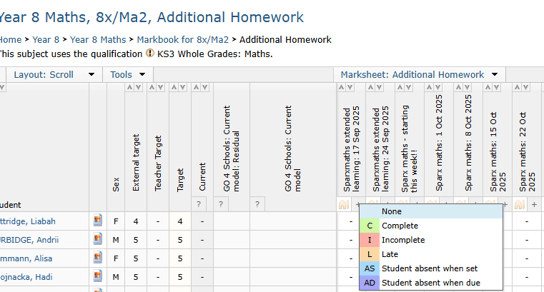
If the school has tracking enabled by default the box will be tracked automatically, if not ticking the Enable tracking box will allow staff to update the homework status in markbooks on the additional homework page:

Selecting the homework task will give staff to mark the work as completed or incomplete - as below
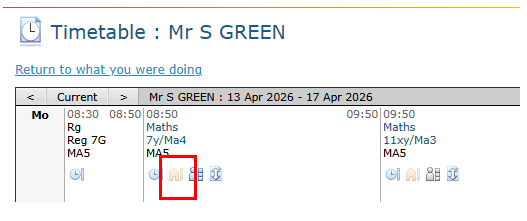
To set a pre-set homework task or to set ad hoc homework, the quickest method is to click on the homework icon on your timetable:
You can also access the page via class markbooks, click 'set homework' link from the options at the top of the markbook page:

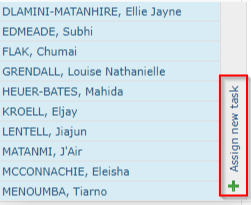
Select 'Assign new task':
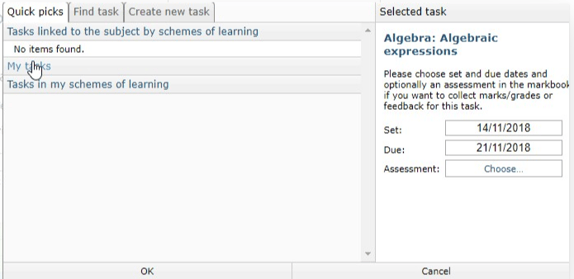
Existing homework tasks can be selected from the list on the left under the heading ‘My tasks’. On the right you can choose a Set and Due date. If you choose a set date in the future, the homework will not display to students and parents until that date is reached.
Alternatively, you can create a new ad hoc homework task via the Create new task tab.
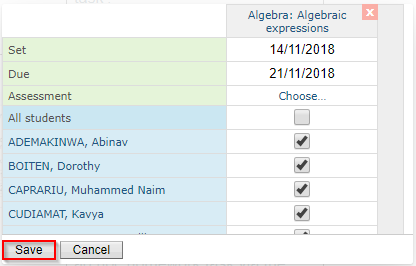
You can choose whether to set the homework task for all students in the list, or just a selection of students using the checkboxes.
Finally, click Save.
GO 4 Schools allows you organise these homeworks into Schemes of learning.
A scheme of learning is simply a collection of homework tasks that can be associated with one or more courses. It provides a means of grouping items to provide context for staff and make homework tasks easier to locate when assigning it to a group.
Schemes of learning can be accessed via Teacher, under 'HOMEWORK' you will see Schemes of learning options