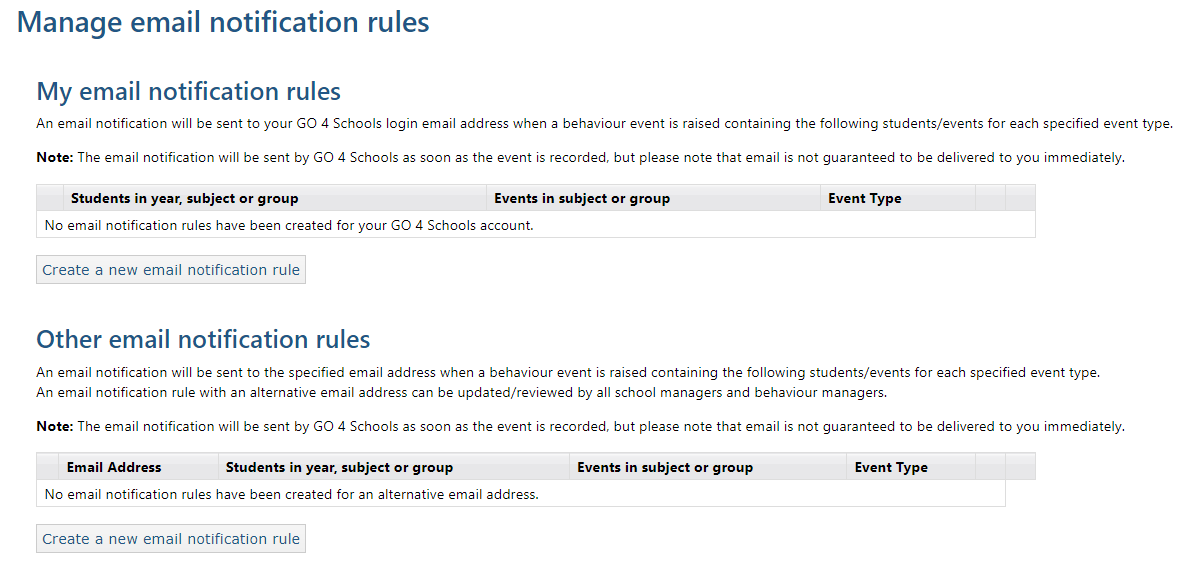
GO 4 Schools allows staff members with School Manager and Behaviour manager roles to setup rules which will trigger email notifications when certain behaviour events are raised for certain groups of students. For example, the form tutor of Group A may wish to receive an email each time a negative behaviour event is recorded against a student in that group.
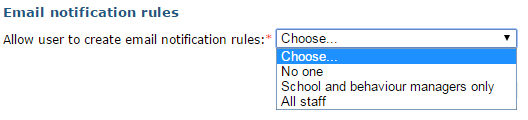
Turn on the functionality for your school (school managers only)
|
|
To enable this functionality, navigate to the settings tab on the Contact details and settings option on the main menu. Only school managers can see and change this setting. |
Enabling behaviour emails for yourself (all staff)
To set up behaviour email rules for yourself, navigate to your My settings link which is found in the top right-hand corner in the GO 4 Schools drop down list.
|
|
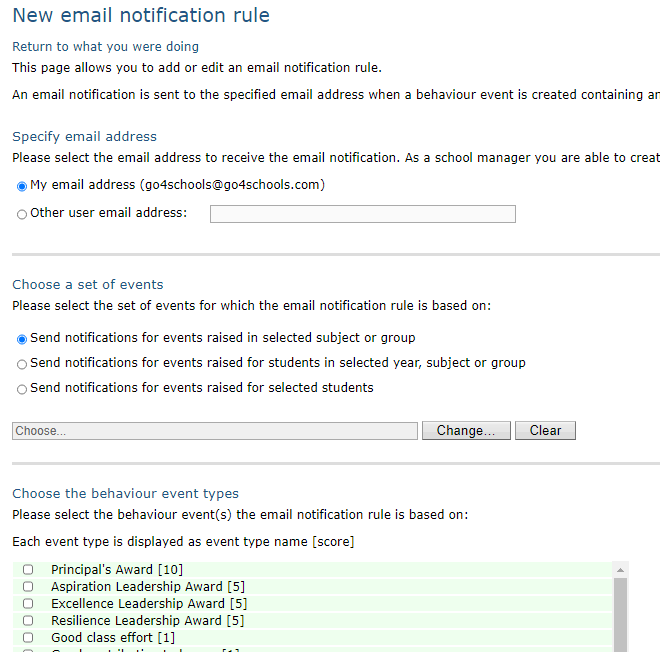
Click on Create a new email notification rule. |
|
|
|
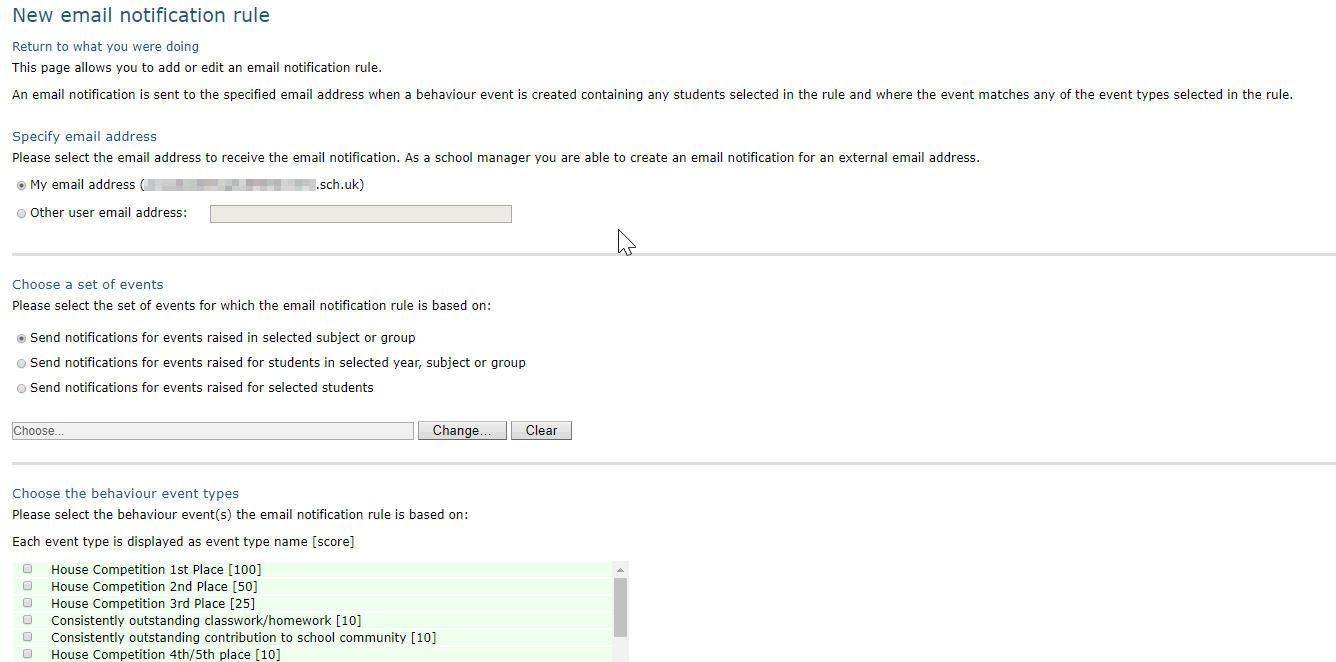
You can either apply your rule to a subject or teaching group, to a group of students or to individual students. To choose individual students select the radio button, then click on the Add students link. |
|
|
|
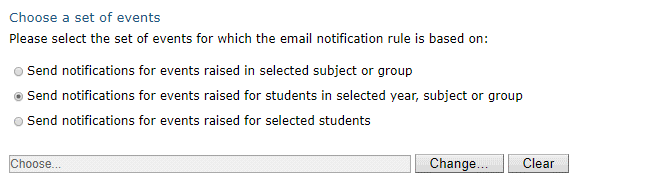
To choose a group of students click on the radio button, then click on the Change button next to the field shown below your selection. |
|
|
|
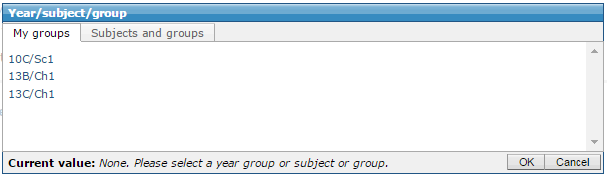
The My groups tab will display groups linked to your teacher account. |
|
|
|
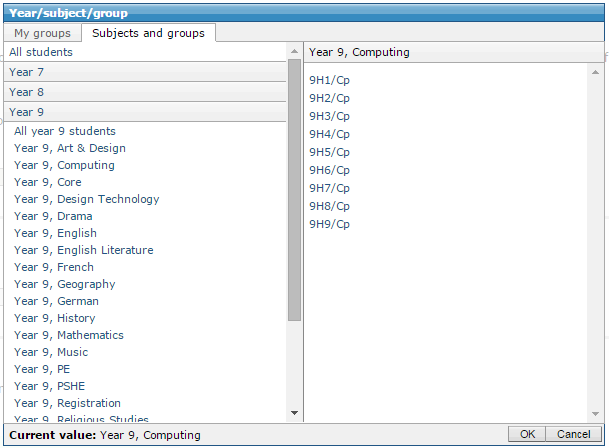
To find other groups you can navigate through the Subjects and groups tab. You can select all students, an entire year group, a specific subject or a particular group. Your final selection will show in the bottom of the window. |
|
|
|
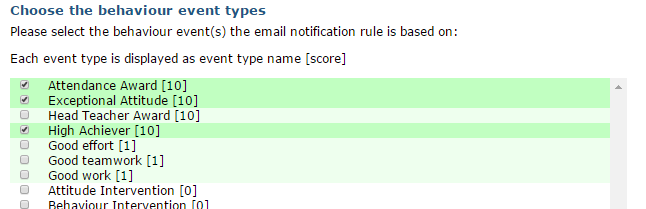
Finally, choose the behaviour event types you would like to be notified of and click the Create button at the bottom of the screen to complete your rule. |
|
|
|
You will see a message to tell you that the new email notification rule was successfully created. |
|
|
|
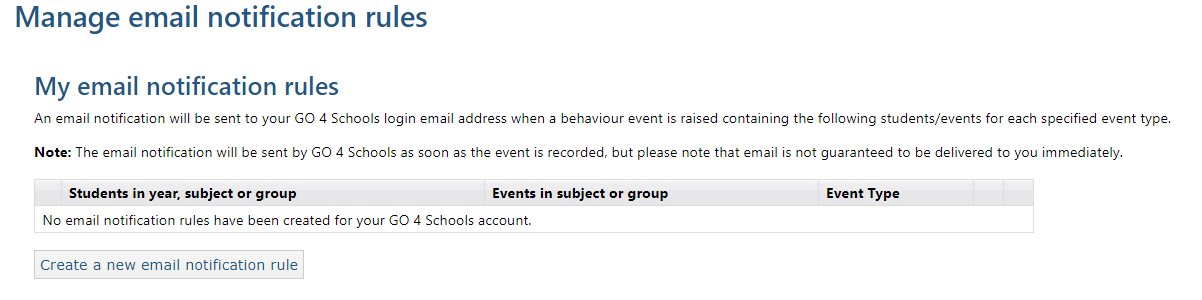
You can see all of the rules that you have created on your My Settings page. Hovering over the green ? will display a tooltip summary of the rule. |
|


Emails will only be sent when an event is raised and not when it is edited. For example if an event is raised for one student who has achieved 100% attendance an email will be sent. If later the event is edited and more students are added, no email will be sent.
There may be a short delay between behaviour events being raised, and receiving your email notification.
Enabling behaviour emails for other staff members (school managers and behaviour managers only)
School managers and behaviour managers have the ability to setup these email rules for themselves and other staff members. They will have an extra section on their My Settings page.
|
|
The button to Create a new email notification rule will take you to the same screen whichever one you select. |
|
|
You can choose either to setup a notification rule for yourself, or for any other email address. The email address that you enter can be an email address registered in GO 4 Schools, or any other email address. |