GO 4 Schools allows you to specify target and progress grades for students using grade files. You can specify grades for any subject, whether it is a GCSE, AS-level, A level, vocational course, KS3 subject, etc. This is a much broader range than the set of grades covered by the FFT, which is often the starting point for target grades used by a school. While current grades are calculated (in the full version of GO 4 Schools), target and progress grades are managed in two ways, either uploaded using a grade file, or manually edited in markbooks.
Uploading grades with a grade file
All grade types are available under the Curriculum menu:
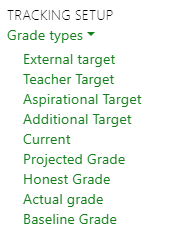
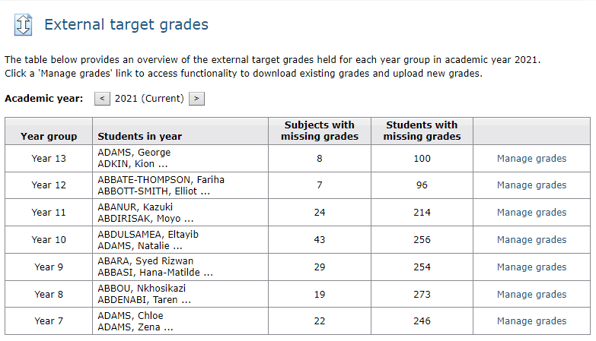
While the screenshots below show the External target grade type, the steps used apply to all grade types besides Current and Baseline Grade. When you click on a grade type, you will see all of your year groups, with a short summary of how many subjects and students are missing grades:
By clicking on Manage grades you get a view of all of your subjects for that year group, along with a count of how many grades are missing, as well as orphaned (grades for students no longer in the subject). In the below screenshot, we can see that two students are no longer in Art & Design, and that all the students for Assertive Mentoring are missing targets:
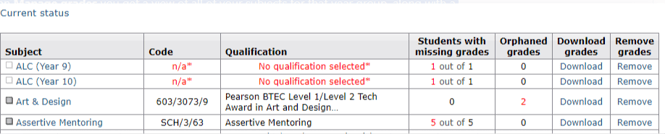
There are links to Download as well as Remove grades here as well. At the bottom of the page are tools to manage the grades for the whole year group as well, they will allow you to:
- Download a complete CSV file containing a record for every student, including combinations where grades are not known.
- Download a CSV file only containing rows for students where the grade is not known. This is helpful for identifying and filling in gaps.
- Delete all grades.
At the top of the table is the option to choose a file and upload new grades. The file needs to follow one of the accepted formats here. Once your file is selected and you click through, the grade file will be validated, and any errors found will be reported back:
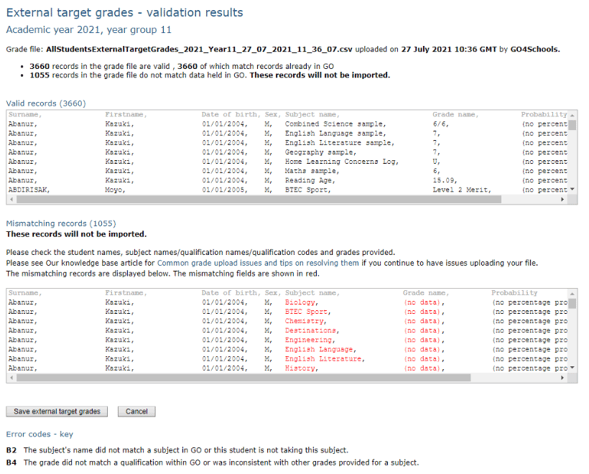
At this point you can either choose to save the valid grades, or cancel and not save any grades.
Changing the academic year for uploading grades
There will be times when you need to upload grades to a previous academic year (very common with Actual grades), to do this, on the grade management page there is an option to change academic years:
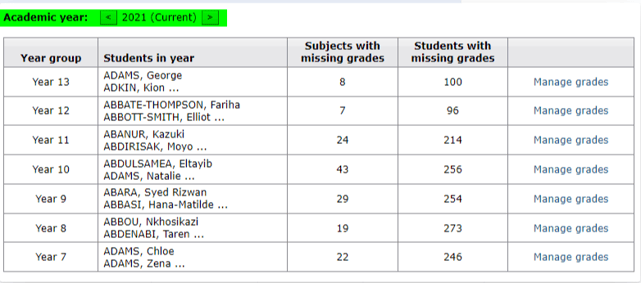
Clicking through this will allow you to change years, we provide student names in the second column to assist in identifying which year you need to upload grades.
Updating grades via markbooks
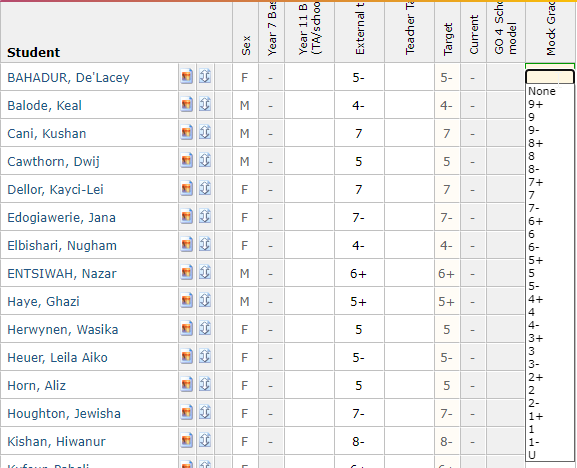
You can also update grades via markbooks. This is useful for teaching staff needing to enter projected grades, but also if you have a small amount of edits to make. You can either click and select the grade, or manually type it in: