
Introduction
All learners in their final year of Key Stage 2 must be assessed through teacher assessments. The general expectation is that the majority of 11 year olds will attain level 4 in each subject. The National Curriculum subjects (Key Stages 2 and 3) in Wales are split into two categories, core subjects and non-core subjects. For Key Stages 2 and 3, the core subjects are English, Welsh first language, mathematics and science (please note, at present it is not possible to upload KS2 Welsh as an actual. If you wish to upload to Go 4 Schools it will need to be uploaded as a ‘custom attribute’. Please refer to the video entitled Adding student attributes for further guidance). Uploading these results to GO 4 Schools will give you access to:
- Progress statistics for subjects using grading schemes that have aps assigned.
- Progress transition matrices.
- Baselines (if you have selected calculated baselines).
- KS2 scores are displayed in markbook popouts and are available for selection in Data Explorers.
Preparing your file for upload
The KS2 data provided by your Consortium will be in whole levels, however they will need to be converted to sublevels for uploading to GO 4 Schools. The reason for this is that each sublevel carries a different number of points (e.g. 3c = 19 points, 3b = 21 points and 3a = 23 points). Where a school only has access to whole level data, we ask that the school chooses a sublevel to represent the whole level, for example you may choose to represent all whole levels with a b sublevel, so a 3 is uploaded as 3b, 4 as 4b etc. You can upload B, N to GO 4 Schools.
Two different record formats are supported for your convenience:
- Last Name, First Name, Date of Birth, Sex, Qualification Name, Grade
- UPN, Qualification Name, Grade
Qualification names
For KS1, KS2, and KS3 actuals, you should specify one of the special qualification names of:

Grade file conversion
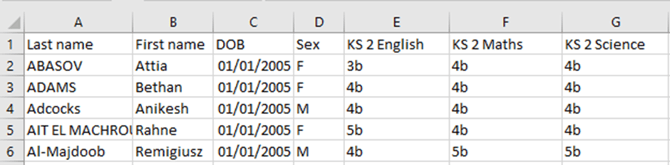
If you are using the format above (that contains one row per student and one column per subject), you can use the Grade File Conversion tool to convert from this format to the format that GO 4 Schools requires. Links to the Grade File Conversion page can be found at the bottom of each of the grade upload pages. At present the Grade File Conversion process supports the Simple format described above only. Please note that when using the Grade File Conversion, UPNs (option 2) will not be accepted unless you follow the instructions in Using the grade file conversion tool with UPNs.
Using the grade file conversion tool with UPNs
If you are uploading grades to GO 4 Schools using UPN as the identifier, but need to use the grade file conversion tool, you need to set your file up like this:
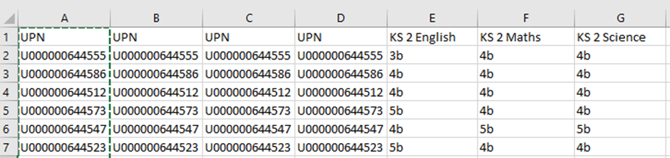
You will notice that the UPN column has been copied so it appears four times. This is necessary for the tool to work.
After using the conversion tool, your file will look like:
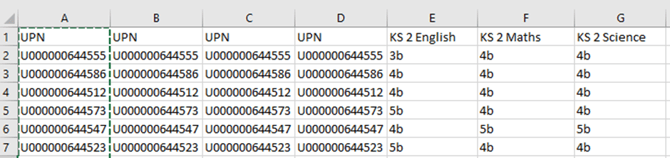
It is important at this point to delete the first three UPN columns so that only one remains:
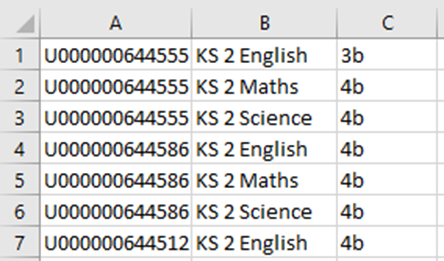
This is now in the correct format for uploading to GO 4 Schools.
Uploading your file to GO 4 Schools
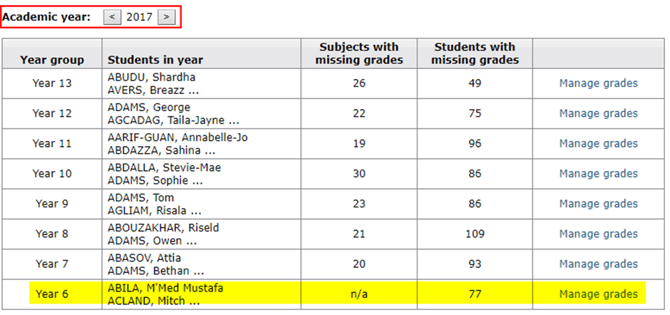
From the Curriculum menu navigate to Grades type > Actual Grade (it is possible this is displaying a different name if your school has customised the name of the grade using grade settings). Use the arrows to move back to the academic year in which the student’s sat their KS2 exams (i.e. to Year 6). For example, when uploading KS2 actual grades for Y11 students, you must step back five academic years. You will see the example students change year group in the table, until they appear to be in Year 6. You then Manage Grades for the students as they were in Y6.
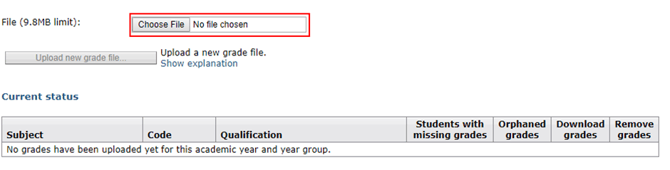
You then upload the transposed file here:
File Validation
As well as checking the students details, GO 4 Schools uses the following rules when interpreting the contents of a CSV file:
- Records that do not match one of the required formats are rejected. This includes blank lines.
- Dates (whether dates of birth or values to be held for attributes) can be provided in a wide range of formats, but the recommended format is dd/mm/yyyy e.g. 31/12/2011. (A date such as '12/2/2010' will be interpreted using a UK format as 12th Feb, rather than 2nd December.)
- Sex can be provided as M, F, m, f ( i.e. it is not case sensitive).
Uploading KS2 Results
Video
Uploading KS2 Scores
Video
Where do I see the uploaded KS2 results?
- Student page: in the Key grades/levels achieved section (at the bottom of the page).

- Year group explorer: they appear on the right hand side of this page.
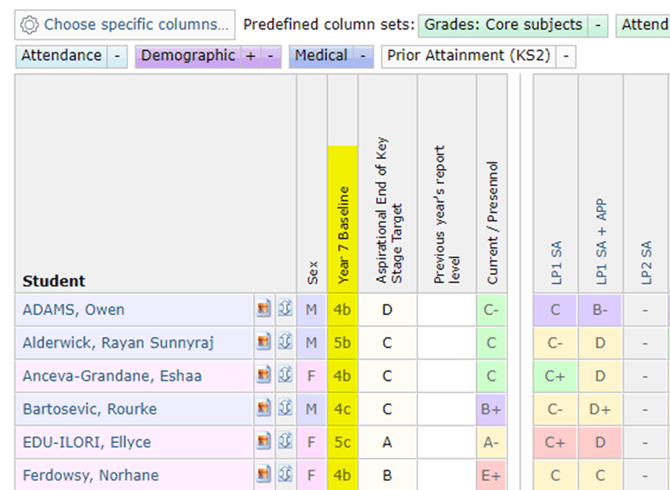
- New year group explorer: can be found under ‘Grades: Core subjects’ and also under ‘Prior Attainment (KS2)’
- Depending on your grade settings, they can populate your baseline grade column.
Baselines
If you have Calculated baselines set (under Progress Preferences on the Statistics and analysis settings page), then depending on the settings you have selected, baselines will be calculated from an average of KS2 English and Maths. As well as baselines appearing in markbooks, Transition matrices for subjects other than English and Maths will use baselines).
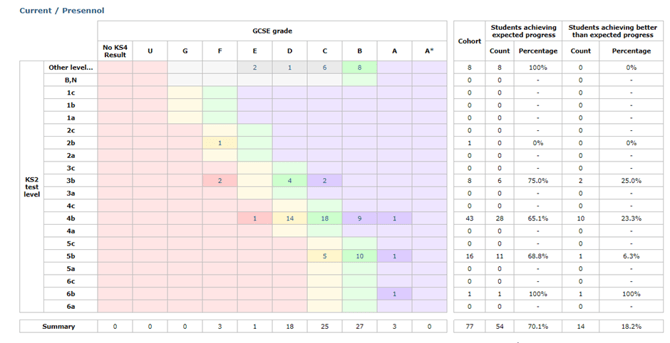
If you have not uploaded data into KS 2 English then the average will be based solely on KS 2 Maths, and vice versa. It is important to note that the uploaded KS 2 English will not be used as a baseline in your English markbook unless the English version of the assigned qualification is used (the same applies for Maths and Science – all other qualifications may use the general’ version of the qualification):
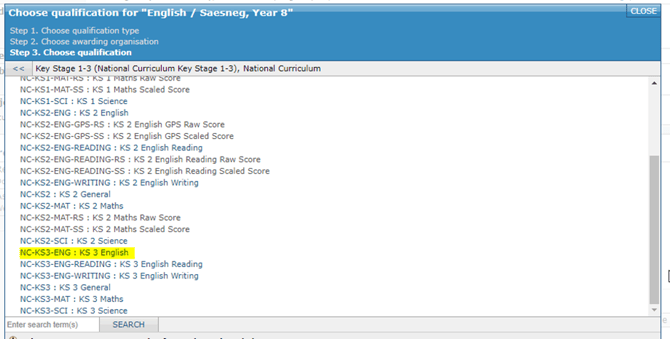
Please refer to the section on Uploading actual grade