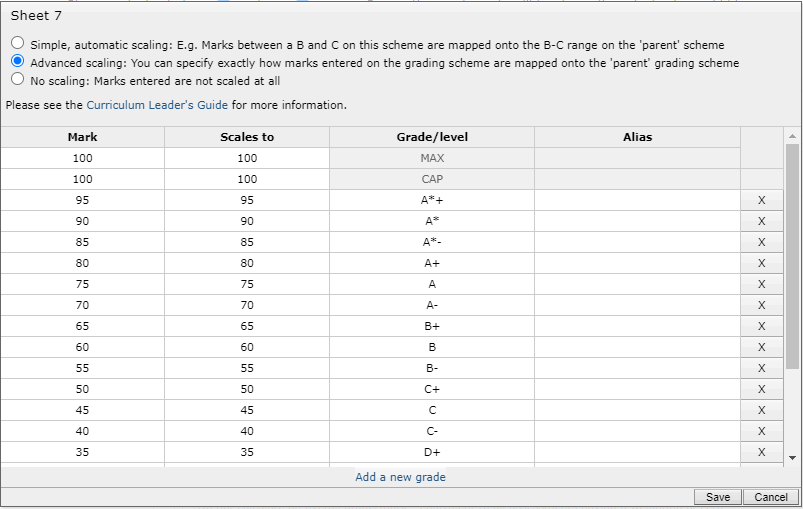
The advanced scaling option allows you to specify the scaling between your marksheet mark/percentage, and the overall markbook mark/percentage. This is used in a few circumstances where automatic scaling doesn't provide enough control:
- Your markbook scheme is fine level GCSE, but at the marksheet level you only want whole level GCSE grades - you will need the advanced scaling option in order to remove the + and - grade options.
- You want an extra grade to appear at the marksheet level, that is not available at the markbook level.
- You want to scale UMS marks to be scaled to, rather than using the default percentages. You can enter these values in the Scales to column.
The Scales to column allows you to specify and manipulate grade boundaries. This allows you to specify how an input mark should be converted into an output mark, e.g. how to convert an input mark of 80% for a foundation assessment to an output mark of 60% on the overall markbook grading scheme.
The Mark column relates to the input mark. The number at the top of the column next to the MAX label specifies the denominator for the numbers below it. If you enter 100 at the top, the numbers below will be percentages. If you enter 40 at the top, the numbers below it will be treated as marks out of 40. The Scales to column relates to the output mark. As with the mark column, the value at the top relates to the denominator for the numbers below it.