
When you first access your feed rules (via the Curriculum menu), your list of rules will be empty, by clicking the Add a new rule button you can create new feed rules. As your rules are created they are listed in the order that they will be applied to the feeds:
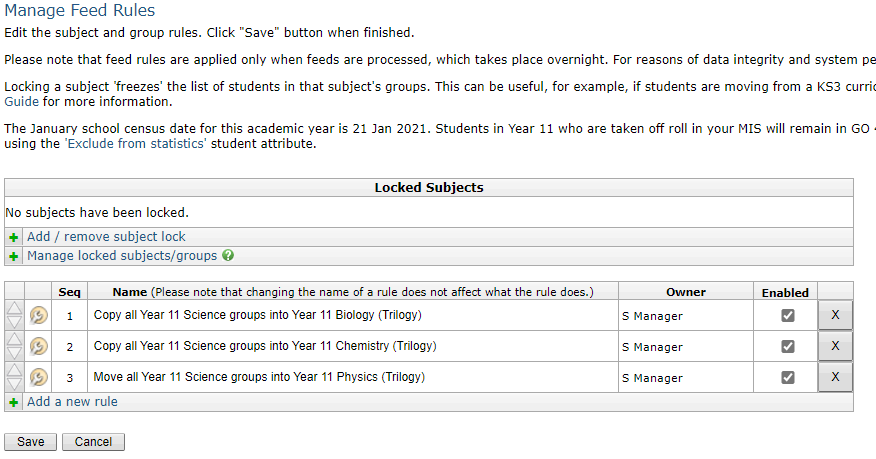 There are six actions you can perform on this page:
- Add a new rule by clicking the Add a new rule button.
- Edit an existing rule by clicking the spanner icon to the left of a rule.
- Rename a rule by editing the name in the Name column.
- Delete an existing rule by clicking the X to the right of a rule.
- Enable/disable a rule by ticking/unticking the checkbox in the Enabled column to the right of the rule.
- Change the sequence that the rules are applied by clicking the up/down arrows to the left of a rule.
Note: None of the changes you make on this page will be saved until you click the Save button at the bottom of the page.
Warning: Changing the sequence that rules are applied in, or disabling rules, can have a significant impact on the outcomes as each rule acts on the output of previous rules.
Warning: If you change the name of the destination subject for a move or copy rule, the group(s)/student(s) will be moved/copied into a subject with the new name. If a subject with the new name already exists, the moved/copied groups will be added to that subject; if not, then a new subject will be created. Marks entered for them under the old subject will not follow them automatically.
If you need to retain marks for affected students, you may want to consider:
- Downloading the marks entered for the old subject as a CSV file, which can then be uploaded to the new subject. This will need to be done before the feed is processed.
- Copying the markbook from the old subject to the new subject - which will copy marks across, but is only possible when the new subject does not already have a markbook. This will need to be done after the feed is processed.
- Using a rename rule to rename the old subject to the new name, rather than changing the name of the destination subject in the move/copy rule itself. This will not affect the marks held for the students at all - it will just rename the subject.
If you have lost marks due to a rule change, you should be able to recover them by undoing the change and waiting for a feed to run overnight.
Suggested strategy
- Work with your exam officer to make sure curriculum leaders have chosen the correct qualifications for their subjects using the Subjects and Qualifications page.
- If there is a mismatch, i.e. the qualifications that you see do not match the qualifications that you expect to see, it may be because a curriculum leader has chosen the wrong subject, or it may be because a subject in your MIS actually represents multiple qualifications. This may indicate a need to add a rule to split a subject.
- Once you have consolidated the list of subjects, you might want to clean up their names by adding renaming rules.