If your school has the behaviour module you can record behaviour events for students or groups of students. You are able to do this from the menu, but also the student page, subject page, markbook, and if you have attendance, registers.
Recording a behaviour event
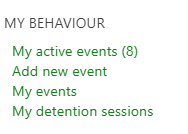
To record a new behaviour event, you can use the link in the Teacher menu Add new event:
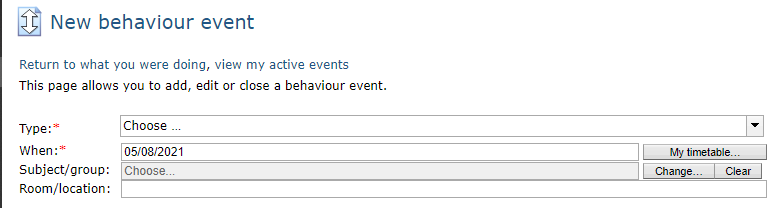
This will open up the New behaviour event page. At the top of the page you select the following:
- Type - The dropdown box will list all of the available behaviour types that have been set up.
- When - This will auto-populate with today's date, if you click the box a calendar will load so you can select a past/future date as needed. Alternatively, you can use the My timetable... button to load your timetable to pick a specific lesson.
- Subject/group - Clicking on this field will allow you to select from a list of your groups, or any group in the school - this field can be left blank. If you use the My timetable... button, it will auto-populate.
- Room/location - If not auto-populated, this field can be filled by typing.
The next section allows you to add:
- Students involved - Clicking the Add students button will allow you to choose from the current group (if a subject/group has been selected), browse by any subject/groups, or search by student name.
- Staff members involved - This field allows you to add in any other staff members who were present during the behaviour event. This will add the event to the staff member's list of events.
- Share with other staff - Any staff members who should be notified (e.g. Head of Year) can be added in this field. This will add the event to that staff member's list of events.

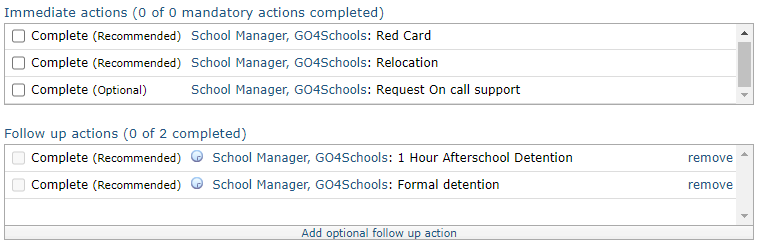
When the type of behaviour event is chosen, any immediate and follow up actions that have been specified for the event will auto-populate the below fields, and display whether the actions are mandatory, recommended or optional. For all immediate actions staff can mark these actions as complete by ticking the box. For managed detention types of follow up actions, the tick box is unable to be selected, as the action can only be completed once the student has attended/completed the detention. Recommended follow up actions are automatically loaded, and you can remove items you do not need to assign. You can also add additional optional follow up actions by clicking on the Add optional follow up action button.
You can change the name of the staff member responsible for an action by clicking on the name currently associated with the action – this will give you a list of all available staff members for your school. Once selected the event will be added to the staff member’s list of events.
 School Notes and Home notes are free text fields. Both can be set to be mandatory by school managers, and Home notes can also be set to be hidden so that staff cannot enter notes that parents can see. School Notes are never displayed to parents/students, Home notes always are.
Mark this event as closed can be used to close the behaviour event. This is typically done once all the actions linked to the event have been completed, but is not required. With events with managed detentions attached, This box will be automatically ticked once the managed detention has been attended and completed, as long as all other actions are complete as well.
Mark this event as cancelled can be used to completely remove an event from the student/parent views and do not count towards behaviour scores in any way, but will persist in your event list. We don’t remove cancelled events from GO 4 Schools as they may have been cancelled in error and to remove them would delete them completely from the system.
Recording group behaviour
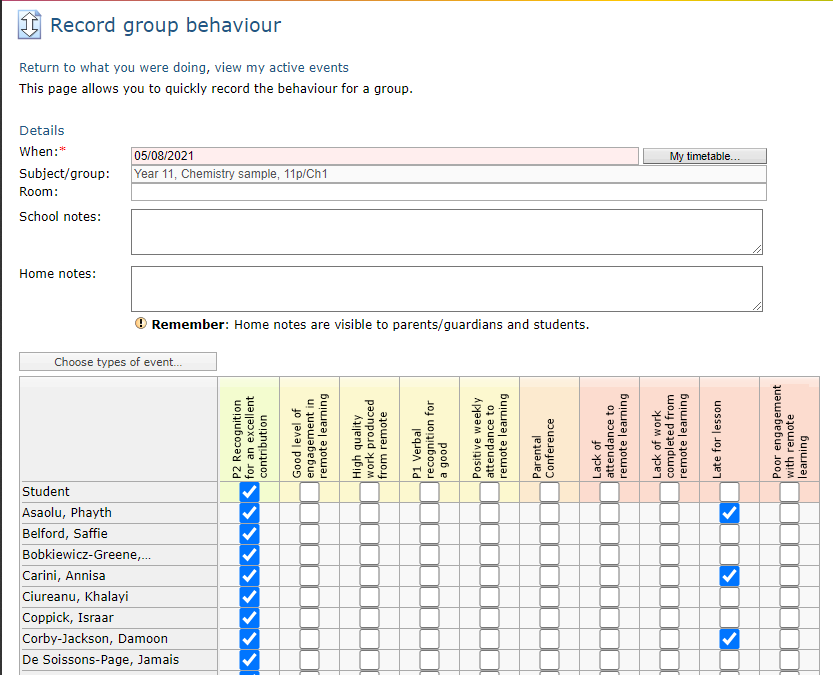
If you want to record multiple events for students in the same group, this can be done quickly by using the Record group behaviour page. This page can be found from the top of any group page, including markbooks and registers.


The types of events that appear automatically on the below page will have been chosen by your behaviour/school manager as priority event types. Clicking on the button Choose types of event... allows you to add/remove event types from a complete list. You can then select multiple event/student combinations. A new event will be created for each different type chosen. Where a single event type has multiple students, a single event will be created. Any notes in the school/home notes field will apply to all events.