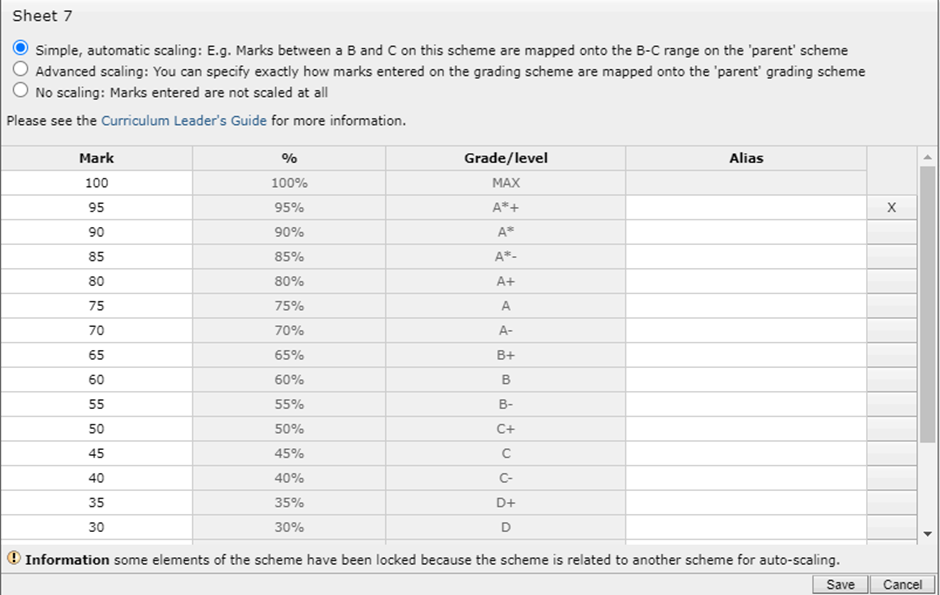
Of the three methods of scaling assessment/marksheet to marksheet/markbook grading schemes, Simple scaling is the most common. In the simple, automatic mode, the grading scheme editor allows you to:
- Change the boundaries for the grades by changing the number of marks in the first column. Note that the number at the top of the column to the left of the MAX label specifies the denominator for the numbers below it. If you enter 100 at the top, the numbers below will be percentages. If you enter 40 at the top, the numbers below it will be divided by 40 to produce the percentages, e.g. 10/40 = 25%.
- Remove grades you do not want by clicking the X buttons at the right hand side of the editor. This is useful when setting up a marksheet that should only have foundation or higher grades, as you can remove the A* - B or D - G grades. Please note that you will only be allowed to remove grades from the top and bottom of the range of grades in order to allow automatic scaling to work.
- Change the names displayed for grades at the marksheet level by adding values in the Alias column.