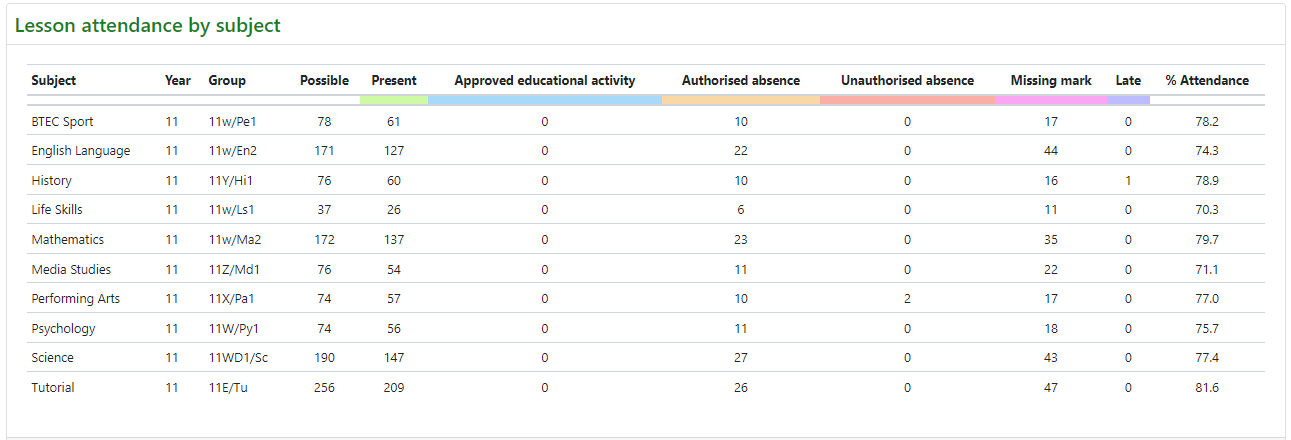
How much attendance data is visible to you in GO 4 Schools depends on which tier of attendance your school has subscribed to. There are four different tiers:
- None - GO 4 Schools will pull summary data from your MIS and display student session attendance data only.
- Tier 1 - GO 4 Schools will pull both session and lesson attendance data from your MIS.
- Tier 2 - You record session attendance only via GO 4 Schools, and the data is written back to your MIS
- Tier 3 - You record session and lesson attendance via GO 4 Schools, and the session data is written back to your MIS.
Markbooks - session attendance
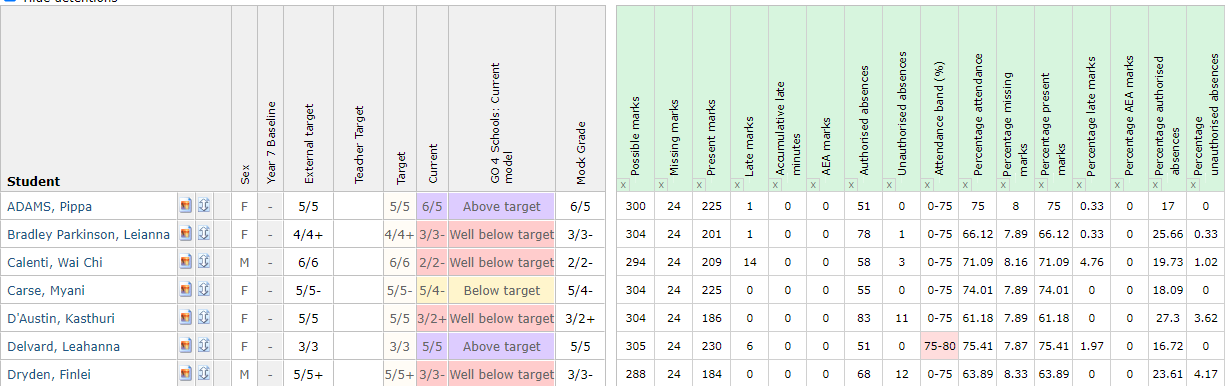
Available to all schools - within markbooks you can select the Attendance: Session popout to show the attendance statistics for individual students in the current group (note that Attendance bands are only available to schools on tiers 1-3).
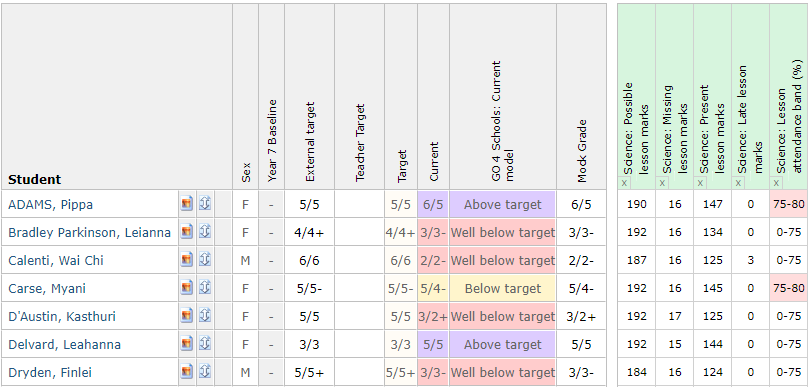
Markbooks - lesson attendance
Available to schools on tiers 1 and 3 - within markbooks you can select the Attendance: Lesson popout to show the lesson attendance statistics for individual students in the current group.
 Explorers - year group and subject
All schools will be able to see some session attendance data in the year group and subject explorers. Schools with tier 1 and 3 will also be able to see lesson attendance statistics in the explorers.
 Explorers - attendance explorer
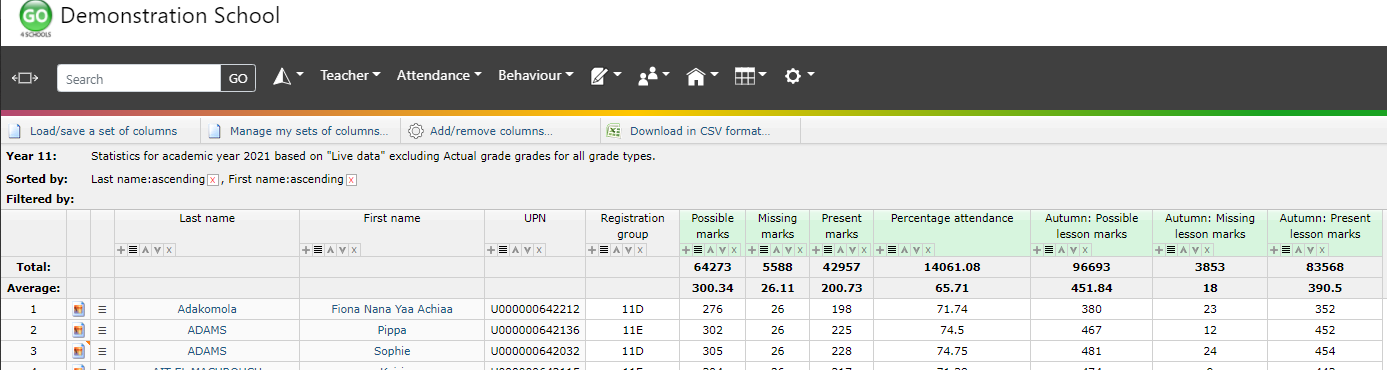
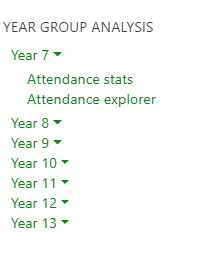
The attendance explorers offer attendance data in more detail than the other explorers and are available from the Attendance menu, by year group:
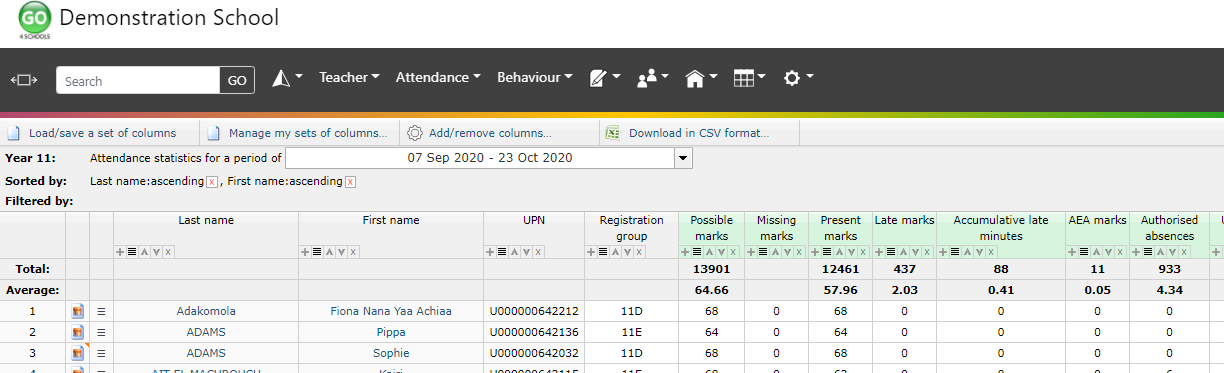
You will be shown a default set of columns for the previous week. You can change the period of time using the date picker. Columns can be fixed, filtered, sorted on, or removed as required using the icons beneath the headers.
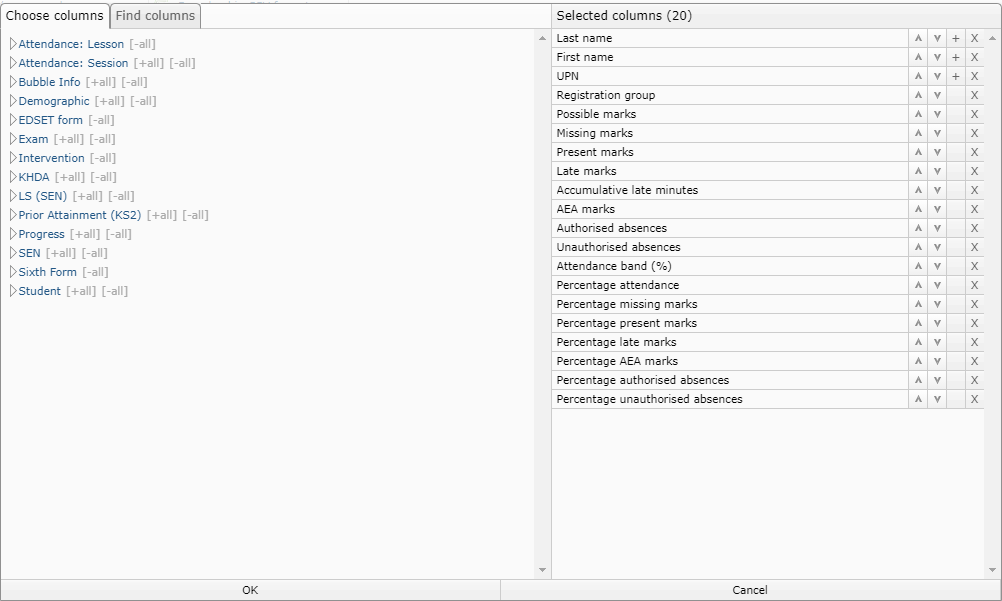
 If you would like to choose your own columns, click on the Add/remove columns button. Here you can choose which columns to add, remove, or fix. To help find columns you can use the search box on the Find columns tab. When you've finished making your changes click on OK to see the data.
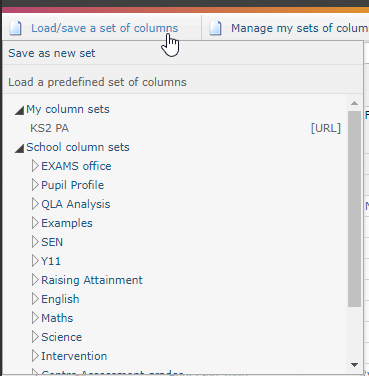
 In the top left of the explorer you can Load/save a set of columns. This will allow you to save a set of columns for yourself. School managers and curriculum leaders can also create column sets that can be shared with all users.
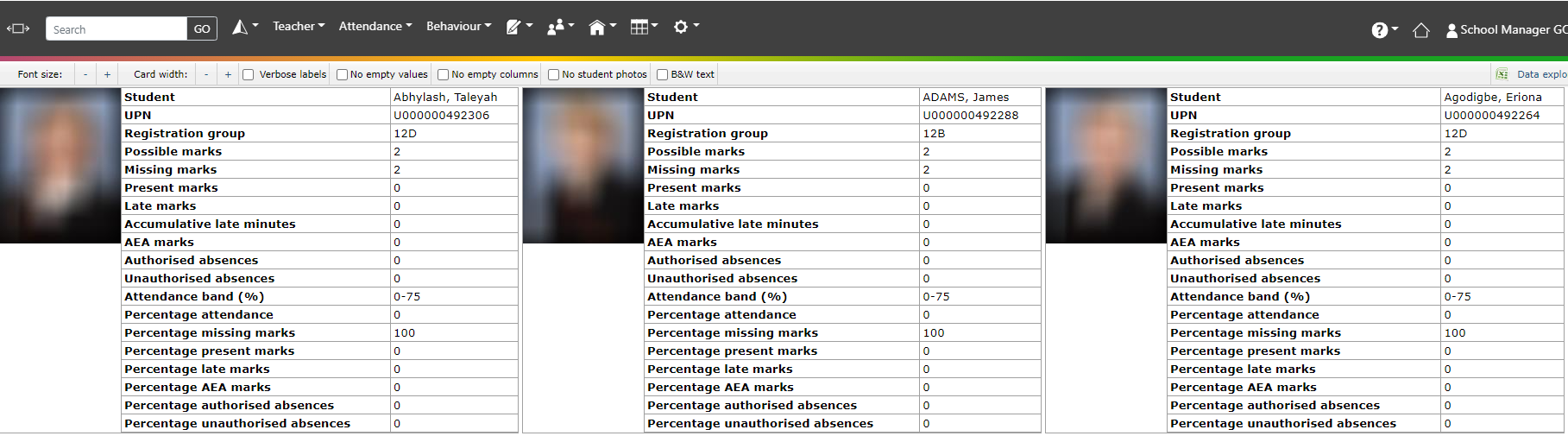
You also have the option to download the data in CSV format, or view the data in a postcard view:
 Attendance statistical analysis pages
If your school has subscribed to tier 1 or above of the GO 4 Schools attendance module, you will also have a link to attendance statistics for predefined groups of students, such as KS3/KS4 students and KS5 students. These links are available under the Attendance menu:
On the page you will see charts showing attendance data over time, as well as details of mark types, as well as persistent absentee data and focus group attendance data.
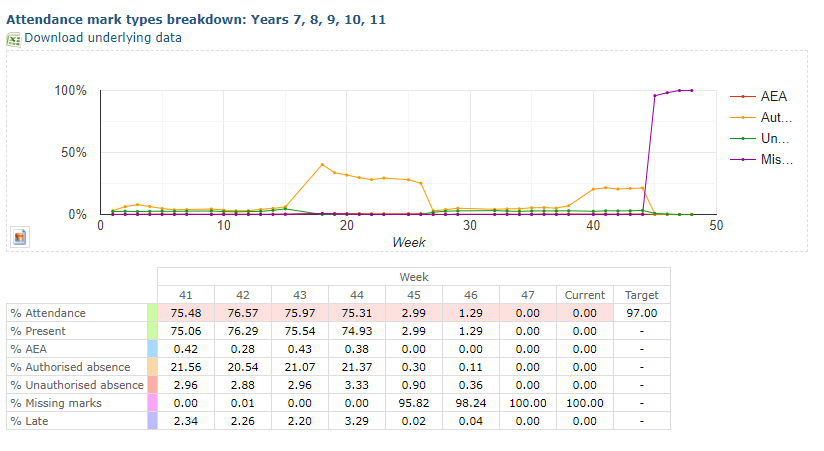
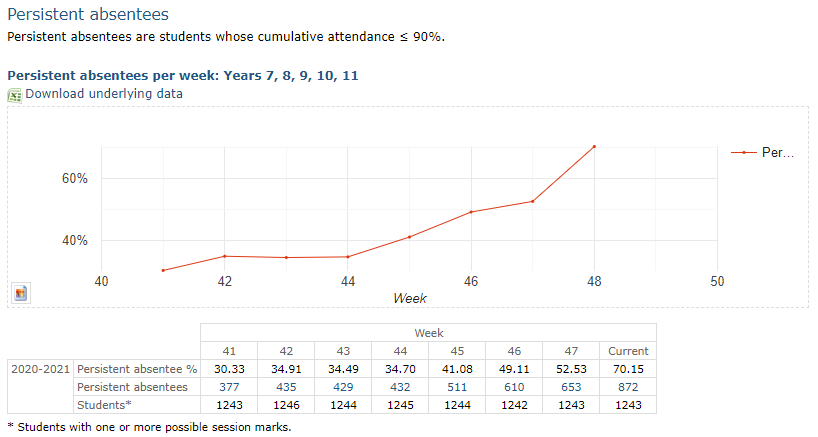
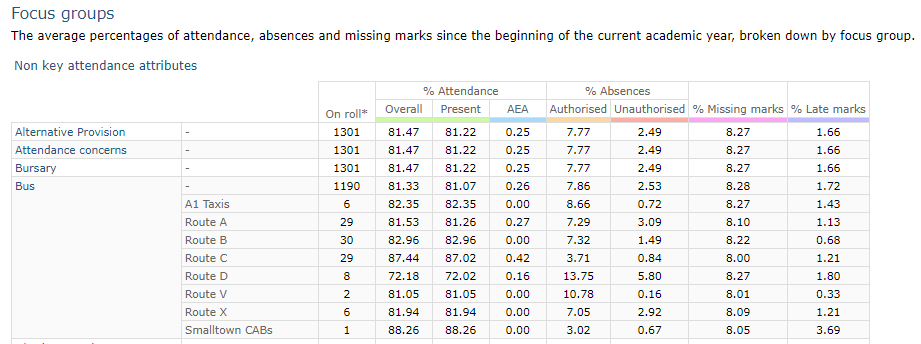
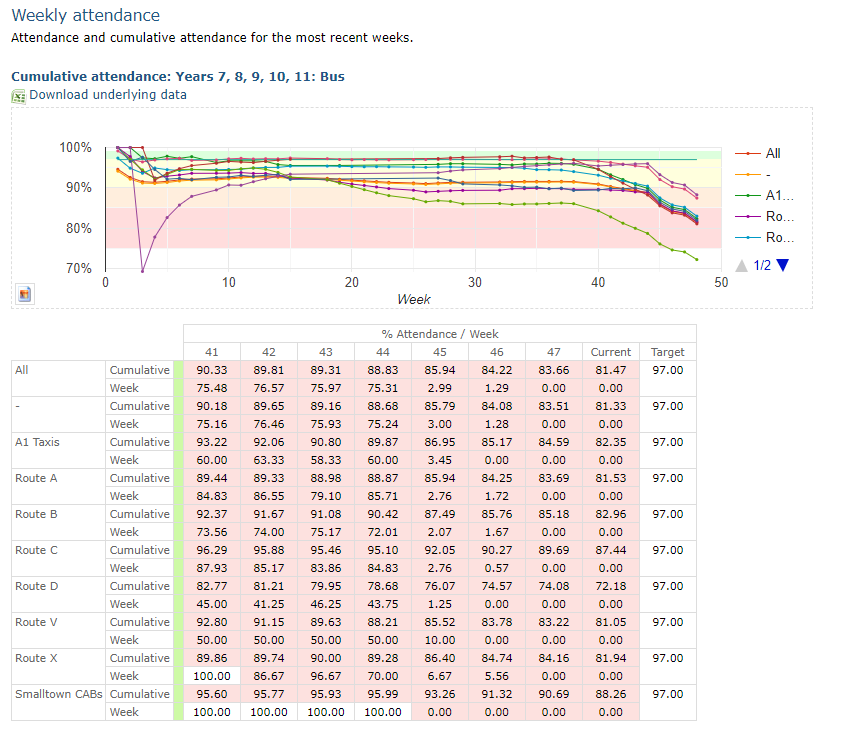
By clicking on any of the links in blue, you can view attendance by those focus groups only, below is the KS3/4 year groups attendance broken down by the Bus attribute:
 Detailed student attendance
Attendance summary data can be see in detailed views on the student page by accessing the Attendance tab. Your views will depend on the tier of attendance you have with GO 4 Schools.
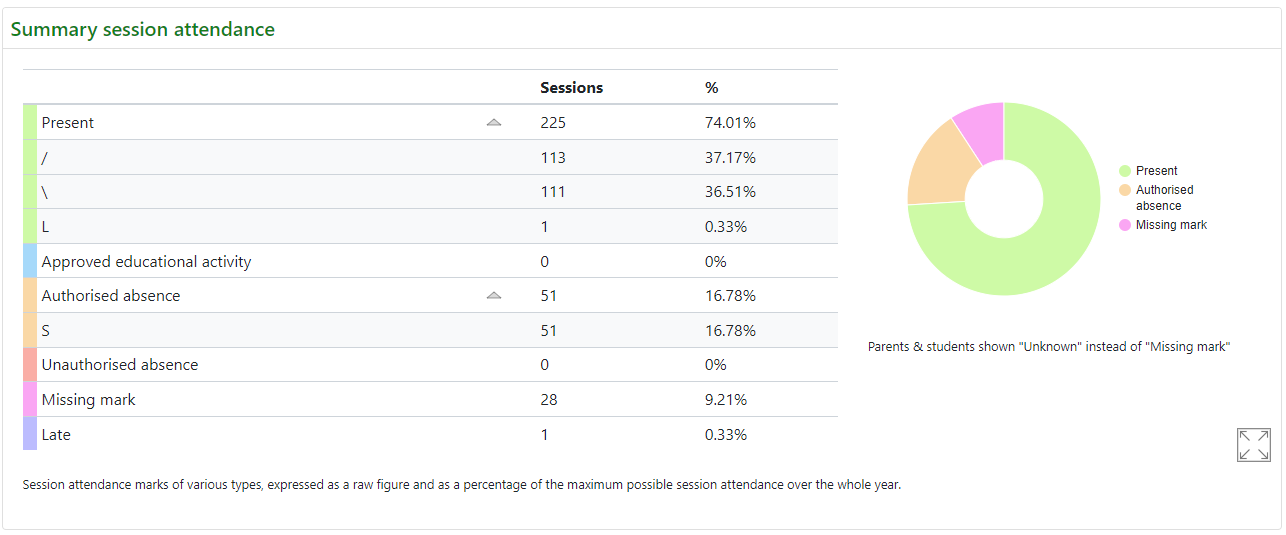
There is a summary of their session attendance data, with drop downs to show specific codes:
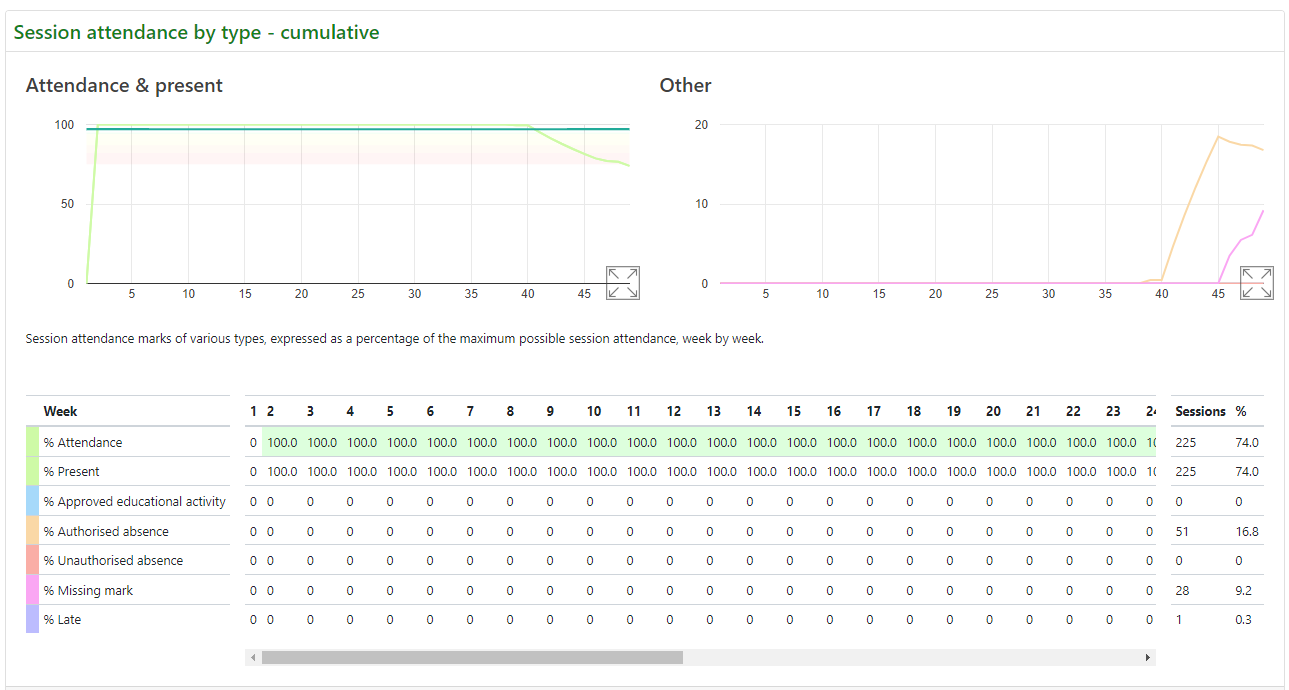
 A weekly/cumulative session detail:
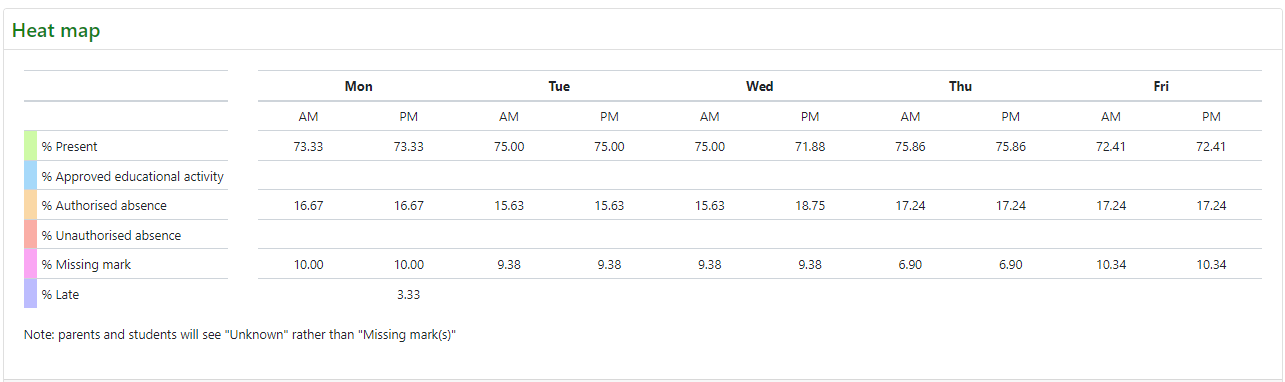
 A heat map to identify patterns:
 As well as a lesson attendance breakdown: